Trace Explorer
Middleware Trace Explorer lets you search, visualize, and inspect distributed traces and spans collected from your applications. A trace represents a request across instrumented services, and each span describes an operation within that request.
Use it to follow a request across services, identify where latency or errors occurred, and inspect the attributes, events, logs, infrastructure, and metrics associated with individual spans.
With Trace Explorer, you can:
- Follow a request across services and see where execution time was spent.
- Identify slow spans, deep call chains, and spans with errors.
- Narrow large traces to spans containing errors, logs, or events.
- Inspect span attributes and use their values to filter other traces.
- Trace exceptions to the span where they occurred and inspect the associated stack trace.
Trace list#
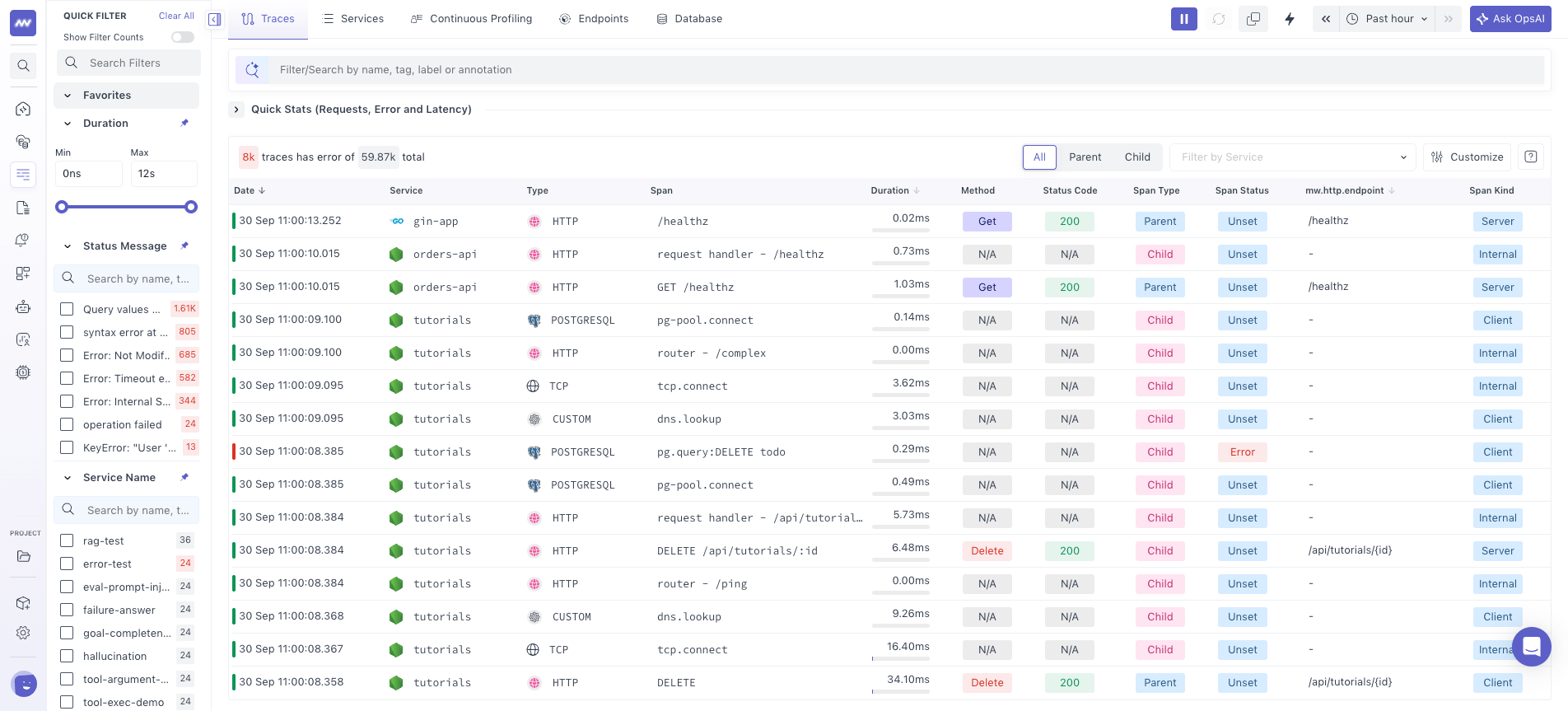
Go to APM → Traces to view ingested traces and spans.
The trace list provides information such as:
- Service
- Span name and type
- Status
- Latency
- Latency breakdown
- Other span attributes
Use the search bar to find spans by name or other searchable values. You can also use the filter panel to filter traces using available span attributes.
For example, you can narrow traces by service, status, span type, or other attributes collected with your spans.
You can also switch the table to a parent/child span view to focus on the relationship between spans within a trace.
Trace detail#
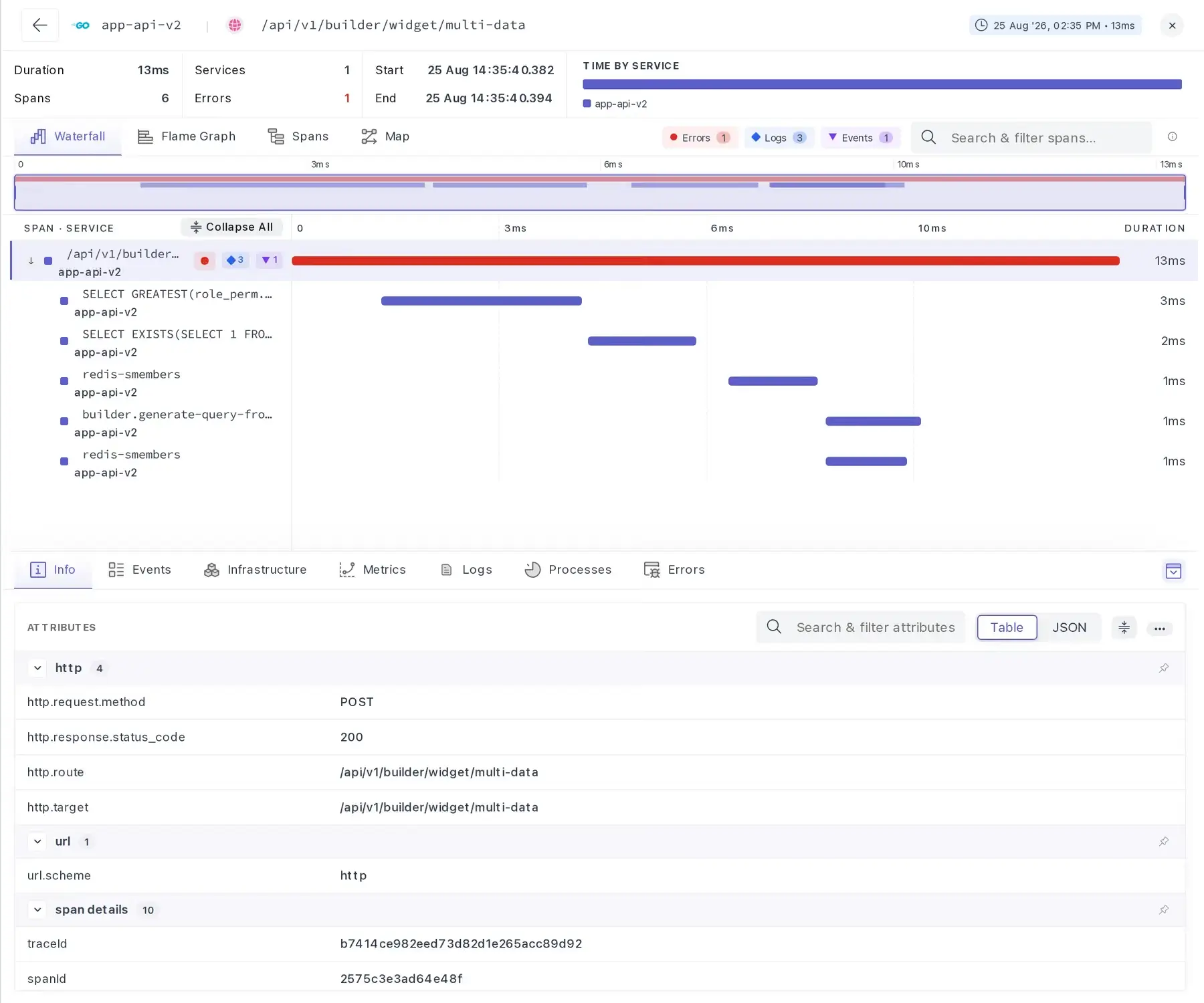
Select a trace from the trace list to open its Trace Details panel.
The panel provides multiple views of the same distributed trace along with detailed information about individual spans.
| Section | Contents |
|---|---|
| Header | Service, span name, and the time when the span ran |
| Trace Summary | Duration, span and service counts, errors, and time by service |
| View Switcher | Waterfall, Flame Graph, Spans, and Map views, along with search and highlight filters |
| Active View | Currently selected trace visualization |
| Span Details | Attributes, events, logs, infrastructure, metrics, and other context for the selected span |
Trace summary#
The Trace Summary provides a quick overview of the selected distributed trace.
| Metric | Description |
|---|---|
| Duration | Wall-clock time from the start of the first span to the end of the last span |
| Spans | Total number of spans in the trace |
| Services | Number of distinct services participating in the trace |
| Errors | Number of spans with an error status |
| Start / End | Start and end timestamps for the trace |
| Time by Service | Proportion of trace execution time associated with each service |
Time by Service helps identify where to begin a latency investigation. The individual spans then provide the operation-level detail needed to understand the time spent within that service.
Trace views#
Trace Explorer provides four ways to visualize the same distributed trace:
- Waterfall
- Flame Graph
- Spans
- Map

The four views are listed on the left of the navigation strip. Tabs can be dragged to reorder them, and the order is retained. The first tab in the order becomes the default view when the panel is opened.
Filtering a large trace#
Distributed traces can contain hundreds or thousands of spans. Use the minimap, search, and highlight filters to narrow the trace to the spans relevant to your investigation.
These controls can be used together.
Use the minimap to navigate through a large trace. Drag the selected window to move across the trace, or zoom in and out to change the visible range.
Search and highlight filters can then be used to focus on spans containing specific data, such as errors, logs, or events.

Span details#
Attributes#
The Attributes tab displays the attributes recorded for the selected span.
These can include standard OpenTelemetry attributes and application-specific attributes such as:
- HTTP route and method
- Status code
- Database operation
- Service information
- Resource attributes
- Custom span attributes
Use these values to understand the operation represented by the span or apply an attribute as a filter to find other traces with the same value.
Events and Exceptions#
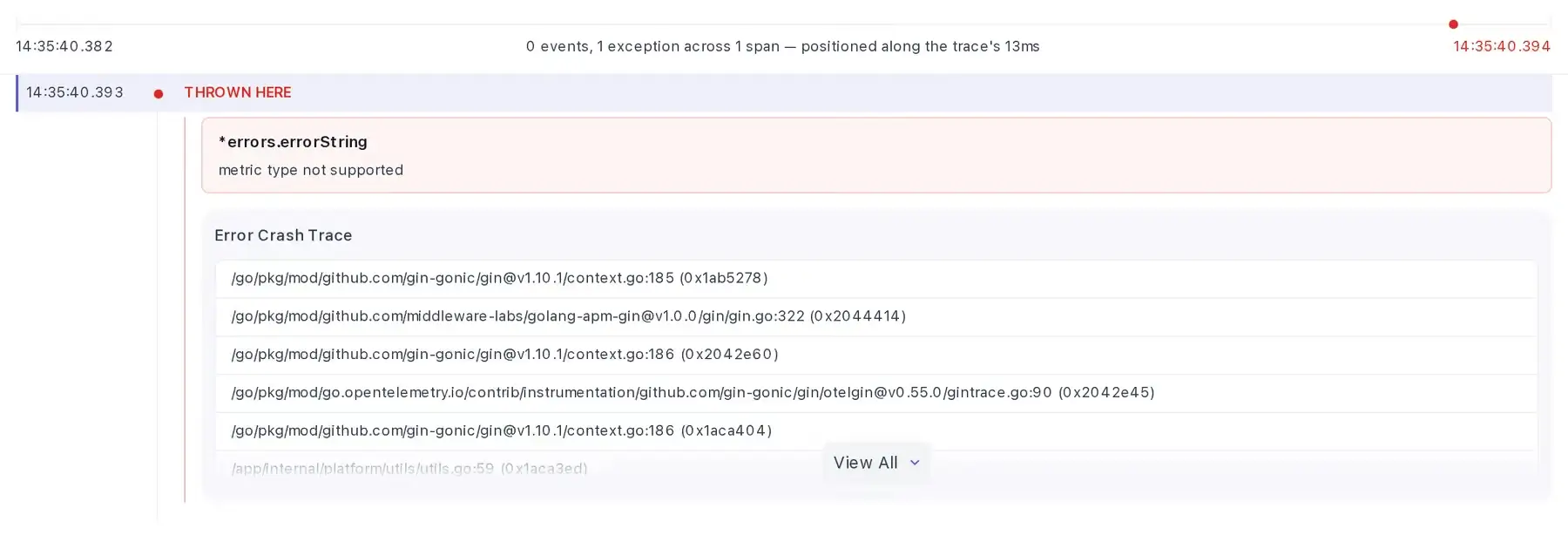
The Events tab displays span events and exceptions in chronological order.
When an exception is recorded, the timeline identifies where it was thrown and provides:
- Exception type and message
- The associated error stack trace
- View All to expand additional stack frames
Use this view to connect an error in the trace with the application operation and code path where the exception occurred.
Related Span Data#
Additional tabs provide context associated with the selected span:
| Tab | Contents |
|---|---|
| Infrastructure | Host, container, or pod where the span ran |
| Metrics | Resource metrics for the associated infrastructure around the time of the span |
| Logs | Logs correlated with the span |
| Processes | Process-level information for the span's runtime |
| Errors | Errors recorded against the span |
Related span data connects the application operation with available logs, infrastructure, and runtime information, keeping the investigation tied to the same request context.
View settings & shortcuts#
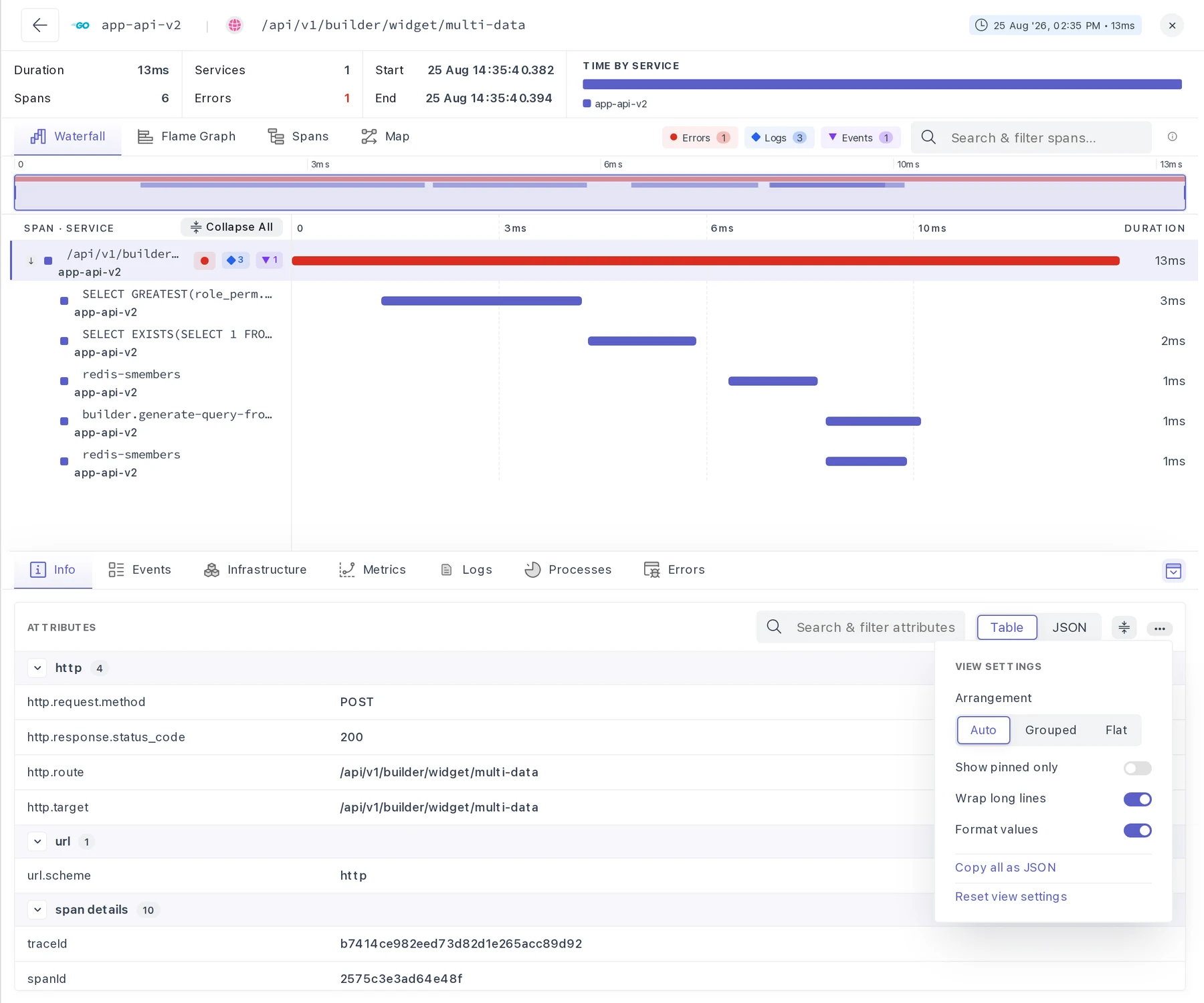
Additional preferences are available from the options menu. These settings are retained between sessions.
| Setting | Description |
|---|---|
| Arrangement: Auto | Orders groups according to the span type. A database span lists db first, an HTTP span lists http first |
| Arrangement: Grouped | Orders groups alphabetically |
| Arrangement: Flat | Lists attributes alphabetically without group headers. Individual attributes can be pinned |
| Show pinned only | Restricts the list to pinned groups or attributes |
| Wrap long lines | Sets the default wrapping behavior for long values. Individual rows can override it |
| Format values | Sets the default formatting for SQL and JSON values. Individual rows can override it |
| Copy all as JSON | Copies the attributes currently displayed |
| Reset view settings | Restores defaults and clears pinned items |
Trace Investigation workflows#
A typical trace investigation can follow this sequence:
- Check Time by Service to identify which services account for most of the trace duration.
- If the trace contains errors, apply the Errors highlight filter to isolate failing spans.
- Use the Waterfall view to identify where latency or failure occurred in the request flow.
- Switch to the Spans view and sort by % Exec to identify spans with the highest execution cost.
- Select the relevant span and inspect its Attributes, such as route, query, operation, or status.
- Open Events to check for exceptions and inspect the associated stack trace.
- Apply relevant span attributes as filters to determine whether other traces have the same behavior.
Trace Statistics & Adaptive Sampling#
The trace listing page provides summary statistics for traces in the selected time range.
These include:
- Requests and errors over time
- Average latency
- Successful requests
- Total span count
- Successful and error span counts
- Average response time
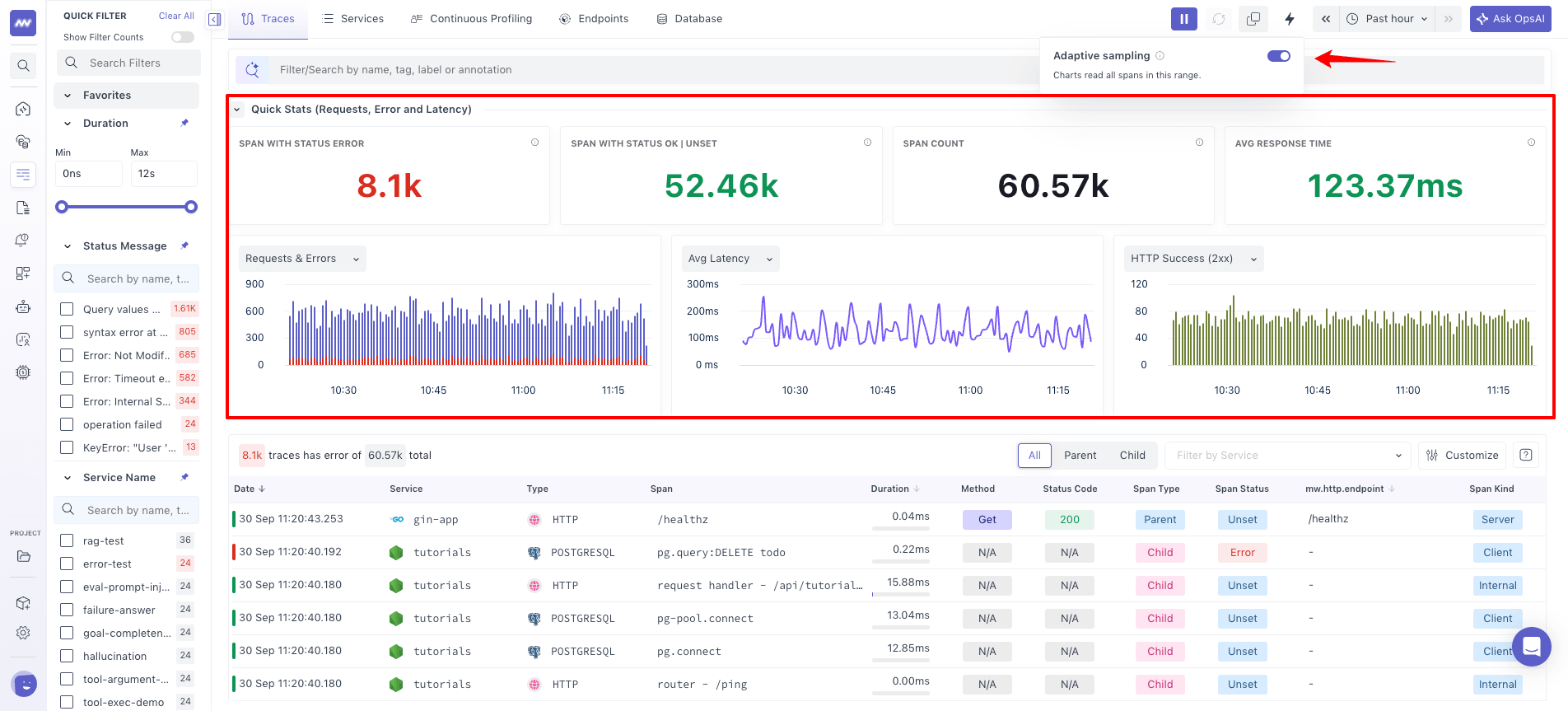
When Adaptive Sampling is enabled, Middleware automatically determines a sampling rate based on your trace volume and uses the sampled data to calculate and display these statistics.
Sampling reduces the amount of data that needs to be processed for these visualizations, which can improve loading time for environments with high trace volume.
Disable Adaptive Sampling when you want the statistics to be calculated using the full trace volume. Processing the complete dataset may take longer for environments with large amounts of trace data.
Note: Adaptive Sampling affects the trace statistics described above; it does not change the trace list.
Ask OpsAI#
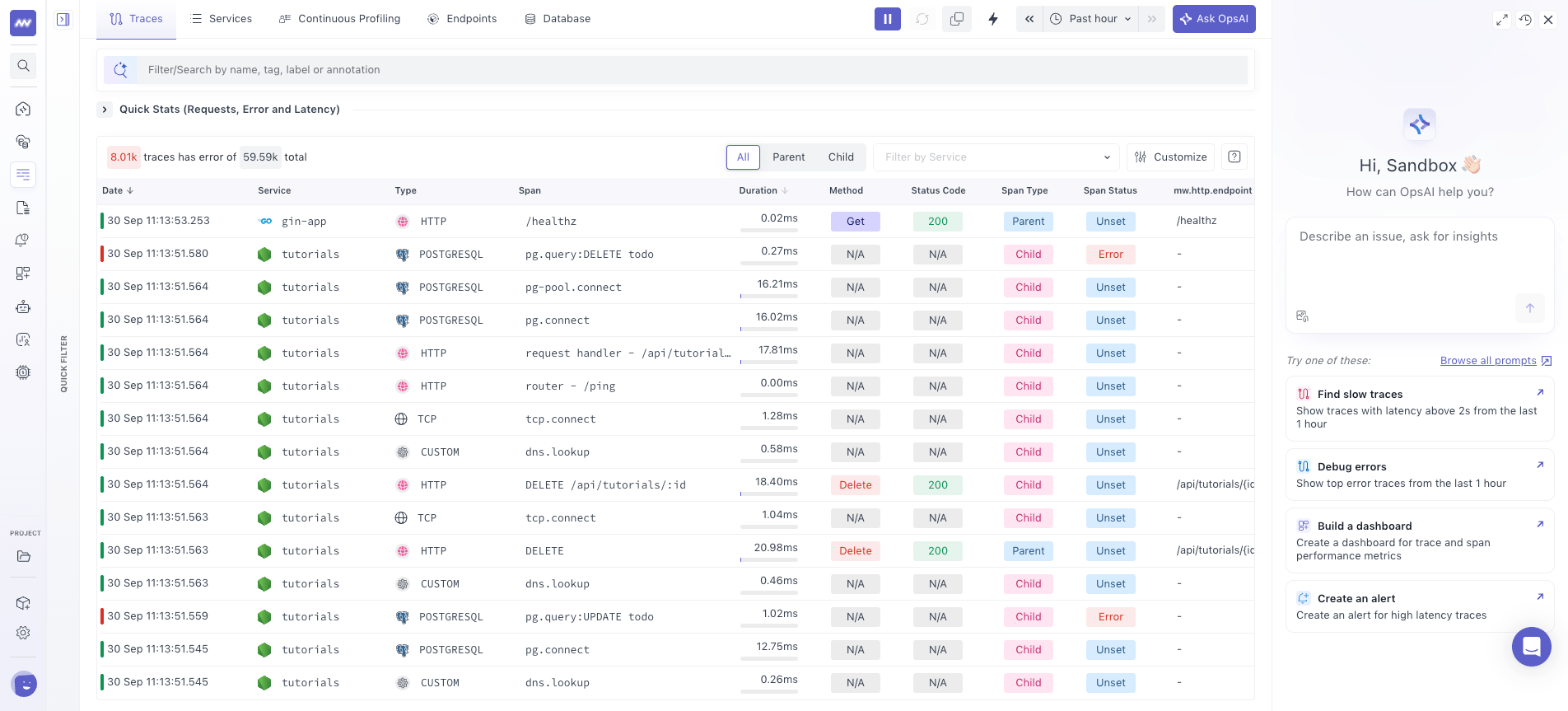
Use Ask OpsAI from the upper-right corner of Trace Explorer to investigate trace data using the current trace context.
You can use OpsAI to:
- Investigate errors in a trace.
- Analyze latency or performance issues.
- Identify a possible root cause.
- Get suggested debugging or remediation steps.
- Ask questions about the trace and its associated data.
When investigating a specific trace, OpsAI uses the trace context to help analyze the issue without requiring you to manually collect the relevant trace information.
Need assistance or want to learn more about Middleware? Get in touch with us via our Contact Us or join our Slack channel.
What did you think of this content?