Creating Alerts
Middleware alerts provide visibility into your infrastructure, enabling proactive detection and real-time response to performance issues and outages.
Middleware alert rules notify your team when monitored data meets a configured condition. Alerts help detect performance problems and outages, while the associated data provides a starting point for investigation.
Create alert rules for metrics, logs, traces, user sessions, LLM workloads, billing, SLOs, and other collected data. Define the condition that should trigger an alert, choose where notifications should be sent, and use alert details to investigate what happened.

Alert Types#
Middleware lets you create alerts across different types of collected and generated data.
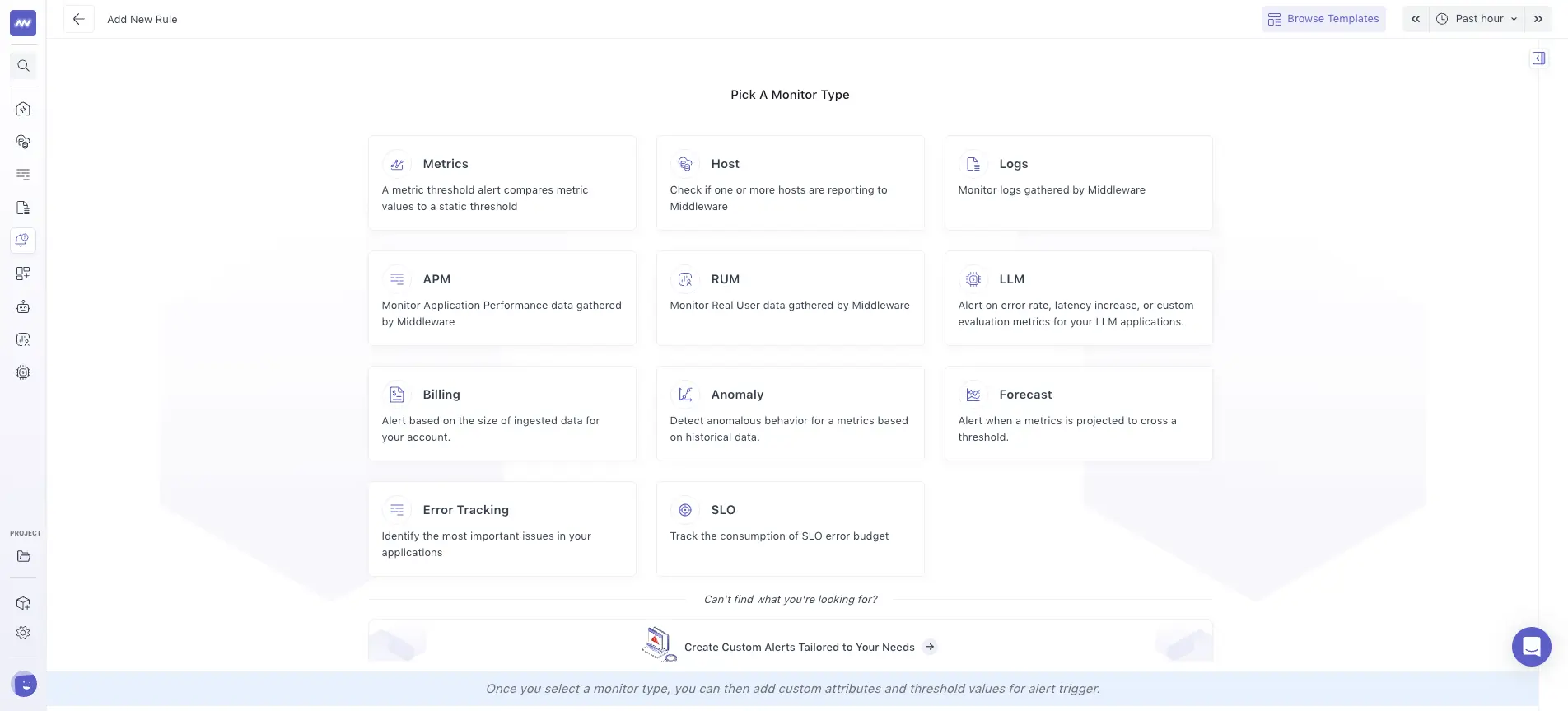
When creating an alert, select the alert type based on what you want to monitor.
Available categories include:
- Metrics
- Logs
- APM
- RUM
- LLM
- Anomaly
- Forecast
- Billing
- Error Tracking
- SLO
If the data you want to monitor is not available in the listed alert types, use Create custom alert tailored to your needs to access additional data and configure a custom alert.
Alert Templates#
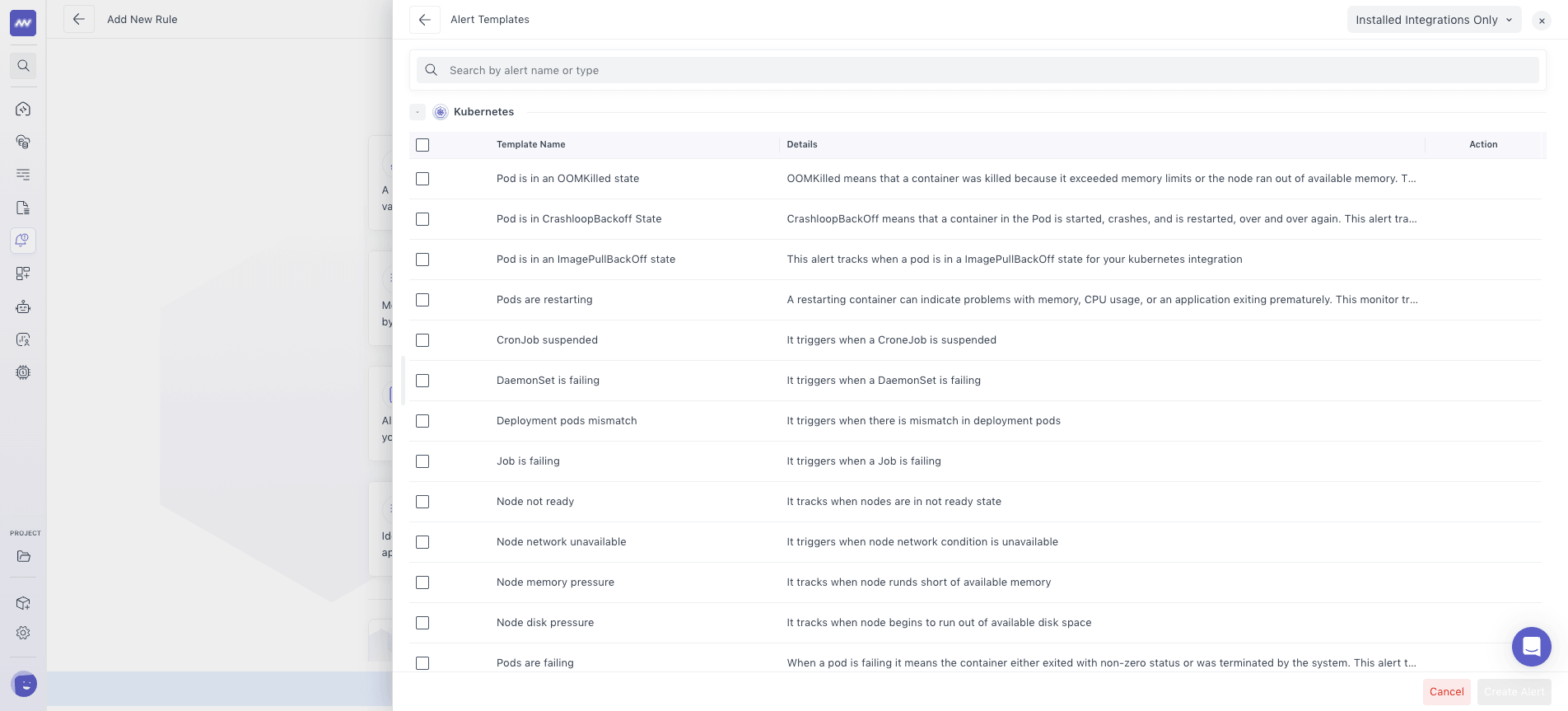
Use Alert Templates when you want to start with a predefined alert configuration instead of creating a rule from scratch.
Middleware provides recommended templates for common monitoring scenarios and integrations.
Go to: Alerts → Add New Rule → Browse Templates
Select a template and review its configuration before creating the alert.
Templates provide a starting configuration for common monitoring scenarios, including when you are setting up an integration for the first time.
Create an Alert#
Middleware supports two ways to create an alert:
- Create with OpsAI
- Create manually
Create an Alert with OpsAI#
Use OpsAI when you know what you want to monitor but do not want to configure the complete rule manually.
Describe the monitoring requirement in natural language, including the scenario and signal you want to monitor.
For example: Alert me when API error rate increases above the expected threshold.
OpsAI generates an alert configuration based on the request.
Review the generated configuration, including the selected metrics, attributes, conditions, and other settings, before creating the alert.
Create an Alert Manually#
To configure an alert manually, go to: Alerts → Add New Rule
Then select the alert type you want to create.
If the required alert type is not listed, select Create custom alert tailored to your needs at the bottom of the page.
1 Select the Alert Type#
Choose the data you want the alert to monitor.
The selected alert type determines which metrics and attributes are available while configuring the rule.
2 Define the Metrics#
This step shapes the exact time series the alert will evaluate. Think of it as building the data for a widget and then using it for alerting.
2.1 Select the data source (Look For)#
Choose the resource that actually emits your metric: Service, Host, Container, Process, or All Metrics if you’re unsure. Only resources you’ve integrated are selectable; items with no data show as disabled (to prevent mis-configuration).
A. Metric#
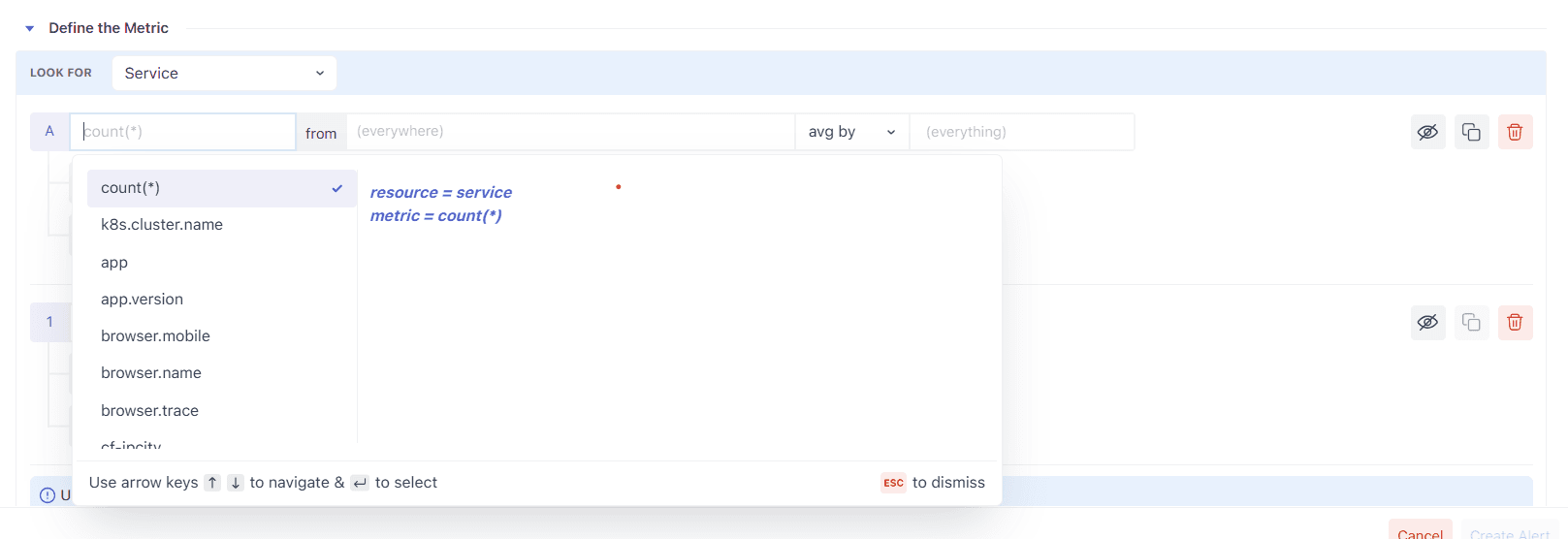
Pick the metric from the dropdown (search supported). The list is scoped to the resource you selected. Hovering a metric shows its description, unit, and attributes to help you pick the right one.
B. Filter (the from box)#
Start with (everywhere) to include all sources, or narrow it with filters. The from box is autocomplete-driven: type an attribute/metric, pick an operator, then a value. You can chain conditions with AND/OR and group them with ( ).

Example:#
1(host.id != prod-machine AND os.type == mac) OR status == stopSupported operators#
(Use these exactly as shown. Keep the same examples in your wording/UI.)
| Operator | Description | Example |
|---|---|---|
= (Equal To) | Match when a value equals the given value | os.type = linux |
!= (Not Equal To) | Match when a value does not equal the given value | host.id != prod-server |
IN | Match when a value is in a list | region IN us-east,us-west,eu-central |
NOT IN | Match when a value is not in a list | status NOT IN stopped,paused |
LIKE | Case-sensitive pattern match (% = wildcard) | service.name LIKE api% |
NOT LIKE | Exclude values matching the pattern | hostname NOT LIKE test% |
ILIKE | Case-insensitive version of LIKE | app.name ILIKE sales% |
NOT ILIKE | Case-insensitive exclusion | username NOT ILIKE admin% |
REGEX | Match by regular expression | env REGEX ^prod.* |
NOT REGEX | Exclude by regular expression | log.level NOT REGEX ^debug$ |
< | Numeric less than | system.cpu.utilization < 0.75 |
<= | Numeric less than or equal | system.processes.count <= 100 |
> | Numeric greater than | system.cpu.utilization > 0.9 |
>= | Numeric greater than or equal | system.memory.usage >= 500 |
2.2 Choose Aggregation and Aggregation Group#
At any timestamp, multiple instances can report the same metric. Aggregation reduces them to one value (e.g., Average, Sum, Min, Max, Any, Uniq, Count, Group).
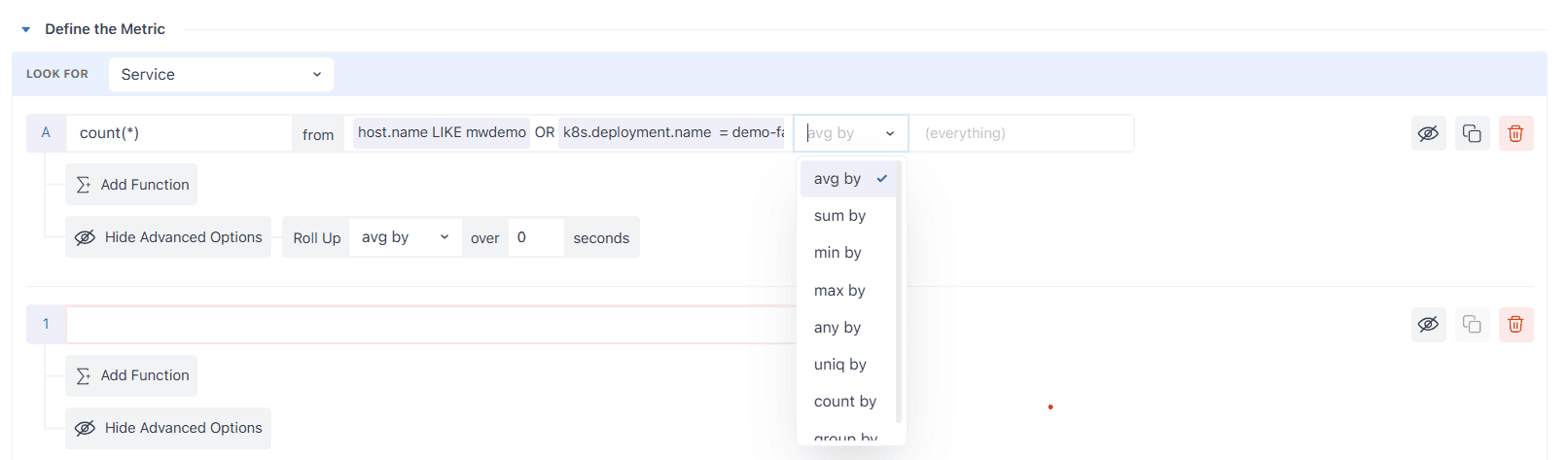
If you want per-entity alerts (e.g., one series per service or host), add an Aggregation Group such as service.name or host.id and each group becomes its own series and is evaluated separately by the alert.
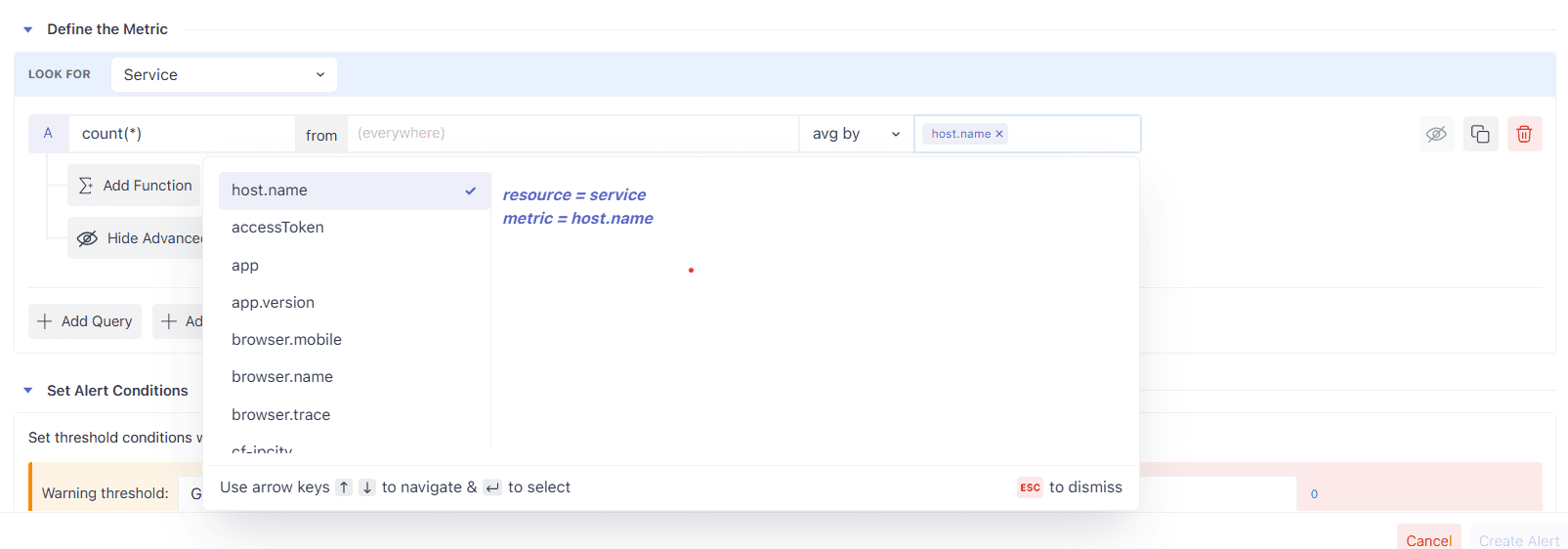
2.3 Control Density with Roll-Up (aggregation over time)#
Metrics often arrive every 5–20 seconds. To make evaluation stable (and charts readable), Middleware automatically rolls up raw points into larger time blocks, choosing a default interval based on the selected time window.
For example, one day of 5-second data is rolled up to 5-minute points (288 points), each an aggregate of 60 raw samples. You can override both the method (avg/sum/min/max) and the interval (e.g., 120 seconds) in Advanced Options → Roll Up.
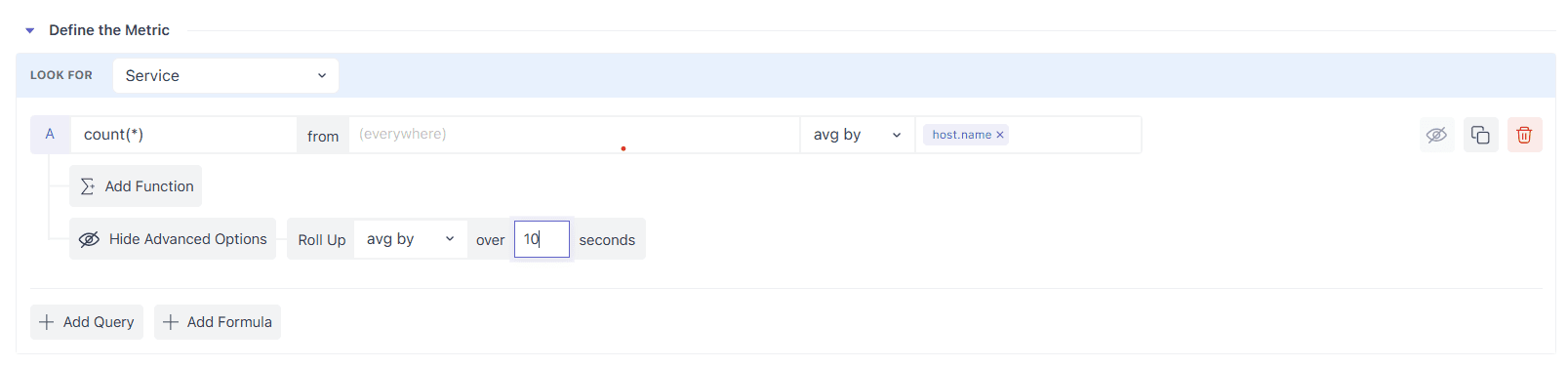
Default Roll-up Intervals#
| Time Window | Roll-Up Interval |
|---|---|
| < 1 hour | 30 seconds |
| < 3 hours | 1 minute |
| < 1 day | 5 minute |
| < 2 day | 10 minute |
| < 1 week | 1 hour |
2.4 Compose Results with Formulas#
Add multiple queries (a, b, c, …) and write an expression to derive the signal you actually care about.
Example (percentage):#
1(a / b) * 100Rules#
- Use the lower-case query letters as variables (
a,b,c…). - The expression must be a valid mathematical formula; only query letters are allowed as variables.
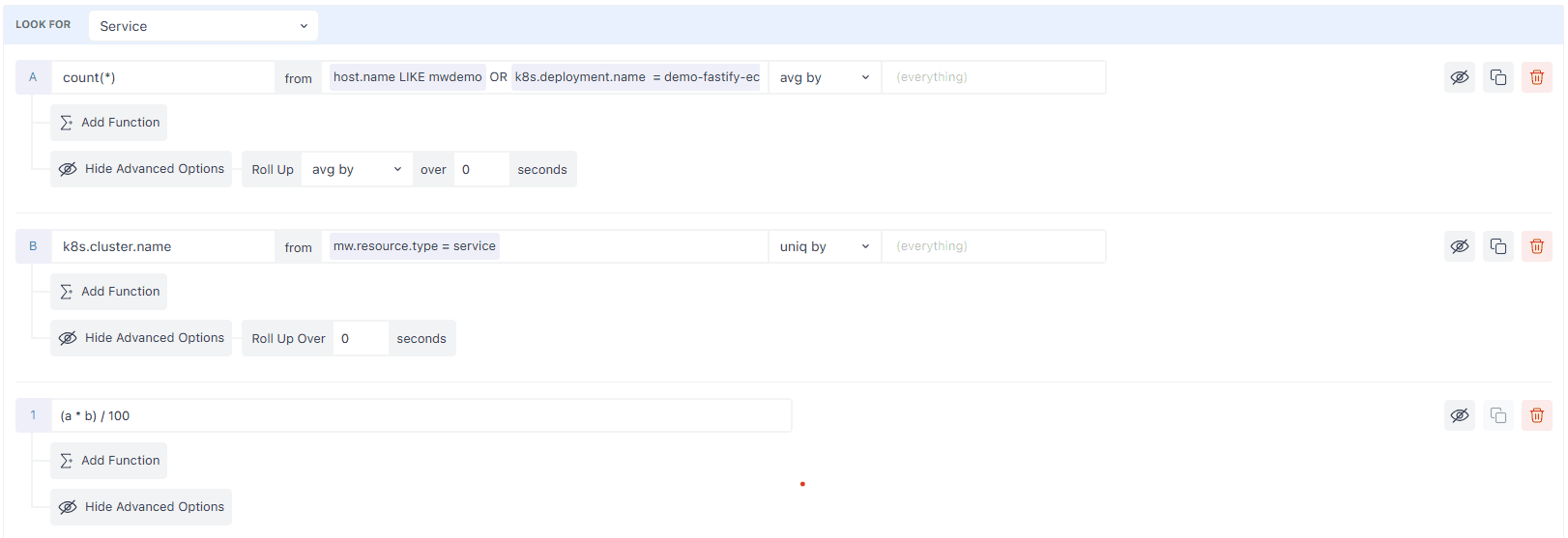
2.5 Post-process with Functions#
Functions operate on a query or a formula output, and you can chain them. The Rate family is ideal for turning counters into change-per-interval views:
- Value Difference – current value minus the previous value.
- Per Second / Per Minute / Per Hour Rate – divide the difference by the elapsed seconds/minutes/hours.
- Monotonic Difference – like Value Difference but ignores negative drops caused by counter resets.
Use these to alert on rates (e.g., requests/second) rather than ever-growing totals.

Example:#
| Timestamp | Value | Value Difference | Per Second Rate | Per Minute Rate | Per Hour Rate | Monotonic Difference |
|---|---|---|---|---|---|---|
| 2025-08-13 15:00:00 | 10 | N/A | N/A | N/A | N/A | N/A |
| 2025-08-13 15:01:00 | 12 | 2 | 0.0333 | 2 | 120 | 2 |
| 2025-08-13 15:02:00 | 15 | 3 | 0.05 | 3 | 180 | 3 |
| 2025-08-13 15:03:00 | 22 | 7 | 0.1167 | 7 | 420 | 7 |
| 2025-08-13 15:04:00 | 30 | 8 | 0.1333 | 8 | 480 | 8 |
| 2025-08-13 15:05:00 | 15 | -15 | -0.25 | -15 | -900 | 0 |
3 Set Alert Conditions#
In this step, you will learn how to define conditions to send alerts and how they are categorised based on the criticality.
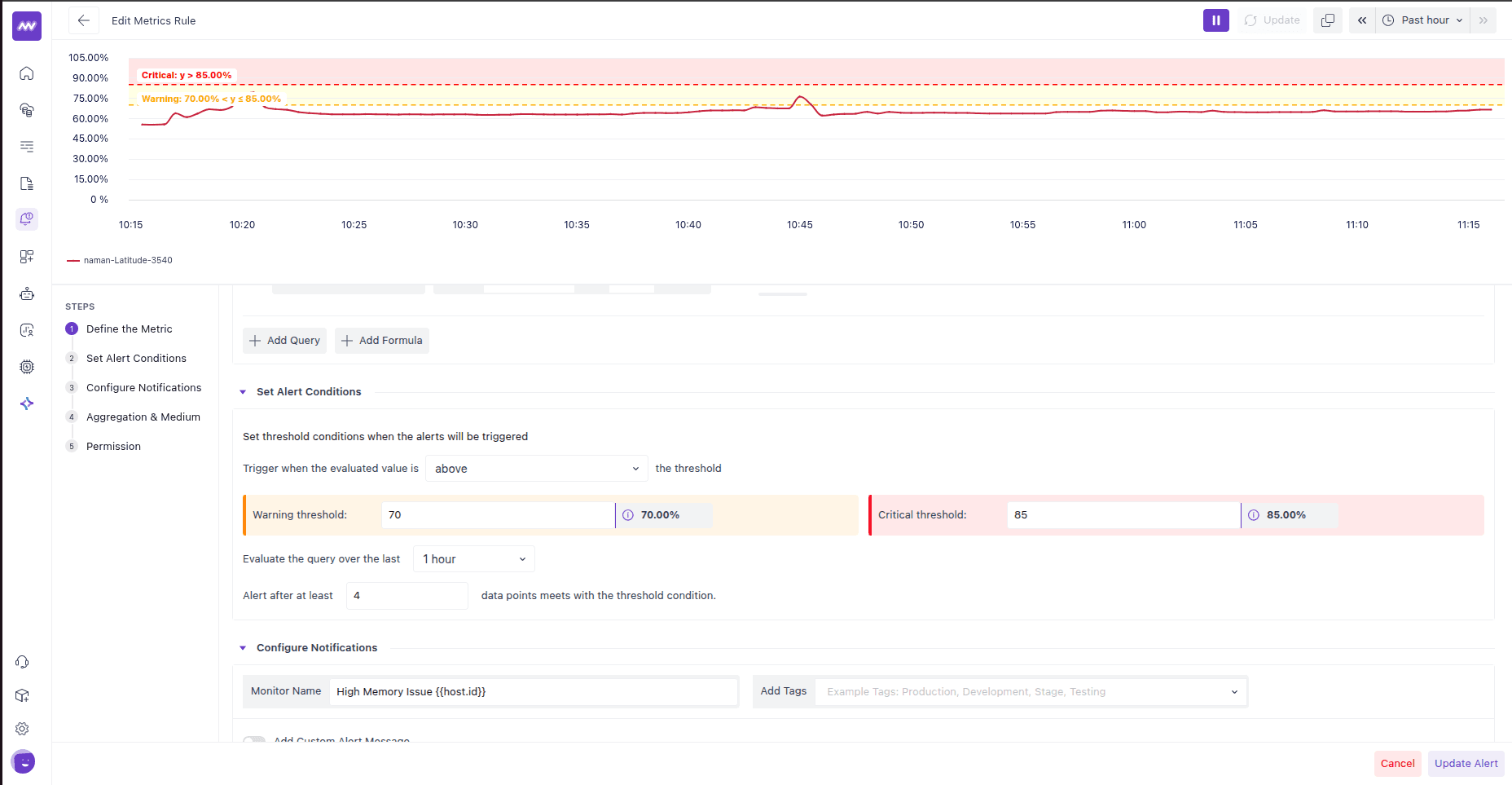
3.1 When to Trigger#

In this section, you will define when to trigger the alert. For example, you might have defined a rule, but here you will specify whether the alert should be triggered when the collected data points are above the defined threshold or below it.
- Above means: fire when readings climb past your threshold. This fits percentages, latency, queue length, error rate, disk usage, etc.
- Below means: fire when readings drop under your threshold. This fits availability, free space, success rate, throughput, or any “should stay high” metric.
3.2 Warning Threshold#

This is your lower-severity limit. Enter the raw numeric value in the actual unit the metric uses and Middleware will present it in a friendly way:
- If the metric is in bytes, type bytes; the field will auto-format to KB/MB/GB/TB when displaying. Typing
85899345920shows as “80 GB”. - If the metric is in seconds, type seconds; the field will show minutes / hours / days automatically. Typing
3600shows as “1 h” - If the metric is a percentage, type the number as-is; it will display as
%. Typing70shows as “70%”.
On the right you’ll notice a small pill that shows the current evaluated value of the series, so you can pick thresholds that make sense relative to what you’re seeing.
3.3 Critical Threshold#
This is your higher-severity limit. It accepts values exactly like the Warning field (raw number; UI formats it for readability). With the operator set to above, any value greater than this number moves the alert to Critical. If you only want Warning alerts, leave Critical empty; if you only want Critical alerts, leave Warning empty.
3.4 Query Evaluation#

This sets the look-back window suggesting how far back we should look when deciding whether to change state. The options read like “last 5 m”, “1 h”, “1 d”.
What it really does: the engine ignores data outside this window and evaluates the series only within it. Short windows are best for catching quick spikes; longer windows are best when you care about sustained trends or slower drift.
A practical detail: the number of data points inside the window depends on your roll-up interval from the previous step. For example, a 1-hour window with a 1-minute roll-up yields ~60 points to evaluate.
3.5 Data points for alerts#
This is your noise filter. It tells the engine, “Don’t trigger the alert until it has happened at least N times inside the window.”
What counts as a “data point”: it’s the rolled-up sample from your query (not every raw second). If your roll-up is 1 minute, then each point represents 1 minute of data. With a 1-hour window and 1-minute roll-up, setting N = 4 means the condition must be met on four points, about four minutes in total, somewhere within that hour. Those points don’t have to be back-to-back unless your use case demands it.
Why it matters: a higher N reduces flapping and false positives (more confidence, slower to fire). A lower N reacts faster but can be noisy.
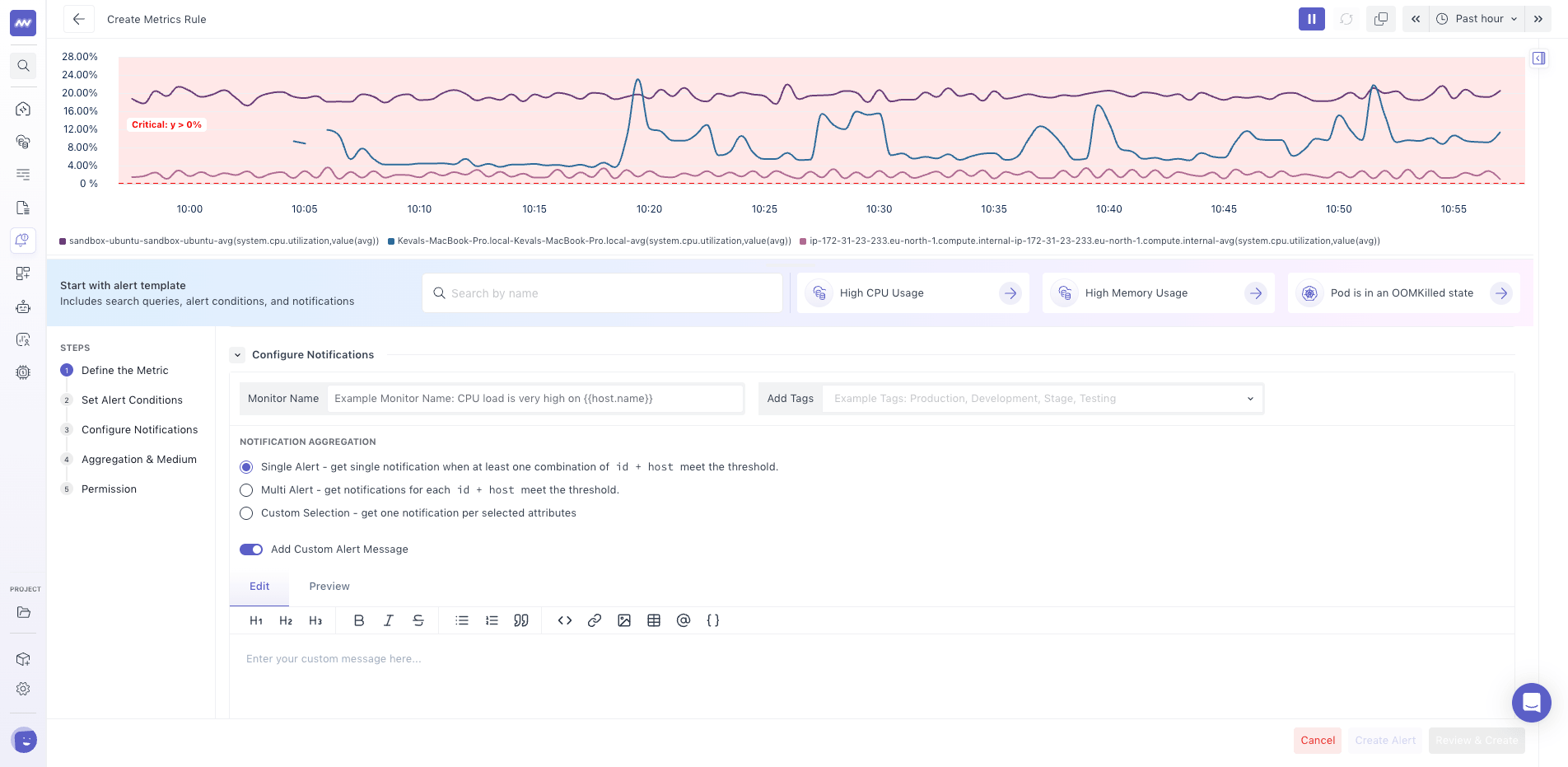
4 Configure Alert Details#
Configure how the alert should appear when it is triggered.
Alert Name: Enter a name that clearly identifies the alert.
The alert name is displayed in alert notifications and the alert rule list.
Tags : Add tags to organize and identify the alert rule.
Custom Alert Message : Add a custom message that provides additional context when the alert is triggered.
You can include dynamic values using {} placeholders.
For example, to include the affected host name: High CPU usage detected on {host.name}
When the alert triggers, Middleware replaces the placeholder with the corresponding value from the alert data.
Use dynamic values to include relevant context such as the affected host, service, or other available attributes directly in the notification.
Notification Aggregation#
If you use attributes in Group By, configure how notifications should be generated for those grouped values. Middleware provides three aggregation options:
Single Alert#
Sends a single alert when at least one combination of the selected grouped attributes meets the configured threshold.
Use this when you want one notification for the overall condition rather than separate notifications for every matching group.
Multi Alert#
Creates notifications for individual grouped attribute combinations when they meet the threshold.
For example, if the alert is grouped by host, different hosts can trigger their own alert notifications.
Custom Selection#
Lets you select which grouped attributes should be used to generate notifications.
Use this when you want separate notifications only for specific dimensions from the configured grouping.
5 Configure Notification Channels#
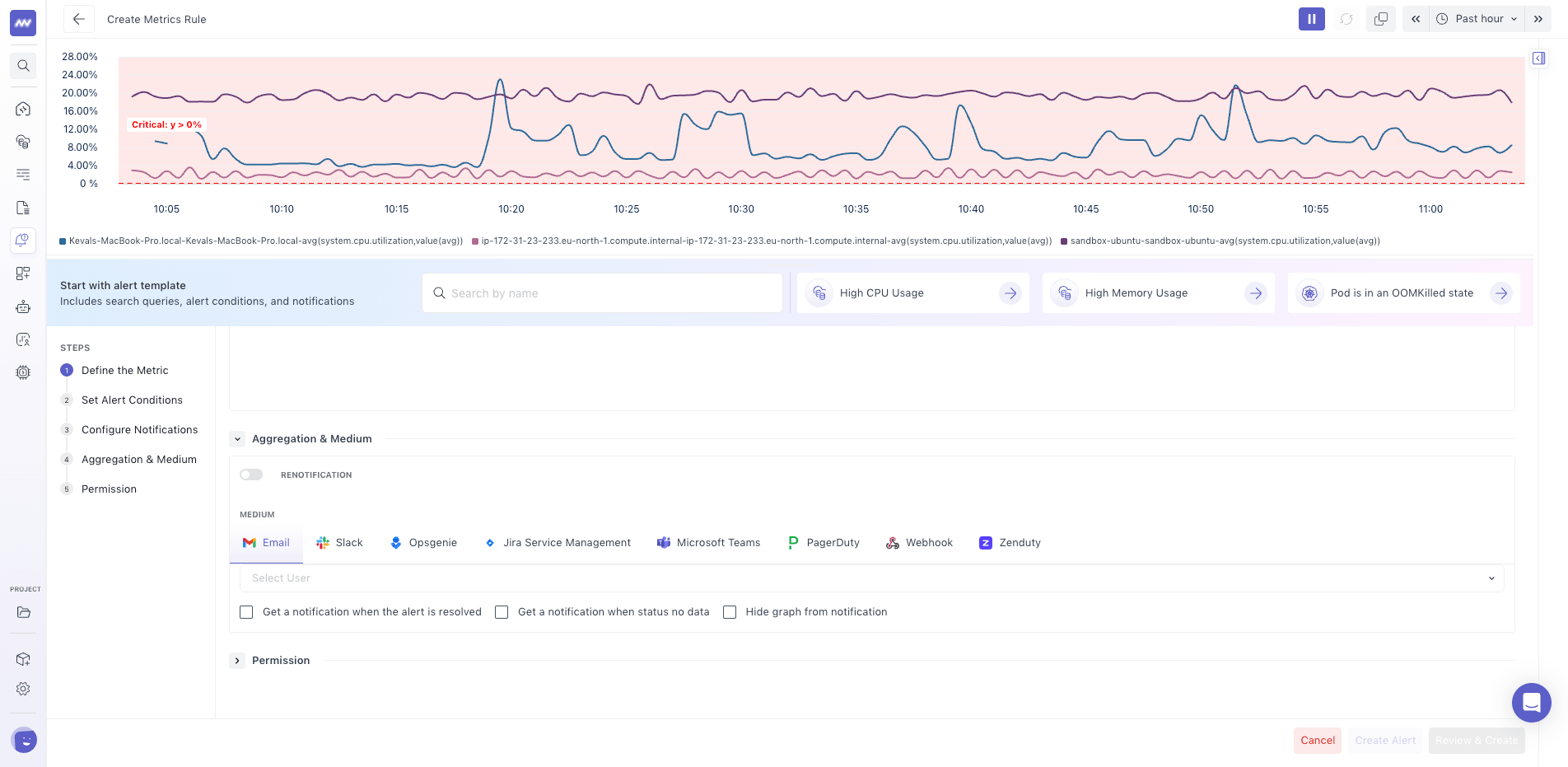
Choose where Middleware should send notifications when the alert triggers. Supported notification channels include:
- Slack
- Opsgenie
- Jira
- Microsoft Teams
- PagerDuty
- Zenduty
- Webhook
For a webhook, select Webhook and provide the destination URL.
You can configure multiple notification channels when the same alert needs to reach different systems or teams.
Renotification: configure it when you want Middleware to send another notification while the alert condition remains active.
Use this for alerts where teams need repeated notification until the underlying condition is resolved.
6 Configure Permissions#
You can set permissions about who can edit this alert config. After reviewing the configuration, create the alert rule.
View Alert Rules#
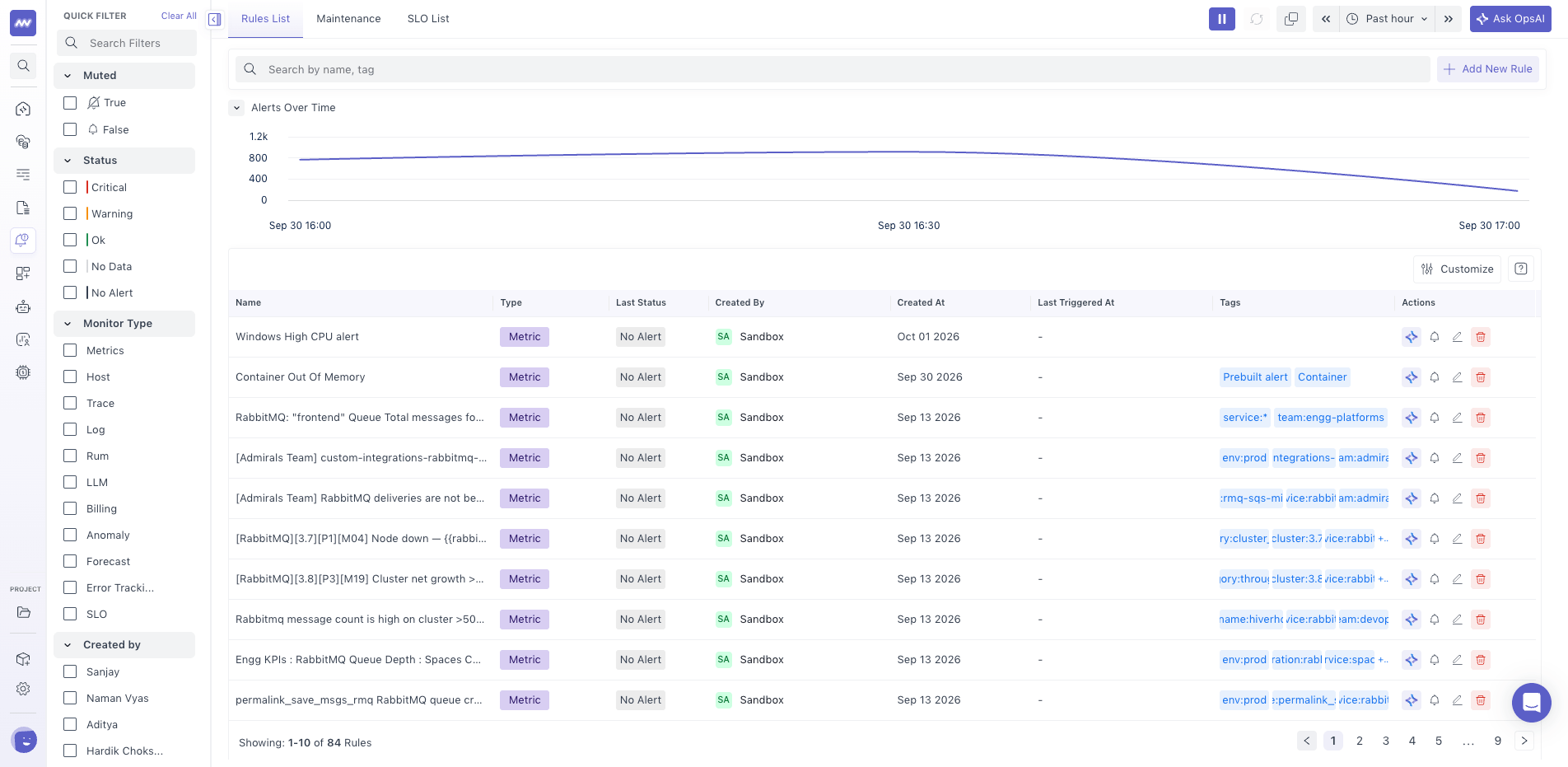
Go to: Alerts → Rule List
The Rule List shows the alerts configured in your account and information about their activity, including when they were last triggered.
Use the list to review existing alert rules and open an individual rule for further investigation.
Alert Details#
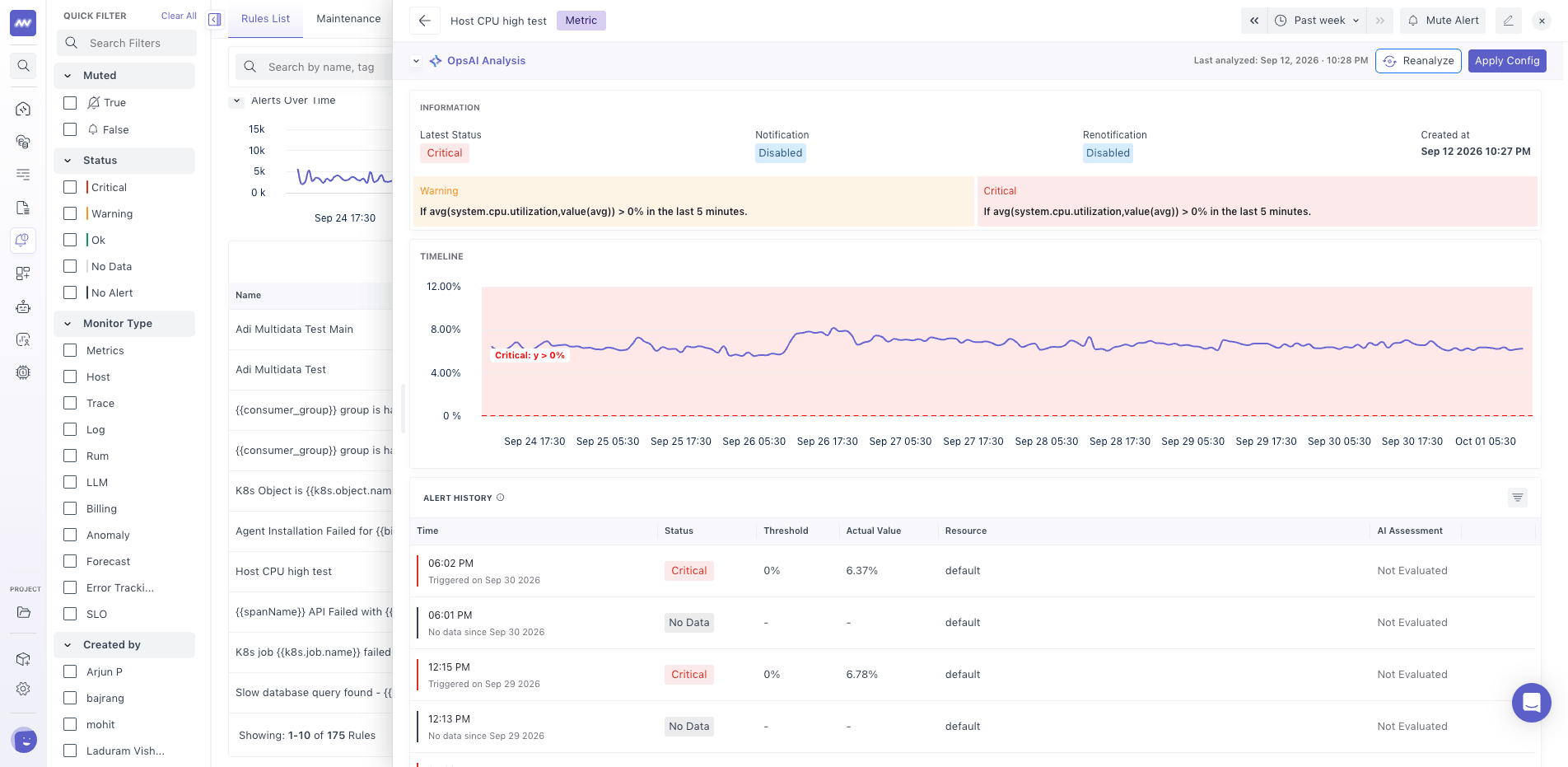
Select an alert from the Rule List to open its Alert Details page.
The Alert Details page provides information about the alert configuration and a timeline showing when the alert was triggered and resolved.
The timeline shows when an alert condition began, how long it remained active, and when it resolved.
Investigate a Triggered Alert#
Select an alert entry from the timeline to drill down into the data associated with that event.
The available data depends on the type of alert.
For example, if an alert is triggered by API errors, the drill-down can show the APIs reporting an error status during that alert event.
False Positive Detection#
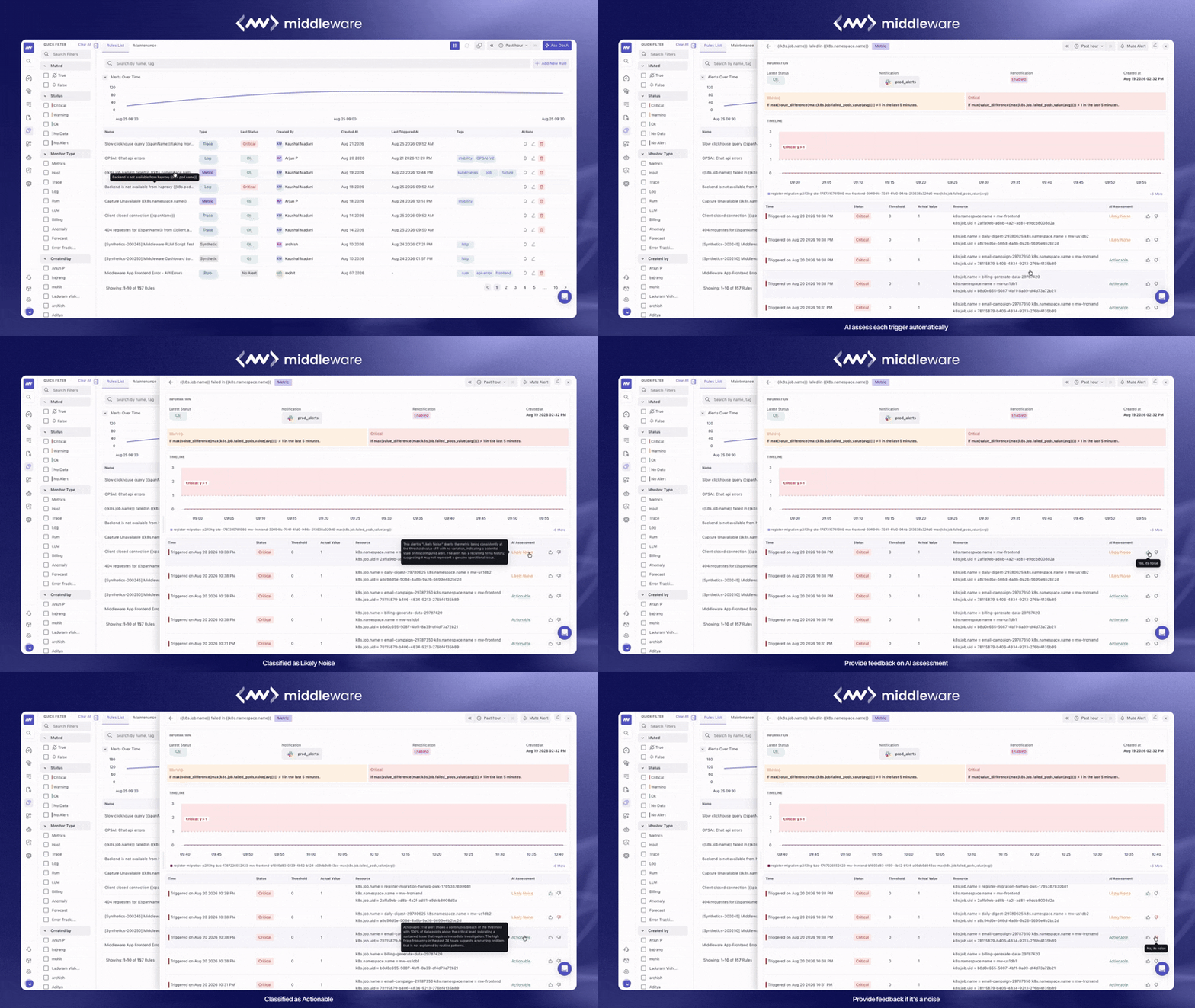
Once an alert fires, OpsAI reviews it and tells you whether it looks like a real problem or a false positive. Every triggered alert in the alert list gets an AI Assessment status, and the same status is included in the Email and Slack notification sent for that alert. Alerts are never suppressed: OpsAI adds context to the notification, it does not decide whether you receive it.
Analyze Alert Configuration with OpsAI#
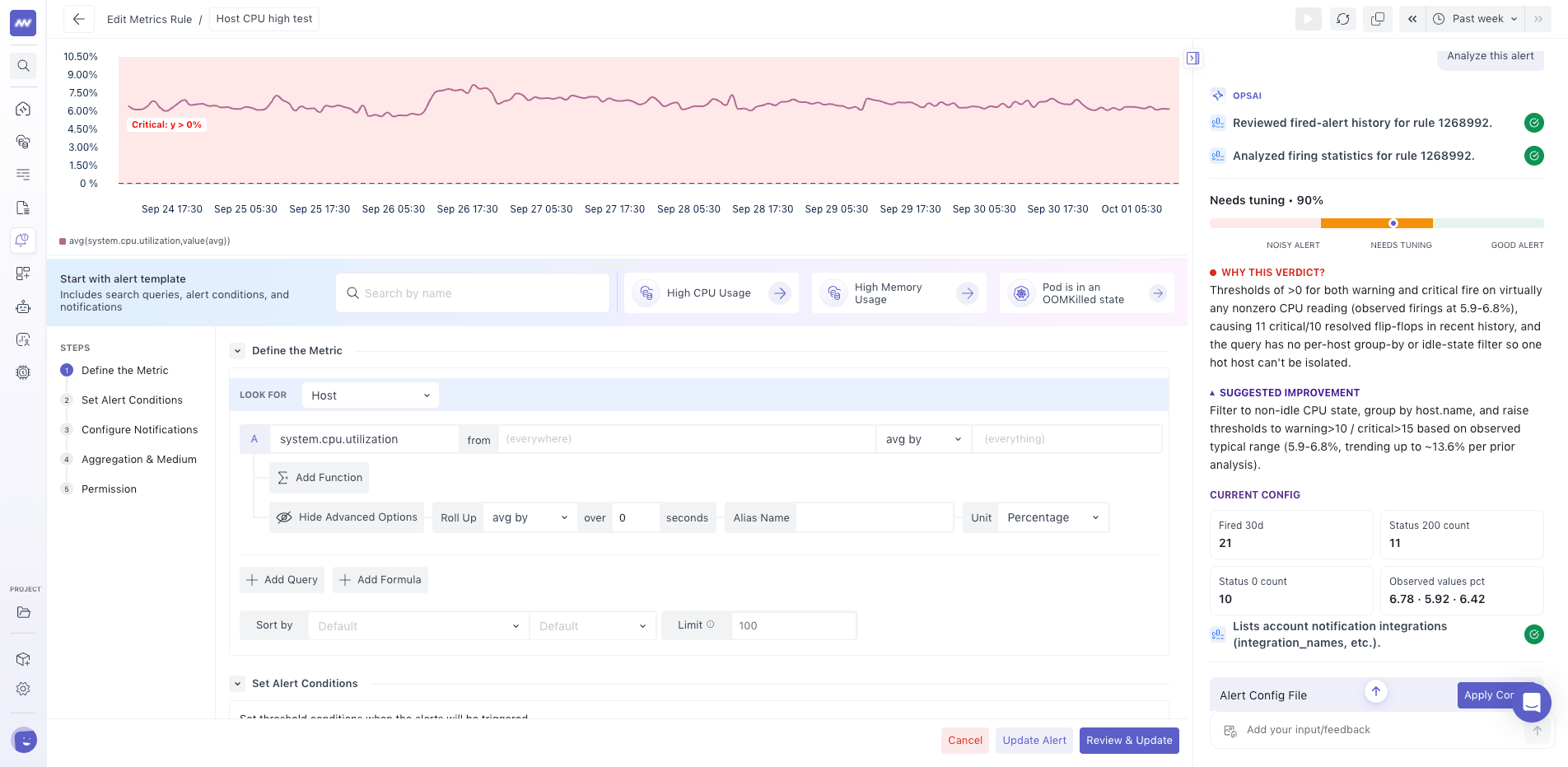
Use OpsAI when an alert generates unexpected or unnecessary notifications and you want to review its configuration.
OpsAI can analyze the alert rule and help you review settings such as:
- Selected metrics
- Attributes
- Thresholds
- Aggregation
- Other alert conditions
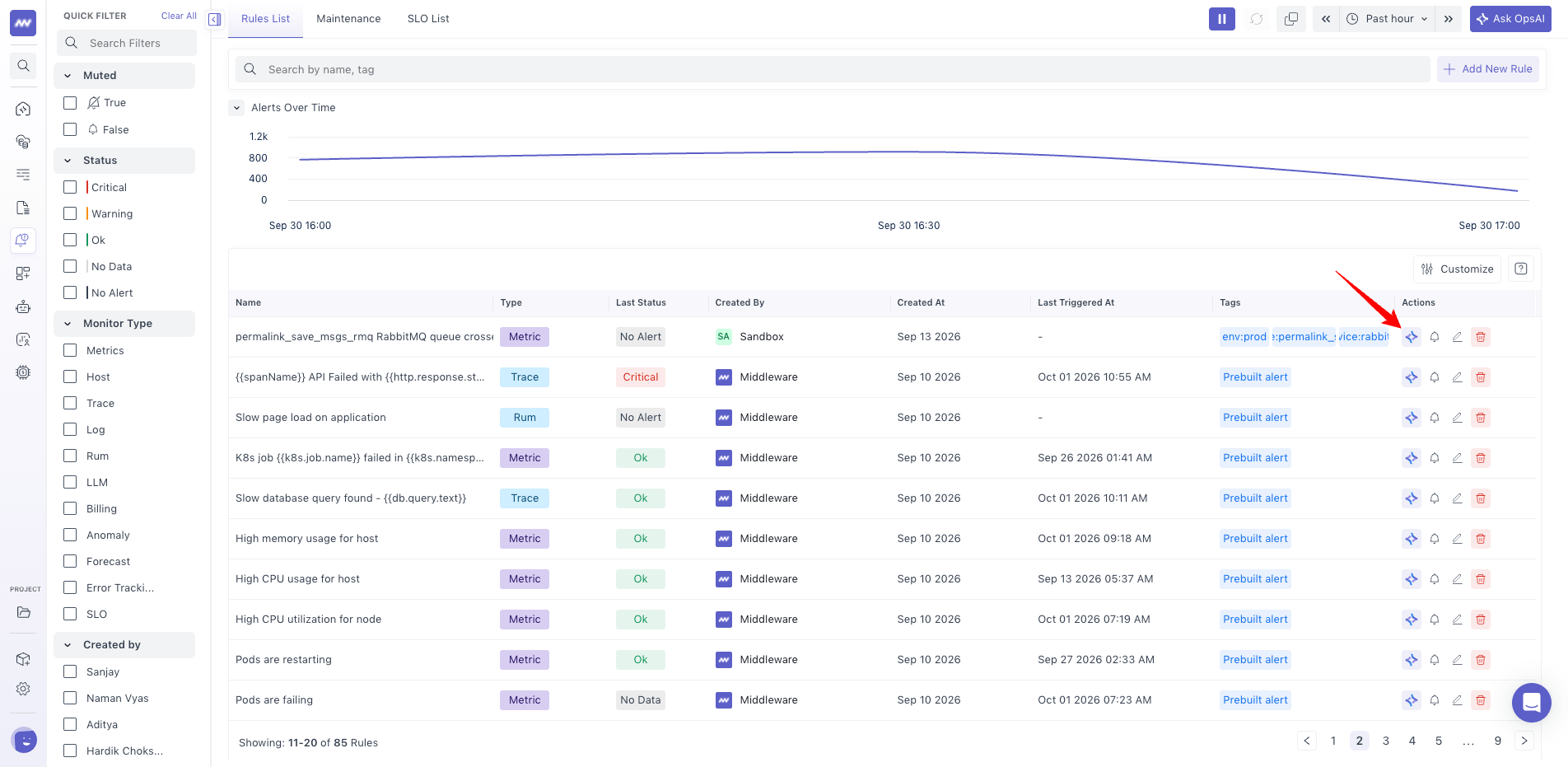
From the alert rule, select the OpsAI icon or use Ask OpsAI for that alert.
OpsAI explains the existing rule and suggests configuration changes based on the signal you want to monitor. This can help identify thresholds or aggregation settings that produce unexpected notifications.
What did you think of this content?