Trace an agent
An agent can make several model calls, invoke tools, and branch based on intermediate results. Middleware tracing shows those operations within the agent run, helping you investigate how the final response was produced.
Use LLM tracing to inspect:
- What the agent decided.
- Which tools it called.
- What each tool returned.
- Which model calls were made.
- Where latency or token usage increased.
- Which step produced the incorrect result.
This guide shows how to trace an Agno agent using automatic instrumentation, then evaluate and monitor its behavior in production.
No manual span decorators are required. Install the Agno instrumentation package and enable:
1register(auto_instrument=True)Middleware automatically captures the agent run, tool calls, and LLM calls as spans.
Install Dependencies#
Install the Middleware SDK, Agno instrumentation, Agno, and OpenAI client:
1pip install middleware-llmobs openinference-instrumentation-agno agno openaiConfigure your Middleware endpoint, API key, and OPENAI_API_KEY using the same environment variables described in Trace an LLM Application End to End.
1. Trace the Agent#
Initialize the Middleware SDK with automatic instrumentation enabled.
Because openinference-instrumentation-agno is installed, the SDK automatically instruments Agno operations.
1from middleware.llmobs import register
2from agno.agent import Agent
3from agno.models.openai import OpenAIChat
4from agno.tools import tool
5
6# Auto-instrument: picks up openinference-instrumentation-agno, so every
7# agent run, tool call, and LLM call becomes a span. No manual decorators.
8providers = register(service_name="support-agent", auto_instrument=True)
9
10@tool
11def search_docs(query: str) -> str:
12    """Search the knowledge base."""
13    return f"Found 3 results for '{query}': [doc1, doc2, doc3]"
14
15agent = Agent(
16    model=OpenAIChat(id="gpt-4o-mini"),
17    tools=[search_docs],
18    instructions="You are a support assistant. Use search_docs when the question needs the knowledge base.",
19)
20
21result = agent.run("How do I set up tracing?")
22print(result.content)
23
24providers.tracer.force_flush()   # flush before a short script exits
View the Agent Trace#
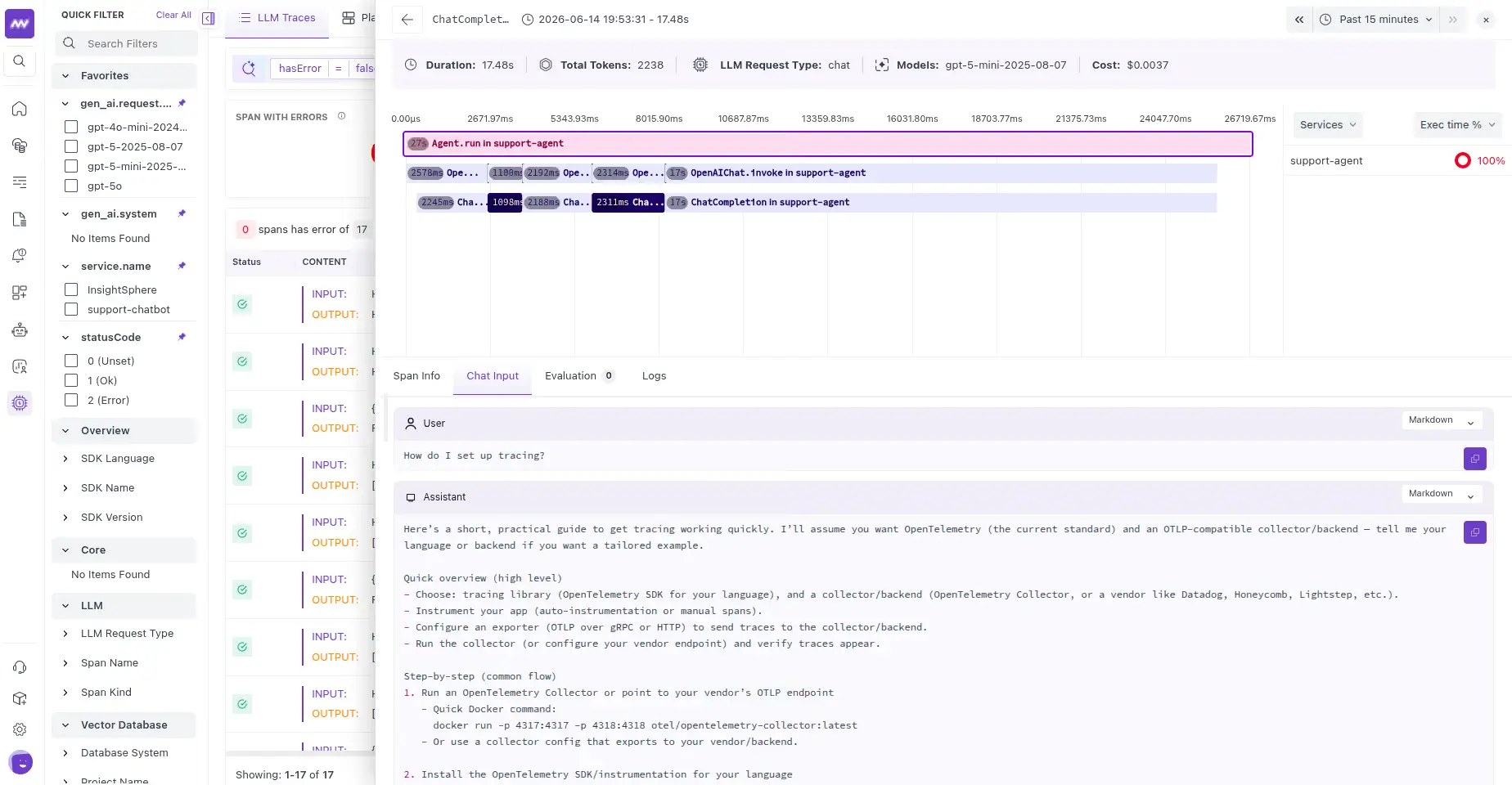
Open LLM Traces and select the support-agent service.
The complete agent run appears as one trace, with the individual reasoning, tool, and model operations nested underneath it.
For example:
1agent: support-agent
2  ├── reasoning / LLM call
3  ├── tool: search_docs
4  └── LLM call
A typical flow might be: User question ↓ Agent decides what to do ↓ Tool call: search_docs ↓ Tool returns results ↓ LLM uses the tool output ↓ Final response
Each span provides context such as:
- Input
- Output
- Latency
- Token usage
Use this structure to understand exactly how the agent arrived at its response.
How Auto-Instrumentation Works#
Automatic instrumentation is enabled for the libraries whose OpenInference instrumentation packages are installed.
For Agno:
1openinference-instrumentation-agnois detected when you call:
1register(auto_instrument=True)The same approach applies to other supported frameworks using instrumentation packages that follow the pattern:
1openinference-instrumentation-<framework>This means you can add tracing for supported libraries without manually creating spans around every agent, tool, or model call.
2. Evaluate Agent Responses#
Tracing records the operations an agent performed. Evaluations assess whether the result met defined criteria, such as using the required tool or completing the intended task.
For an agent, evaluations can check questions such as:
- Did the final response answer the user's question?
- Was the answer accurate?
- Did the agent use the correct tool?
- Was the tool output used appropriately?
- Did the agent successfully complete the task?
Create a Server-Side Evaluator#
Go to:
LLM Traces → Evaluation → Add Evaluator
Create an LLM-as-a-judge evaluator for the agent.
Example configuration:
| Field | Example |
|---|---|
| Name | agent_response_quality |
| Judge Model | OpenAI or Anthropic model |
| Prompt | Evaluate whether the response answered the question, was accurate, and used tools appropriately. |
| Output | Score such as 1–5, or Boolean pass/fail |
| Evaluate On | Agent response spans |
You can reference the traced input and output in the evaluator prompt using:
1{{span.input}}
2{{span.output}}
After publishing the evaluator, Middleware automatically evaluates matching spans as new agent traces arrive.
Client-Side Evaluations#
Use client-side evaluations when your application can determine success directly.
For example, you may want to verify that an agent called a required tool for a particular workflow.
Submit the evaluation from your application using submit_evaluation.
Use this approach for deterministic checks where the expected behavior is known in code.
3. Monitor Agent Quality#
Published evaluation results are attached to the agent's traces and exported as metrics under:
1gen_ai.evaluations.*Use these metrics to monitor agent quality over time.
You can track values such as:
- Evaluation pass rate
- Average evaluation score
- Failed evaluation percentage
Create dashboards or alerts when these signals move outside your expected thresholds.
Find Failing Agent Runs#
Filter traces by evaluation result to find agent executions that need investigation.
For example:
1gen_ai.evaluation.verdict = failOpen a failing trace and inspect each step in order.
Debug a Failing Agent Run#
When an agent response fails an evaluation, inspect the trace to identify which step caused the failure.
Check:
- Agent decision: Did the agent choose the correct next action?
- Tool selection: Did it call the appropriate tool?
- Tool input: Did it send the correct parameters?
- Tool output: Did the tool return useful or complete data?
- Model interpretation: Did the model understand the tool response correctly?
- Final synthesis: Did the model produce an incorrect answer despite receiving the right information?
Separate spans let you distinguish a problem in agent logic, a tool result, retrieved data, or the final model response.
Example Investigation Flow#
A typical agent investigation can follow this sequence:
Evaluation failed ↓ Open trace ↓ Check agent decision ↓ Inspect tool call ↓ Inspect tool result ↓ Inspect final LLM call ↓ Identify failing step
For example, if the final response is incorrect:
- Check whether the agent selected the correct tool.
- Verify the parameters passed to the tool.
- Review the tool output.
- Check how the final LLM span interpreted that output.
- Determine whether the issue came from the prompt, tool, data, or model.
4. Iterate and Validate#
After identifying the cause of an agent failure, update the relevant part of the application.
After updating the prompt, tools, or model:
- Deploy the change.
- Watch the evaluation scores on new traffic.
- Compare the pass rate before and after.
- Confirm the issue is resolved on real traffic.
What did you think of this content?