Log Explorer
Middleware Log Explorer provides a central view of collected infrastructure, application, and service logs. It helps you move from a broad search to the individual log involved in an issue.
After configuring the Infrastructure Agent, APM, or another log collection method, collected logs become available in Log Explorer.
Use Log Explorer to search and filter logs, inspect individual events, correlate logs with traces, and investigate issues across your services. You can also send logs directly to OpsAI as context for troubleshooting.
Log List#
The Log List shows all collected logs with their timestamp, severity, and log body. You can:
- Add any log attribute as a column to the list.
- Expand a log to view its attributes and values without leaving the page.
- Switch between List View and Drill-down View.
- Drill-down View summarizes log attributes and their values, helping you see how events are distributed across services, environments, hosts, or other collected dimensions.
Log Detail#
Click any log to open the Log Detail Panel, where you can view:
- Log properties
- Raw logs in JSON format
- Parsed attributes and their values
- Related logs
- Traces associated with the log
Use these details to inspect an individual event or move between related logs and traces while investigating an issue.
Search & Filter#
Use Search and Filters to narrow down logs based on your requirements.
- Enter text in the search bar to find matching log content.
- Search by a specific log attribute.
- Select attributes and values from the filter panel.
- Apply multiple filters to refine the results.
When multiple filters are applied, they use an AND condition by default.
Anomalies#
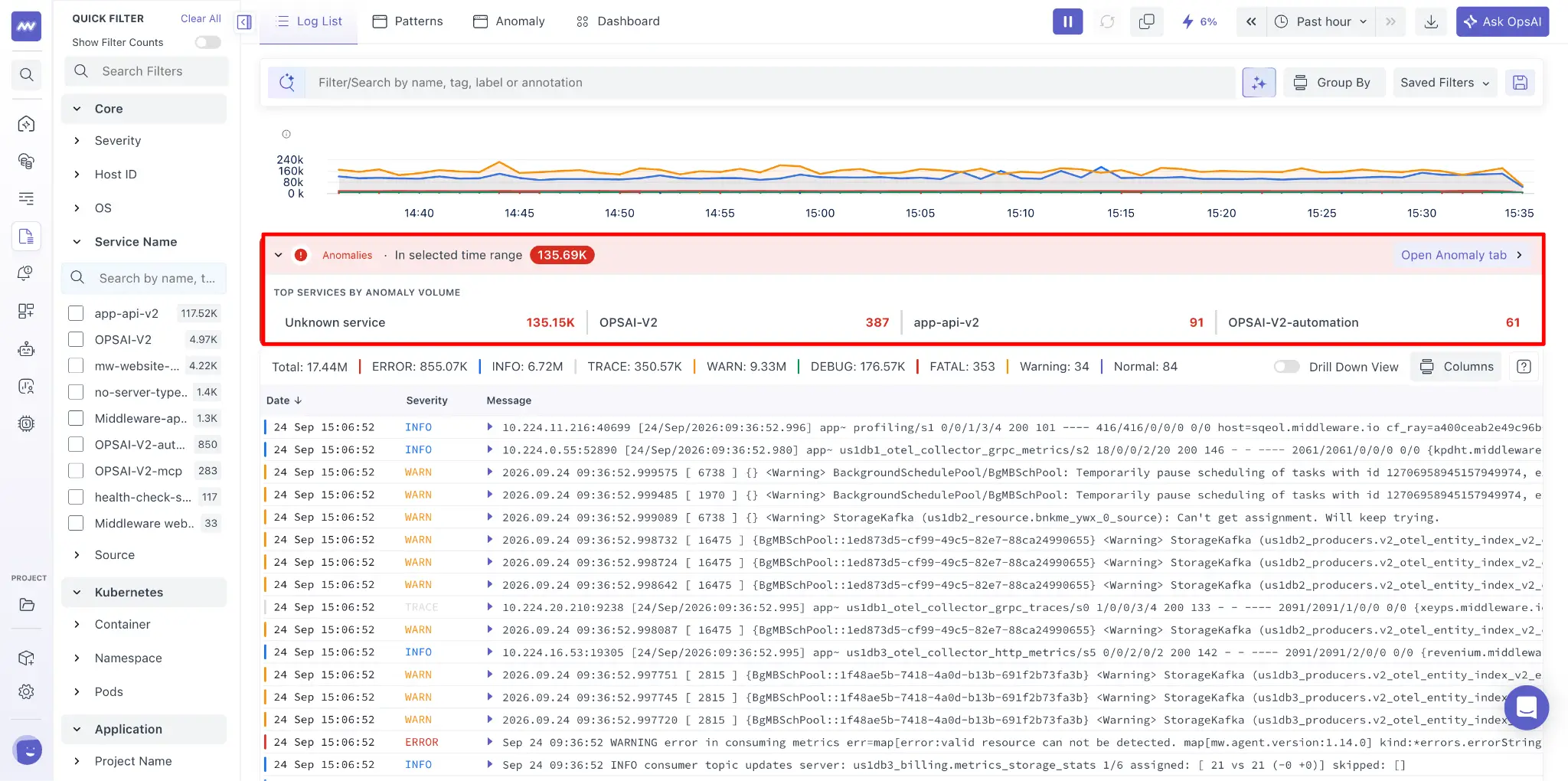
The Anomalies section highlights unusual log activity detected across your services.
Select an anomaly to inspect its details and understand what changed. If no anomalies are detected for the selected logs and time range, the Anomalies section is automatically hidden to provide more space for log exploration.
For additional details, see Log Anomaly Detection tab.
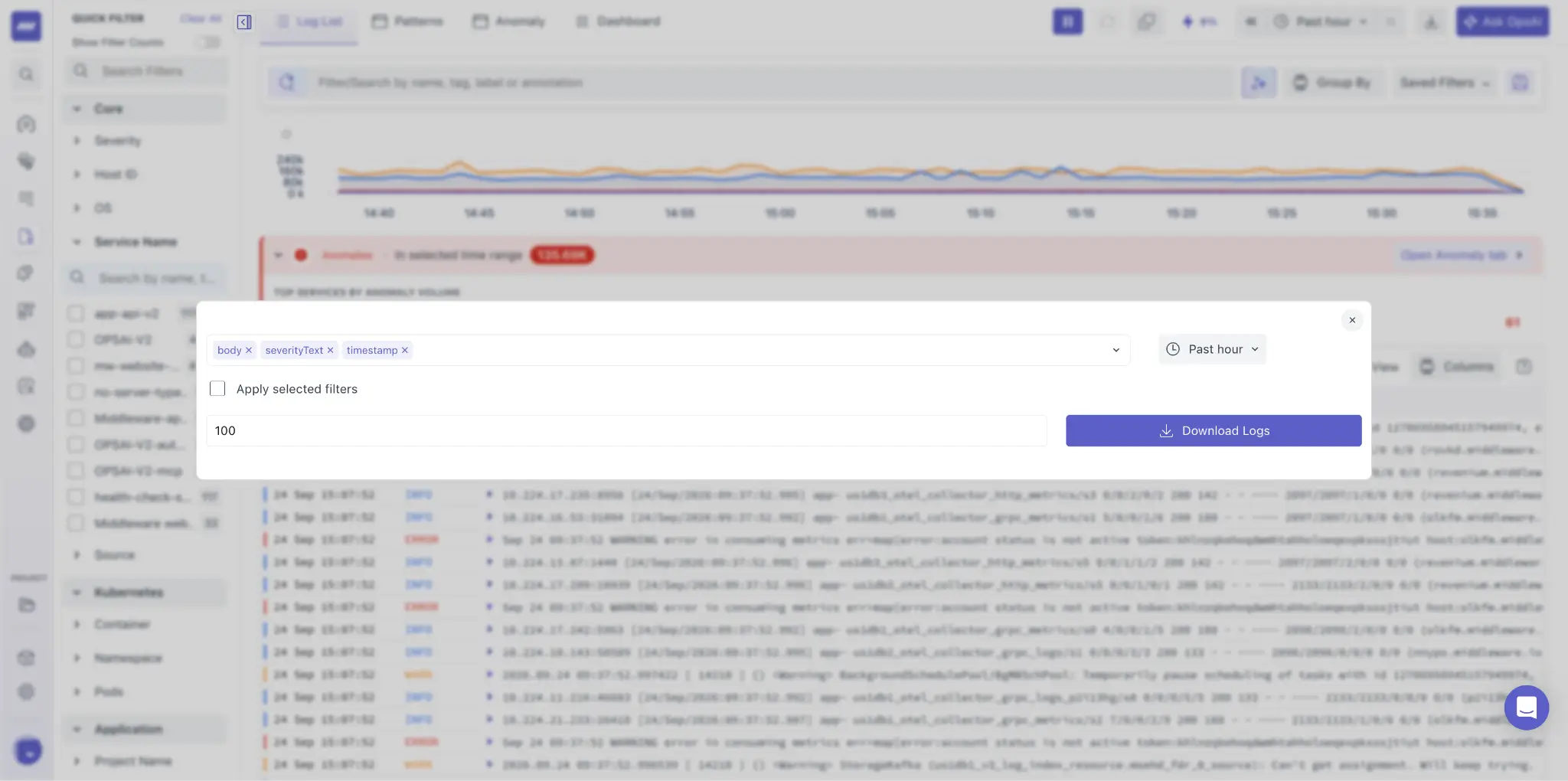
Download Logs#
Use the Download button in the top-right corner to export logs. Before downloading, you can select the columns you want to include and specify the number of logs to download.
Ask OpsAI#
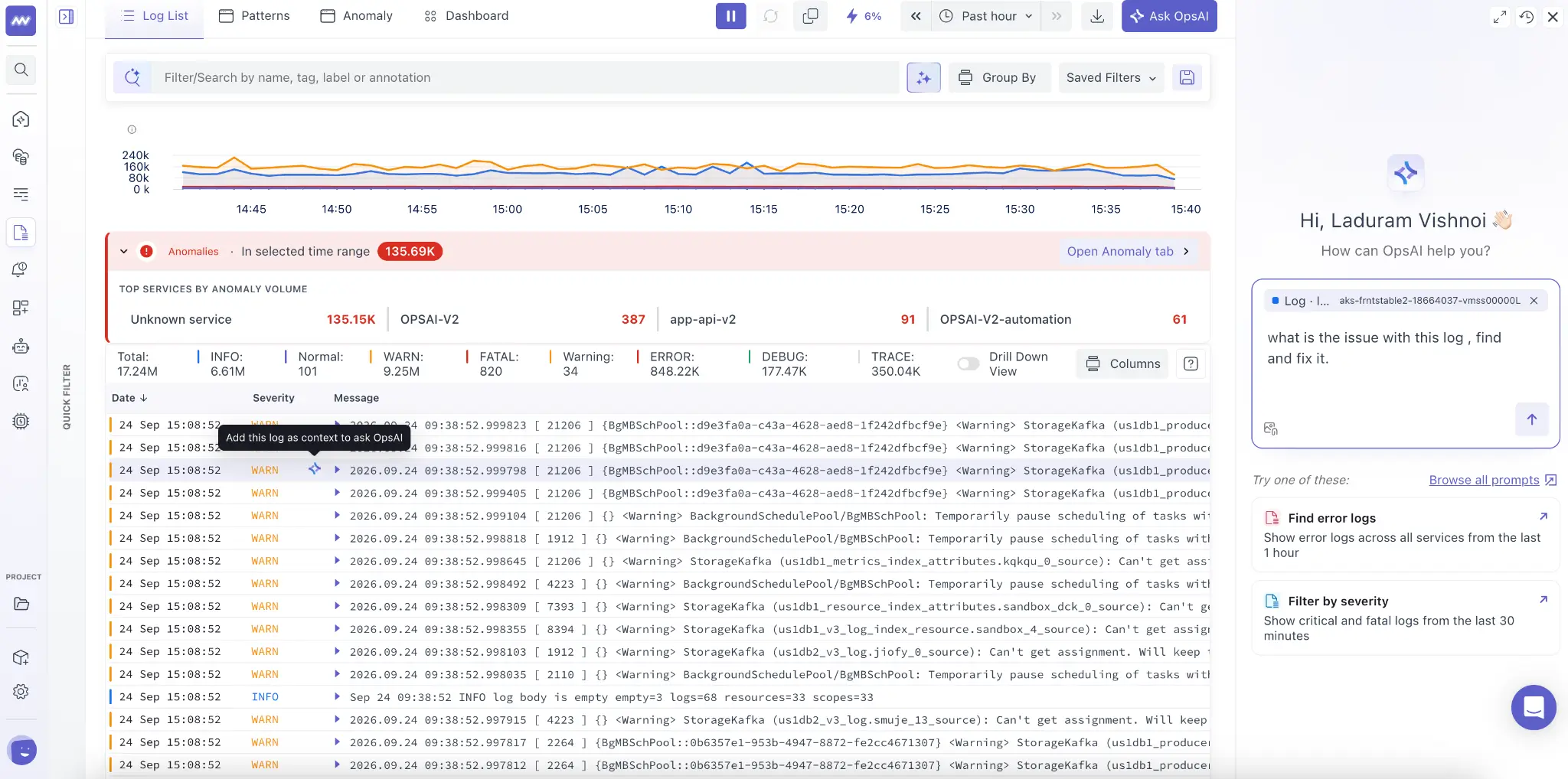
Use Ask OpsAI to investigate logs directly from Log Explorer.
To investigate a specific log, select the OpsAI icon for that log. Middleware automatically adds the selected log as context to the OpsAI conversation.
You can then ask OpsAI to analyze the log, explain potential causes, or suggest investigation steps without manually copying the log or its attributes.
FAQ#
Handling depends on how the logs are collected.
File-based logs
Configure a line start pattern to identify where each new log entry begins. Lines that do not match the start pattern are combined with the preceding entry, allowing multiline events such as stack traces to be stored as a single log.
Application logs
Multiline logs generated through supported application instrumentation, such as stack traces, are automatically collected as a single log event.
For supported Middleware SDKs and auto-instrumentation, log and trace correlation is handled automatically.
Middleware includes the relevant Trace ID with the log event. When a matching trace is available, you can access it directly from the log details.
Middleware supports JSON parsing during log collection and at the platform level.
Parsing during log collection
The Middleware Agent can parse JSON logs using the OpenTelemetry Transform Processor. You can configure this under Settings → Pipeline.
Parsing logs at the collection layer may add some resource usage to the agent running in your environment.
See Log Pipeline for configuration details.
Platform-level parsing
JSON parsing can also be enabled at the account level. This is an opt-in feature. Contact [email protected] to enable it.
When possible, use structured JSON logs so fields such as service, severity, environment, request IDs, and other application attributes can be parsed and used for filtering and analysis.
If an attribute does not appear in search or filters, it may not be indexed as a log attribute.
If the value exists inside a JSON log body, enable JSON parsing under Settings → Pipeline so fields can be extracted as attributes.
For non-JSON or custom log formats, configure a parsing regex to extract fields such as:
- Timestamp
- Severity
- Service name
- Request or correlation ID
- Other custom attributes
After the required fields are parsed and indexed, they can be used for searching and filtering logs.
Need assistance or want to learn more about Middleware? Get in touch with us via our Contact Us or join our Slack channel.
What did you think of this content?