Projects
Middleware Projects organizes environments or clients within your account. Separate projects can distinguish staging from production or keep different client workloads organized.
Each project has a name and alias subdomain. Project assignments determine which projects an invited user can access.
View Projects#
Go to: Settings → Projects
The Projects page shows all projects available in your Middleware account.
From here, you can view existing projects or create a new project.
Create a Project#
You need Admin permission to create a new project.
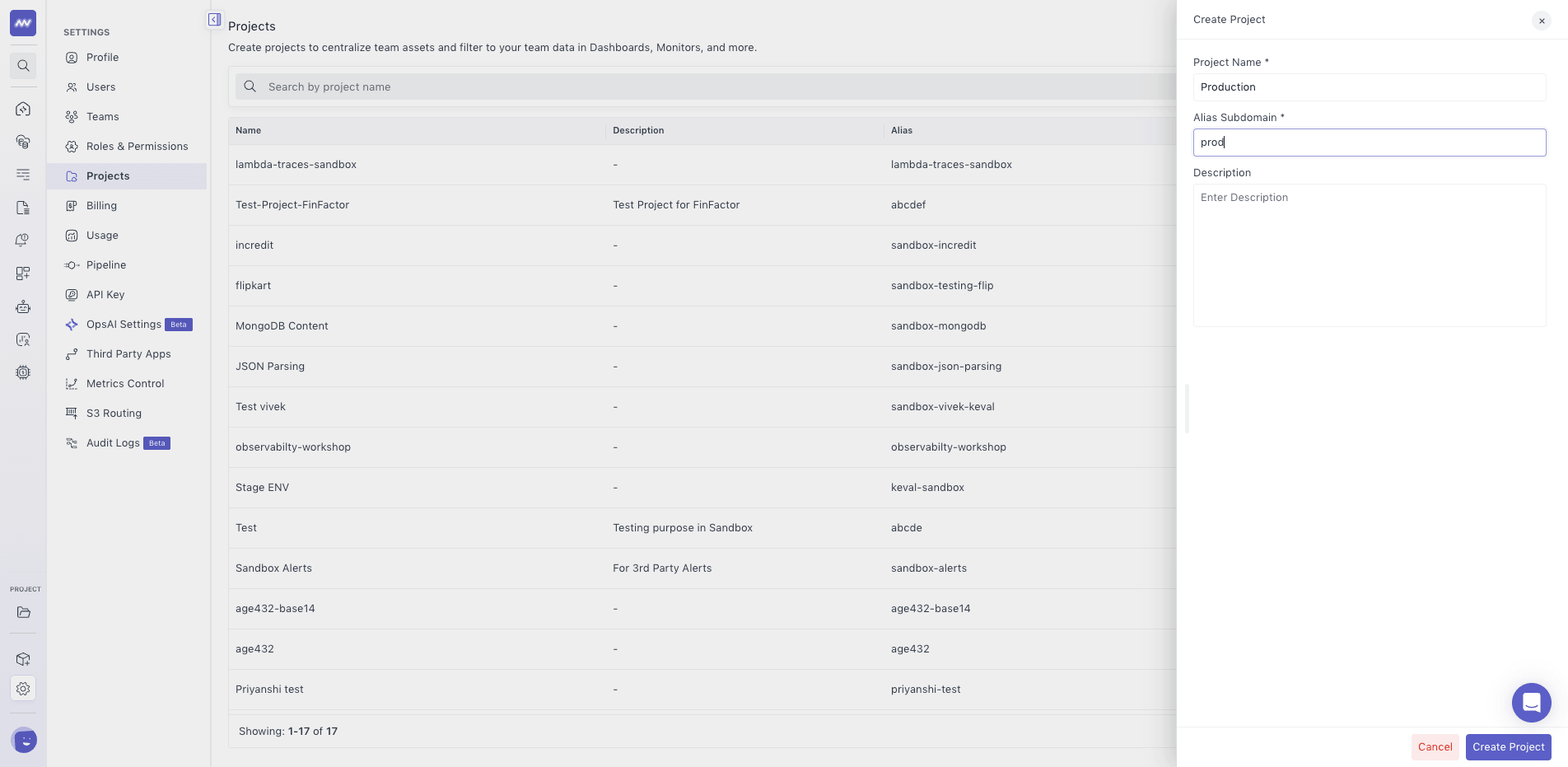
To create a project:
- Go to Settings → Projects.
- Click Create Project.
- Enter the project details.
- Create the project.
When creating a project, configure the following:
- Name — Name used to identify the project.
- Alias Subdomain — Subdomain used to create the URL for accessing the project.
- Description — Additional information about the project.
The Alias Subdomain becomes part of the project URL and is used when accessing that project in Middleware.
Access Projects#
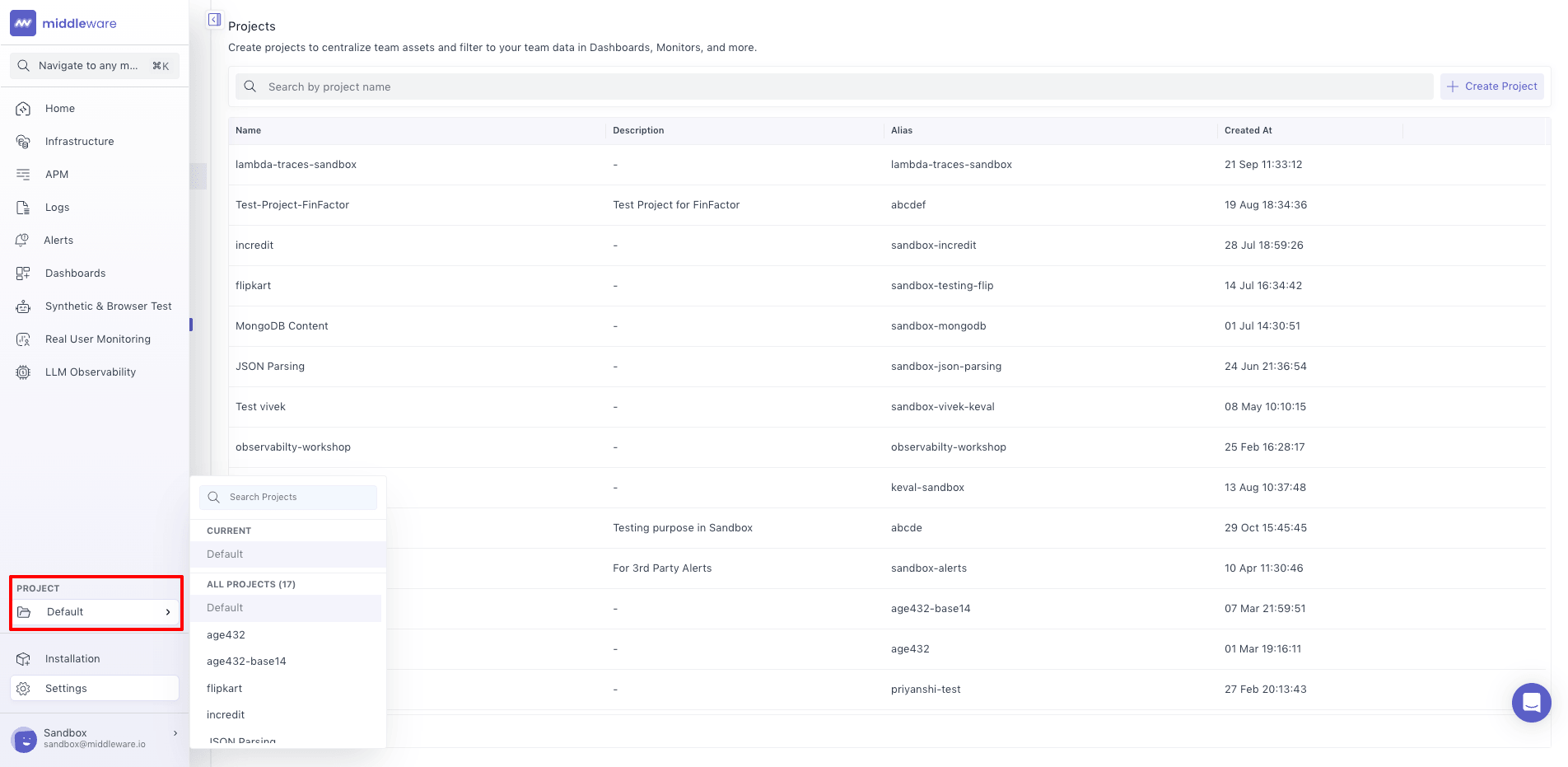
You can view your available projects from the project menu on the left side of Middleware.
The projects shown depend on your access:
- Users see the projects assigned to them.
- Admins can see all projects.
Select a project from the menu to switch to that project.
Give Users Access to Projects#
Project access can be configured when inviting a new user.
Go to: Settings → Users
When inviting the user, select the projects you want them to access.
Use Projects to organize your Middleware account and control which projects are available to individual users.
Need assistance or want to learn more about Middleware? Get in touch with us via our Contact Us or join our Slack channel.
What did you think of this content?