Continuous Profiling
Middleware Continuous Profiling shows how application functions use resources over time. Available data can include CPU usage, memory allocation, execution time, and blocking operations, depending on the language and runtime.
Use Continuous Profiling to identify expensive functions, investigate CPU or memory bottlenecks, and detect performance regressions that may not be visible from traces and application metrics alone.
To configure profiling for your application, see Getting Started → APM.
Explore Profiling Data#
Go to APM → Continuous Profiling to view profiling data collected from your applications.
Select the profiling query type you want to investigate, such as CPU usage or memory usage, and use the available visualizations to identify which functions are consuming resources.
Continuous Profiling provides three primary views:
- Flame Graph
- Table
- Sandwich Graph
Each view represents the profiling data differently while allowing you to investigate the same application functions and call stacks.
Flame Graph#
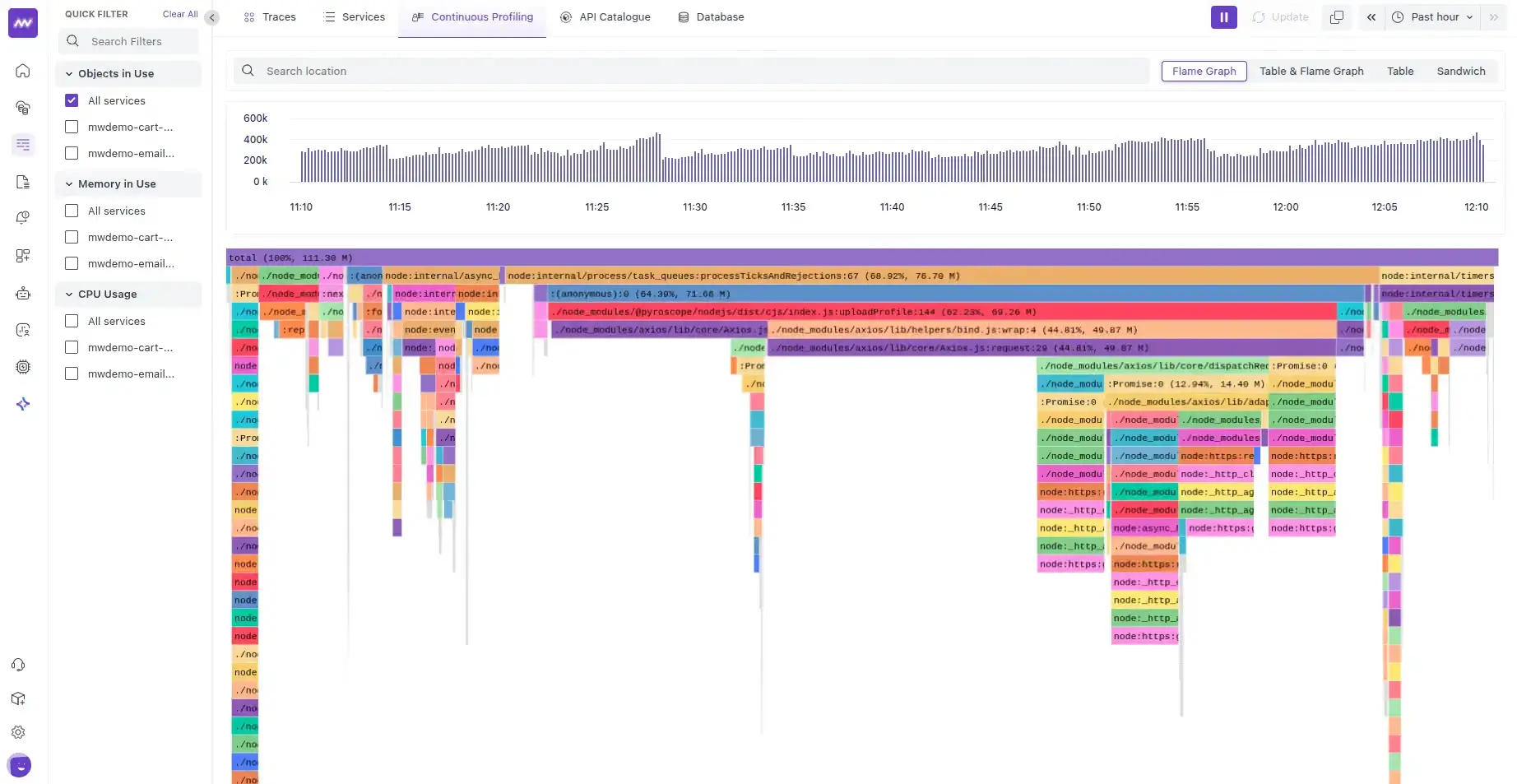
The Flame Graph visualizes application resource usage across function call stacks.
Each block represents a function. The width of a block represents the amount of the selected profiling resource attributed to that function and its call stack. Wider blocks therefore indicate functions associated with a larger portion of the selected resource.
The hierarchical structure shows how functions call one another, allowing you to trace execution through parent and child functions.
Use the Flame Graph to:
- Identify CPU or memory hotspots.
- Find expensive functions in a call stack.
- Understand relationships between calling and called functions.
- Narrow an investigation to a specific service or function.
Select a function in the Flame Graph to focus on it and inspect its profiling data.
Profiling Table#
The Profiling Table presents profiling data in a column-based view, making it easier to compare individual functions.
Each row represents a function or operation.
Two important values are:
- Self: Resource usage attributed directly to the selected function, excluding its child functions.
- Total: Resource usage attributed to the function including work performed by functions called from it.
Sort the table by Self or Total to identify functions responsible for the highest resource usage.
Selecting a function in the table also highlights it in the Flame Graph, allowing you to inspect its position within the call stack.
Sandwich Graph#
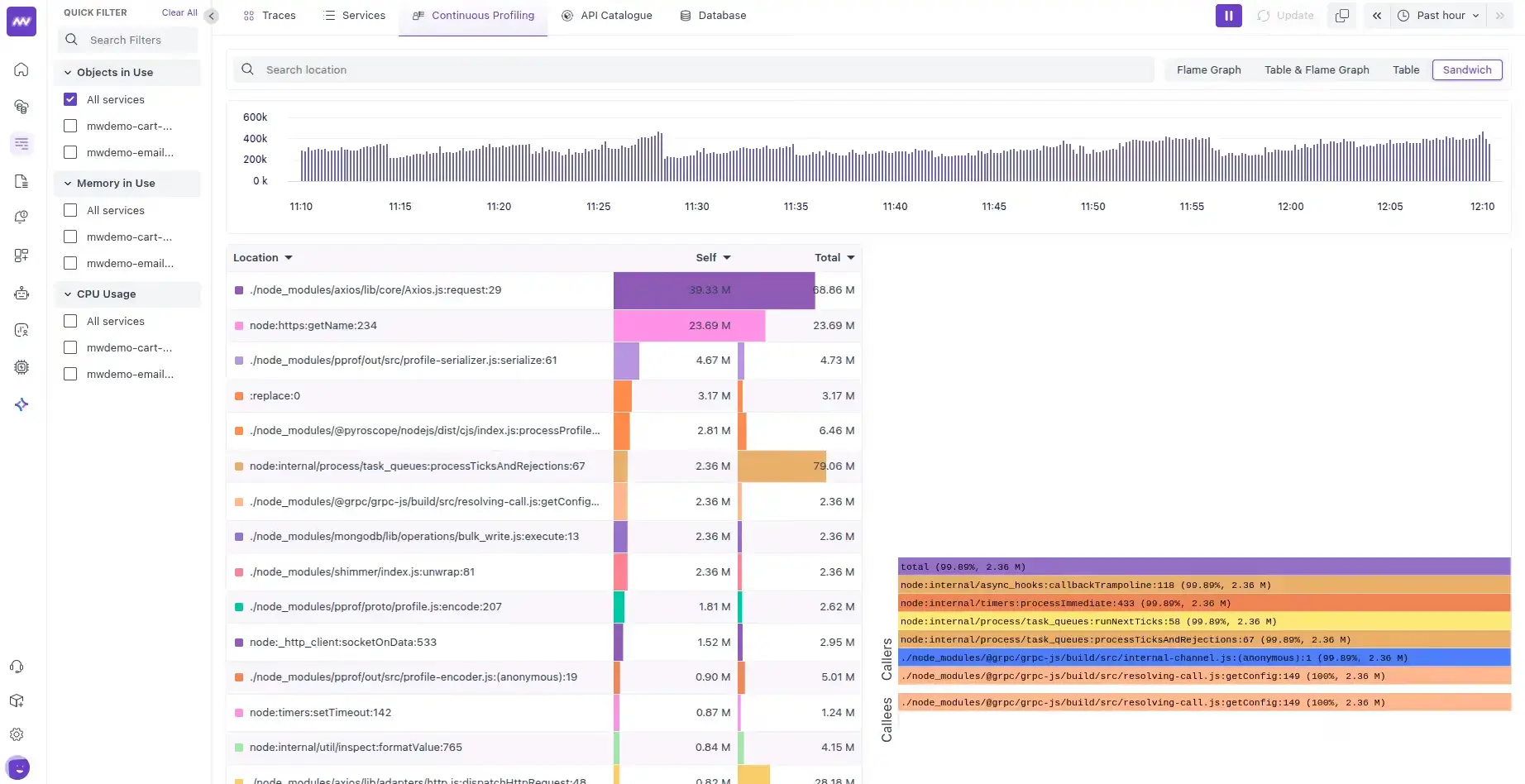
The Sandwich Graph focuses on a selected function and shows the functions immediately related to it in the call stack.
It separates these relationships into:
- Callers: Functions that call the selected function.
- Callees: Functions called by the selected function.
Use this view after identifying an expensive function to understand where calls to it originate and where it spends resources downstream.
This distinguishes work performed directly by the selected function from work performed by functions it calls.
Investigate a Performance Bottleneck#
A typical profiling investigation can follow this workflow:
- Go to APM → Continuous Profiling.
- Select the service and profiling type you want to investigate.
- Open the Table and sort by Self to identify functions with high direct resource usage.
- Select a function to highlight it in the Flame Graph.
- Follow the call stack to understand where the function is called and what it calls.
- Open the Sandwich Graph to inspect its callers and callees.
- Use this context to identify the function or code path contributing to the performance issue.
For example, if a function has unusually high CPU usage, sorting the profiling table by Self can surface it quickly. Selecting the function then shows its position in the Flame Graph and its relationship with other functions in the call stack.
Supported Profiling Types#
Available profiling data depends on the application's language and runtime.
| Profiling Query Type | Node.js | Go | Java | Ruby | .NET | PHP | Python | Next.js | Vercel | Cloudflare | Scala | |
|---|---|---|---|---|---|---|---|---|---|---|---|---|
| Object Allocation | memory:alloc_objects:count:: | ✖️ | ✅ | ✖️ | ✖️ | ✖️ | ✖️ | ✖️ | ✖️ | ✖️ | ✖️ | ✖️ |
| Memory Allocation | memory:alloc_space:bytes:: | ✖️ | ✅ | ✖️ | ✖️ | ✖️ | ✖️ | ✖️ | ✖️ | ✖️ | ✖️ | ✖️ |
| Objects in Use | memory:inuse_objects:count | ✅ | ✅ | ✖️ | ✖️ | ✖️ | ✖️ | ✖️ | ✅ | ✅ | ✖️ | ✖️ |
| Memory in Use | memory:inuse_space:bytes | ✅ | ✅ | ✖️ | ✖️ | ✖️ | ✖️ | ✖️ | ✅ | ✅ | ✖️ | ✖️ |
| CPU Usage | process_cpu:cpu:nanoseconds:cpu:nanoseconds | ✖️ | ✅ | ✅ | ✅ | ✖️ | ✖️ | ✅ | ✅ | ✅ | ✖️ | ✅ |
| Wall-Clock Time | wall:wall:nanoseconds:cpu:nanoseconds | ✖️ | ✖️ | ✖️ | ✖️ | ✅ | ✖️ | ✖️ | ✖️ | ✖️ | ✖️ | ✖️ |
| Blocking Contentions | block:contentions:count:: | ✖️ | ✖️ | ✅ | ✖️ | ✖️ | ✖️ | ✖️ | ✖️ | ✖️ | ✖️ | ✅ |
| Blocking Delays | block:delay:nanoseconds:: | ✖️ | ✖️ | ✅ | ✖️ | ✖️ | ✖️ | ✖️ | ✖️ | ✖️ | ✖️ | ✅ |
| Bytes Allocated(TLAB) | memory:alloc_in_new_tlab_bytes:bytes:: | ✖️ | ✖️ | ✅ | ✖️ | ✖️ | ✖️ | ✖️ | ✖️ | ✖️ | ✖️ | ✅ |
| Objects Allocated(TLAB) | memory:alloc_in_new_tlab_objects:count:: | ✖️ | ✖️ | ✅ | ✖️ | ✖️ | ✖️ | ✖️ | ✖️ | ✖️ | ✖️ | ✅ |
Profiling Query Types#
The following query types correspond to the profiling data available in Middleware:
| Profiling Type | Query Type |
|---|---|
| Object Allocation | memory:alloc_objects:count:: |
| Memory Allocation | memory:alloc_space:bytes:: |
| Objects in Use | memory:inuse_objects:count |
| Memory in Use | memory:inuse_space:bytes |
| CPU Usage | process_cpu:cpu:nanoseconds:cpu:nanoseconds |
| Wall-Clock Time | wall:wall:nanoseconds:cpu:nanoseconds |
| Blocking Contentions | block:contentions:count:: |
| Blocking Delays | block:delay:nanoseconds:: |
| Bytes Allocated (TLAB) | memory:alloc_in_new_tlab_bytes:bytes:: |
| Objects Allocated (TLAB) | memory:alloc_in_new_tlab_objects:count:: |
Example: Find a CPU Bottleneck#
After configuring Continuous Profiling for your application:
- Go to APM → Continuous Profiling.
- Select the application or service you want to investigate.
- Select the CPU profiling data.
- Open the Table and Flame Graph.
- Sort the table by Self in descending order.
- Select a function with high CPU usage.
- Review its position in the Flame Graph to inspect its call stack.
For example, if calc3 appears near the top of the table with high Self CPU time, select it to highlight the function in the Flame Graph.
The Flame Graph shows the associated call stack, with caller functions above the selected function and functions it calls below it. You can then use the Sandwich Graph for a focused view of those caller and callee relationships.
Profiling A Flask Web Application#
Although this guide focuses on a Python-specific implementation, Middleware supports all major programming languages. You can find instructions for your language of choice in our APM Documentation.
Prerequisites#
1 MW Agent Installed#
Middleware Host Agent (MW Agent). To install the MW Agent, see our Installation Guide.
2 VPS or Cloud Computer#
Access to a VPS or a cloud computer service instance like EC2, Azure VM, or Digital Ocean Droplet
Create Your Flask App#
calculations.py contains a set of functions that allows us to simulate a bottleneck, along with other functions that perform some mathematical calculations:
calc1 - a function with a quadratic time complexity.
calc2 - a function with a quadratic time complexity. It's a bit different from calc 1 because it does not have the extra square root added to the value. Both calc1 and calc2 simply serve to demonstrate calc3 as a bottleneck.
calc3 - a function with a factorial time complexity.
efficient - a function that calls calc1 and calc2 and returns a sum of those functions.
with_bottlneck - a function that calls calc1 calc2 and calc3 and returns a sum of those functions. calc3 will be our bottleneck function in this example.
1import math
2
3def calc1(n: int) -> int:
4    value = 0
5    for i in range(0, n):
6        for j in range(0, n):
7            value += math.sqrt(j)
8            value += math.sqrt(i)
9    return value
10
11def calc2(n: int) -> float:
12    value = 0
13    for i in range(0, n):
14        for j in range(0, n):
15            value += math.sqrt(j)
16    return value
17
18def calc3(n: int) -> float:
19    elements = list(range(1, n + 1))
20    num_permutations = math.factorial(n)
21    value = 0
22    for i in range(num_permutations):
23        value += sum(elements)
24        j = n - 2
25        while j >= 0 and elements[j] > elements[j + 1]:
26            j -= 1
27
28        if j == -1:
29            break
30
31        k = n - 1
32        while elements[j] > elements[k]:
33            k -= 1
34
35        elements[j], elements[k] = elements[k], elements[j]
36
37        left = j + 1
38        right = n - 1
39        while left < right:
40            elements[left], elements[right] = elements[right], elements[left]
41            left += 1
42            right -= 1
43
44    return value
45
46def efficient(n: int) -> float:
47    value = 0
48    value += calc1(n)
49    value += calc2(n)
50    return value
51
52def with_bottleneck(n: int) -> float:
53    value = 0
54    value += calc1(n)
55    value += calc2(n)
56    value += calc3(n)
57 return valueapp.py contains our Flask application with two endpoints.
/calculate1 - an endpoint designed to be faster than calculate2 and calls calculations.efficient()
/calculate2 - calls the calculations.with_bottleneck() function and is comparatively slower than the /calculate1 endpoint.
1import calculations
2from flask import Flask
3import os
4
5# Required middleware import
6from middleware import MwTracker
7tracker = MwTracker()
8
9app = Flask(__name__)
10app.secret_key = os.environ.get("FLASK_SECRET_KEY", default="Da!8j97ZZq^6Fe3y!D@U")
11
12@app.errorhandler(404)
13def not_found(e):
14    return "<h1> 404 Not found </h1>"
15
16@app.route("/calculate1/<int:number>")
17def calculate1(number):
18    value = calculations.efficient(number)
19    return {"value": value}
20
21@app.route("/calculate2/<int:number>")
22def calculate2(number):
23    value = calculations.with_bottleneck(number)
24 return {"value": value}wsgi.py is a file Gunicorn will use to run our Flask app.
1from app import app
2
3# To bind to gunicorn
4# gunicorn wsgi:app
5if __name__ == "__main__":
6    app.run()
Finding a Bottleneck#
After creating the application and deploying it to the platform of your choice, follow the steps from Python APM, login to middleware.io, and head to APM > Continuous Profiling.
To identify individual functions/methods that consume a significant amount of CPU time, click on the Table and Flamegraph section.
Within the table, sort the functions/methods by the amount of time they consume in descending order by clicking on the “Self” header.
In this example, it’s clear that the calc3 function is causing a notable bottleneck in our application.
By clicking on the function name calc3 in the table, the function will also be highlighted in the flame graph. This will show the call stack with caller functions at the top and callee functions going toward the bottom.
Need assistance or want to learn more about Middleware? Get in touch with us via our Contact Us or join our Slack channel.
What did you think of this content?