Install the Middleware.io Agent on Windows
The Middleware Infrastructure Agent collects Windows host telemetry to help you monitor resource usage and investigate performance problems. Supported log collection and application instrumentation provide additional context when configured.
Use this integration to monitor Windows desktops and servers and send their infrastructure and application telemetry to Middleware.
Prerequisites#
Before installing the Middleware Infrastructure Agent on Windows, make sure your system meets the following requirements:
- Windows Edition: Windows 10 or newer
- Windows Server: Server 2016 or newer
- Processor: 64-bit (x86_64)
Installation#
1 Download the Installer#
Log in to Middleware.io → Installation → Infrastructure → Windows, then click Download Infra Agent Installer.
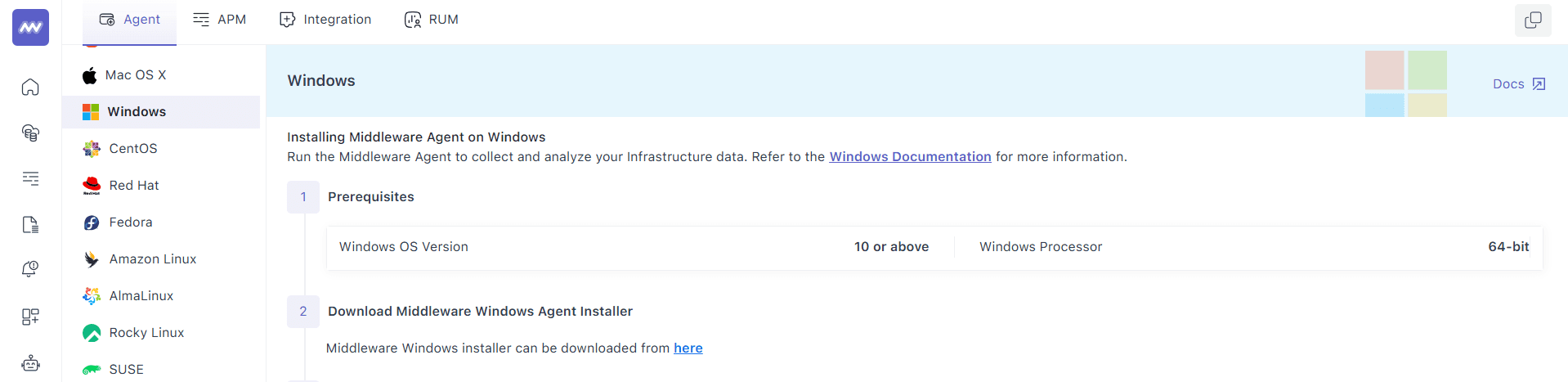
Alternatively, the same can be found on Middleware.io’s GitHub page.
2 Run the Install Wizard#
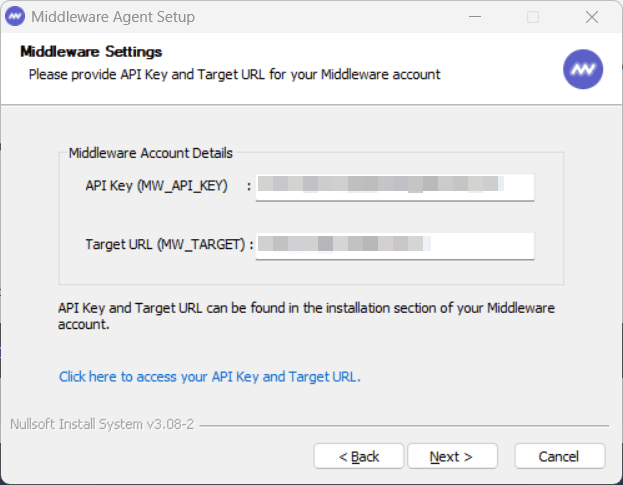
Once you are done downloading the executable file, right-click mw-windows-agent-setup.exe → run as administrator. When prompted, enter your MW_API_KEY and MW_TARGET.
3 Verify Installation#
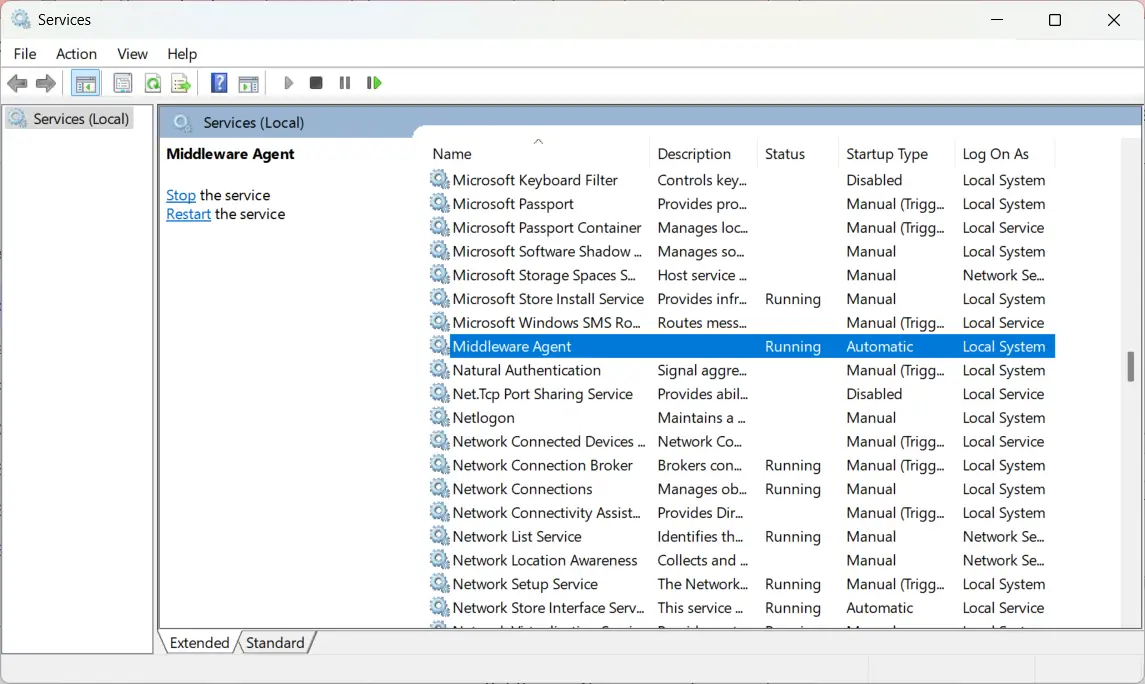
To verify the installation, open Windows Service Manager (services.msc), and there you will find the status of the Middleware Agent.
1 Download the installer:#
1Invoke-WebRequest `
2  -Uri "https://github.com/middleware-labs/mw-agent/releases/latest/download/mw-windows-agent-setup.exe" `
3  -OutFile mw-windows-agent-setup.exe -UseBasicParsing
2 Run silently:#
1Start-Process `
2  -FilePath ".\mw-windows-agent-setup.exe" `
3  -ArgumentList "/S /MW_API_KEY='<MW_API_KEY>' /MW_TARGET='https://<MW_UID>.middleware.io:443'" `
4  -Wait
3 Verify Installation#
To verify the installation, you can check the status of the Middleware agent:
1Get-Service -Name mw-windows-agentExpect Status : Running.
Verify data collection#
After installing the Agent, allow a few moments for the host to start reporting telemetry.
Go to Infrastructure Monitoring → Hosts and verify that your Windows host appears and is reporting metrics.
After data collection starts, you can:
- View host metrics in Infrastructure Monitoring.
- View collected Windows Event Logs in Log Monitoring.
- Create alerts for collected metrics.
- Create custom dashboards to visualize and monitor Windows host metrics.
Troubleshooting#
If the Agent is installed but the host is not reporting data, check the following.
- Multiple Agents Detected Only one Middleware Infrastructure Agent should run on each host. If multiple Infrastructure Agents are installed:
- Uninstall the duplicate Agents.
- Verify that only one Agent remains on the host.
- Reinstall or restart the Middleware Agent if required.
- No data in the Middleware UI If the Agent is running but no data appears in Middleware:
- Check network connectivity. Verify that the host can establish an outbound HTTPS connection to
MW_TARGETon port443 - Check the API key. Verify that MW_API_KEY is valid and has not been rotated or replaced.
- Check firewall and proxy settings. Make sure a firewall, proxy, or other network policy is not blocking outbound connections from the Agent.
- Check Agent logs. Open Event Viewer → Applications and Services Logs → Middleware Agent and review the logs for connection or configuration errors.
- Check network connectivity. Verify that the host can establish an outbound HTTPS connection to
- Installer fails or hangs If the installation does not complete:
- Open PowerShell as Administrator and run the installation again.
- Check Event Viewer → Applications and Services Logs → Middleware Agent for installation or Agent errors.
- Verify that the host meets the supported Windows version and processor architecture requirements.
- Verify that the host can connect to
MW_TARGETover port443.
Uninstall#
- Open Settings → Apps → Apps & features
- Find Middleware Agent → Uninstall and follow prompts
Need assistance or want to learn more about Middleware? Get in touch with us via our Contact Us or join our Slack channel.
What did you think of this content?