ECS Explorer
Middleware ECS Explorer shows Amazon Elastic Container Service (ECS) resources, their runtime state, configuration, and collected performance data.
Use it to investigate clusters, services, tasks, task definitions, and containers across connected AWS accounts. Related metrics, logs, and APM services help connect infrastructure issues with the workload involved.
With ECS Monitoring, you can:
- Monitor CPU and memory utilization across ECS tasks, services, and containers.
- Track task and container status to identify unhealthy or stopped workloads.
- Inspect task definitions and compare configuration versions.
- Correlate ECS resources with related logs and APM services.
- Explore relationships between clusters, services, tasks, and task definitions.
- Investigate resource utilization and workload performance across ECS environments.
Set Up ECS Monitoring#
To monitor ECS workloads in Middleware, configure the following integrations:
- ECS Integration — Enables collection of ECS resource information.
- AWS Integration — Enable the Amazon ECS namespace to collect ECS metrics.
Once both integrations are configured and data collection starts, go to: Infrastructure Monitoring → ECS
The ECS Explorer provides five resource views:
- Tasks
- Task Definitions
- Services
- Containers
- Clusters
Each view contains a resource table with relevant information such as name, status, AWS tags, resource utilization, and other attributes.
ECS Explorer#
The ECS Explorer provides a central place to monitor and investigate ECS resources across your connected AWS accounts.
Use the resource views to move between the different components of your ECS environment.
Select any resource to open its details and inspect available performance metrics, logs, configuration, APM services, and related resources.
Search, Filter, and Group ECS Resources#
Use the available filters and grouping options to narrow down the ECS resources you want to investigate.
For example, in the Tasks view, you can:
- Filter tasks by ECS cluster.
- Group tasks by available attributes.
- Review task status and resource utilization.
This helps you isolate workloads within a specific cluster instead of reviewing all ECS tasks together.
Tasks#
Go to Infrastructure Monitoring → ECS → Tasks.
The Tasks page displays ECS tasks along with their runtime status and resource utilization.
The task list includes:
| Field | Description |
|---|---|
| Task ID | Identifier of the ECS task |
| Cluster Name | ECS cluster where the task is running |
| Definition | Task definition family name |
| Version | Task definition revision used by the task |
| Status | Current task state, such as RUNNING |
| Launch Type | Task launch type, such as Fargate |
| CPU Utilization | CPU usage of the task |
| Memory Utilization | Memory usage of the task |
| Age | Time since the task started or was observed |
Use the task list to identify tasks with high resource utilization, review their status, or locate tasks running within a specific cluster.
Task Performance Dashboard#
Alongside the task list, ECS Explorer provides a performance dashboard for tasks.
Use this dashboard to review task-level performance metrics and identify changes in resource utilization.
For example, when CPU utilization increases, you can use the dashboard to review the overall activity and then open an individual task for further investigation.
Task Details#
Click any task in the list to open its Task Details panel.
The panel contains the following tabs:
- Task Info
- Task Definition
- Containers
- Logs
- APM Services
- Related Resources
Use these tabs to inspect task performance, configuration, running containers, and associated application data.
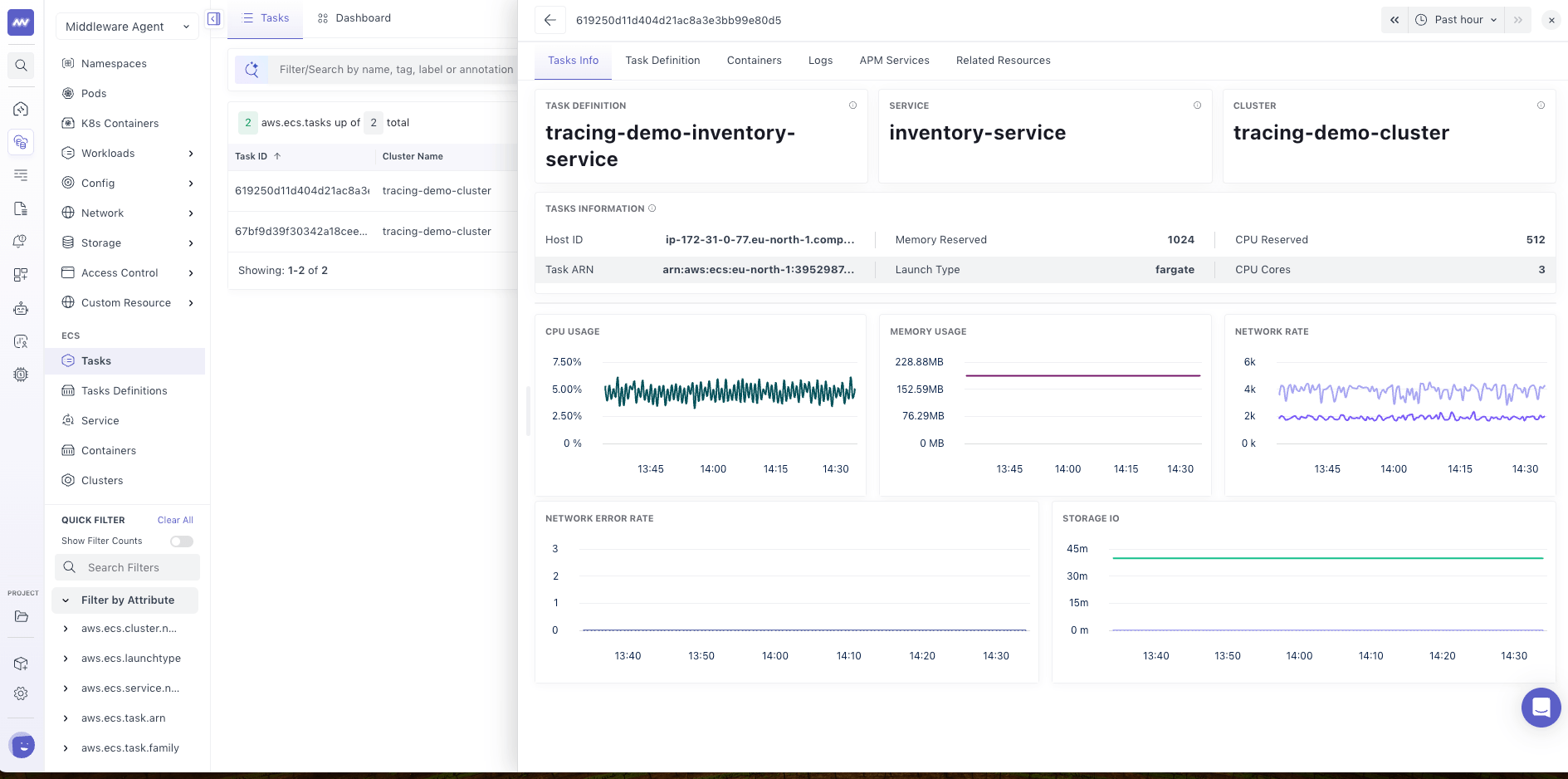
Task Info#
The Task Info tab provides detailed information about the selected ECS task.
It includes task and host-related information along with CPU and memory metrics.
Use this tab to review the task's runtime information and resource consumption.
Task Definition#
The Task Definition tab displays the configuration used by the selected task in YAML format.
The configuration includes container definitions and runtime settings.
A tags panel on the right helps you navigate to specific sections of the configuration.
You can also:
- View Version — Open another version of the task definition.
- Compare Version — Compare configuration changes between task definition versions.
- Select Timestamp — View the configuration captured at a specific point in time.
- Download — Export the configuration.
Task-definition details provide configuration context when a workload starts behaving differently after a revision change.
Containers#
The Containers tab displays containers running inside the selected task.
Available information includes:
- Container ID
- Task ID
- CPU utilization
- Memory utilization
- Status
Click any container to open its details and investigate its resource usage and related information.
Logs#
The Logs tab displays logs associated with the selected ECS task.
Use this tab to investigate application errors or runtime events related to the task.
For example, if a task stops unexpectedly or experiences high resource utilization, review its logs to look for related errors.
APM Services#
The APM Services tab displays application services associated with the selected ECS task when APM data is available.
Associated APM services help compare task resource usage with application performance during the same investigation.
Related Resources#
The Related Resources tab shows relationships between the selected task and other ECS resources, such as:
- ECS Cluster
- Service
- Task Definition
- Task
Use this view to understand how the task fits into the broader ECS environment.
Task Definitions#
Go to Infrastructure Monitoring → ECS → Task Definitions.
The Task Definitions page provides visibility into the configurations used to run ECS tasks.
The list includes:
| Field | Description |
|---|---|
| Definition | Task definition family name |
| Version | Task definition revision |
| Status | Current status of tasks created from the definition |
| Containers | Container names defined in the task definition |
| Launch Type | Launch type used by related tasks |
| CPU Utilization | Aggregated CPU usage across related tasks |
| Memory Utilization | Aggregated memory usage across related tasks |
| Age | Time since the task definition was observed |
Use this view to identify task definition versions and understand the resource utilization of workloads associated with them.
Task Definition Details#
Click any task definition to open its details.
The panel provides the following tabs:
- Task Info
- Containers
- Related Tasks
- Logs
- Task Definitions
- APM Services
- Related Resources
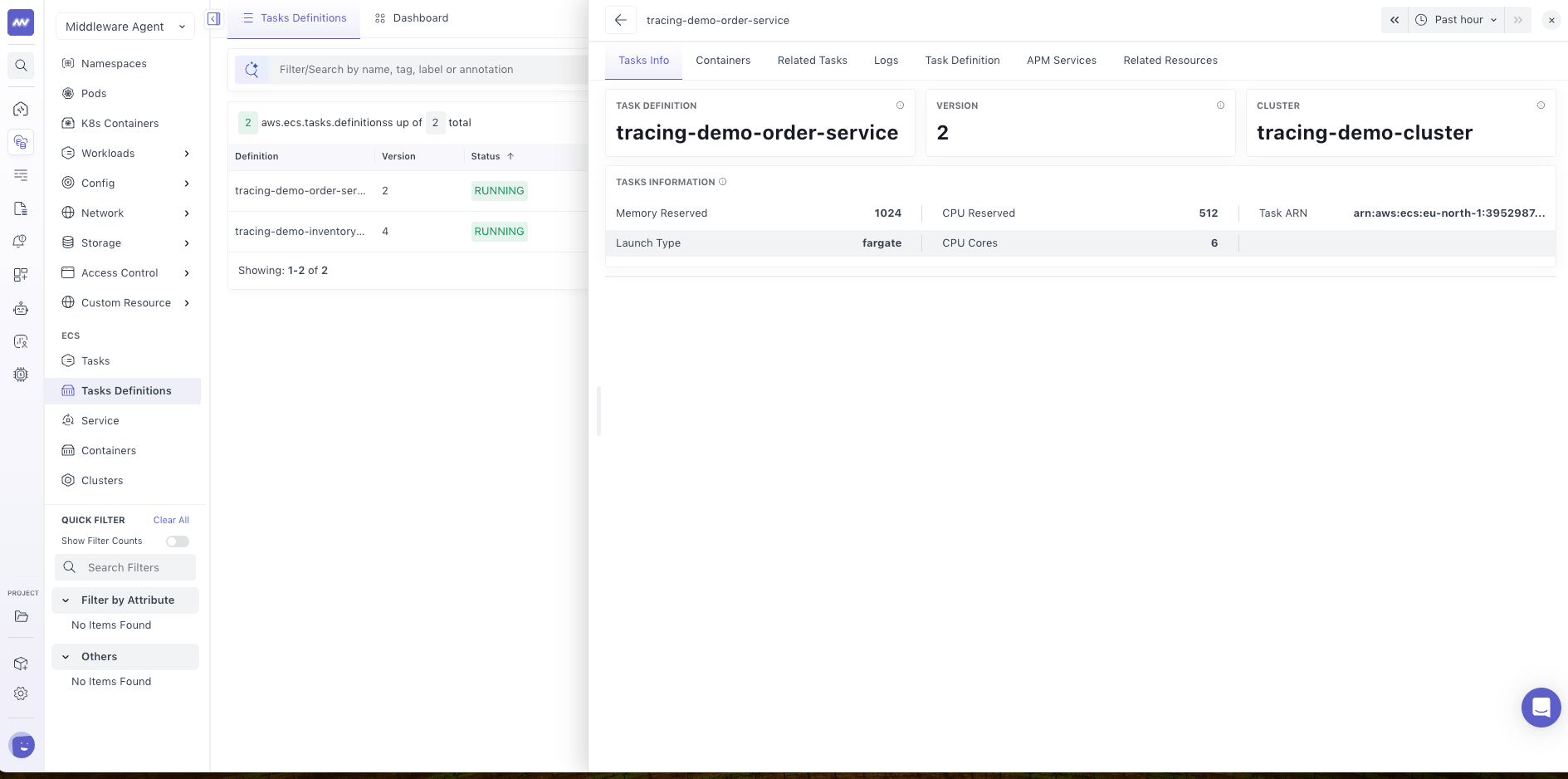
Task Info#
Review information associated with the selected task definition and its related tasks.
Containers#
View the containers defined within the task definition and their associated information.
Related Tasks#
View tasks associated with the selected task definition.
Use this tab to identify which tasks are running with a particular configuration.
Logs#
Review logs associated with the related workloads.
Task Definitions#
Inspect task definition configuration information and available versions.
APM Services#
View associated application services when APM data is available.
Related Resources#
Explore relationships between the task definition and other ECS resources.
Services#
Go to Infrastructure Monitoring → ECS → Services.
The Services page displays ECS services and their associated resource utilization.
The list includes:
| Field | Description |
|---|---|
| Service Name | Name of the ECS service |
| Cluster | ECS cluster where the service is running |
| Definition | Task definition used by the service |
| Status | Current service state |
| CPU Utilization | Aggregated CPU usage across tasks managed by the service |
| Memory Utilization | Aggregated memory usage across related tasks |
| Age | Time since the service was observed |
Service Details#
Click any service to open its Service Details panel.
The panel includes:
- Service Info
- Related Tasks
- Logs
- APM Services
- Related Resources
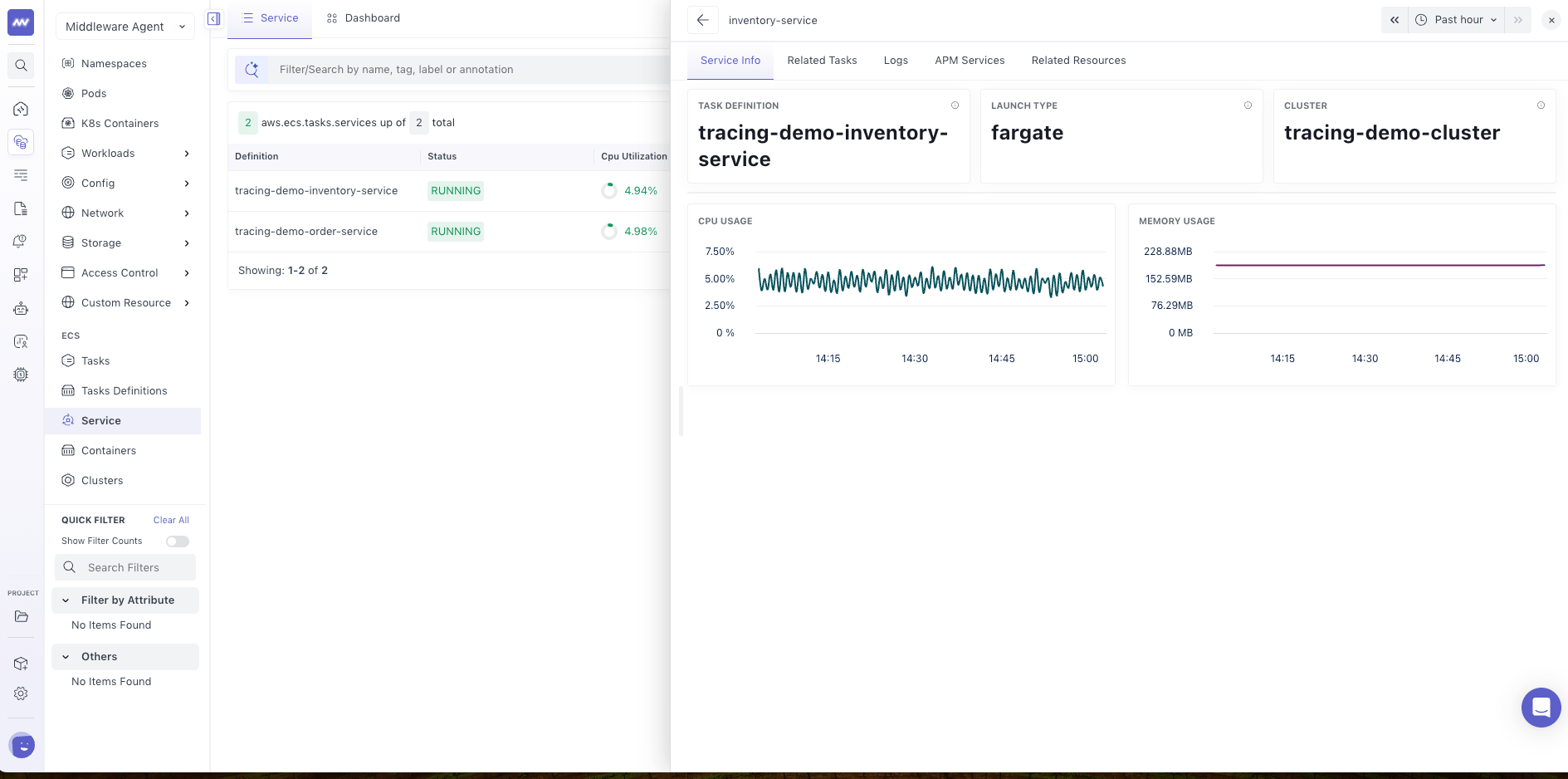
Service Info#
View detailed information about the selected ECS service, including its configuration and resource utilization.
Related Tasks#
View tasks managed by the selected service.
Use this tab to investigate individual tasks when a service has unexpected resource utilization or task status.
Logs#
Review logs associated with the service's workloads.
APM Services#
View application services associated with the ECS service when APM data is available.
Use this tab to investigate application performance alongside ECS service activity.
Related Resources#
View connections between the selected service and its associated ECS resources.
Use this view to navigate to related tasks, task definitions, or the ECS cluster.
Containers#
Go to Infrastructure Monitoring → ECS → Containers.
The Containers page provides container-level visibility into workloads running inside ECS tasks.
Use this view to monitor individual container instances, identify resource-intensive containers, and investigate related logs.
The container list includes:
| Field | Description |
|---|---|
| Container ID | Unique identifier of the container |
| Task ID | ECS task where the container is running |
| Memory Utilization | Current memory usage of the container |
| CPU Utilization | Current CPU usage of the container |
| Status | Runtime status of the container |
| Container Name | Name defined in the task definition |
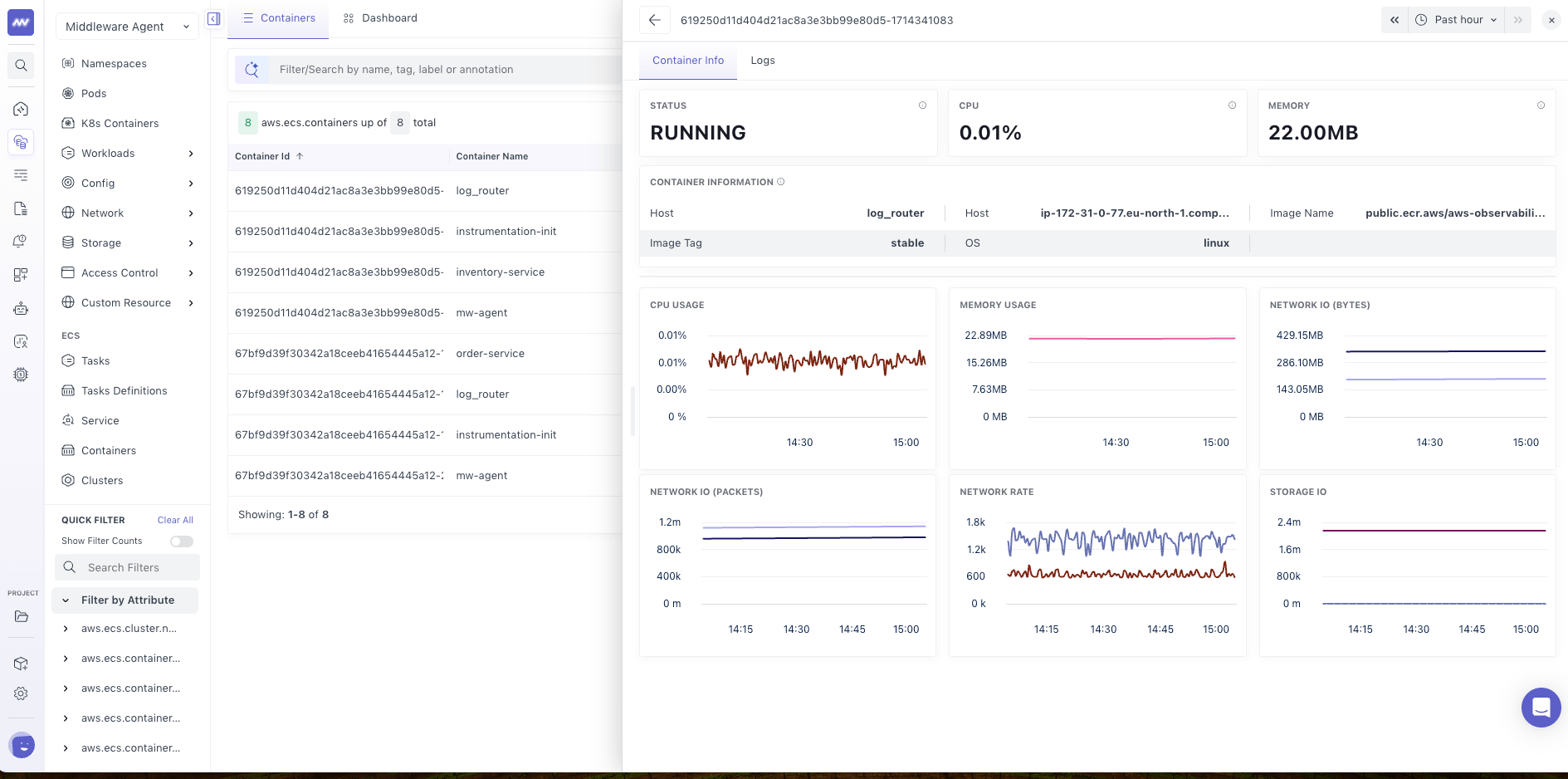
Container Details#
Click any container to open its details.
The Container Details panel provides information about the selected container and its related logs.
Use this view to investigate container-level resource consumption and application activity.
For example, if an ECS task has high memory utilization:
- Open the affected task.
- Navigate to its Containers tab.
- Identify containers consuming significant memory.
- Open the relevant container.
- Review its details and related logs.
This helps narrow down resource issues from an ECS task to an individual container.
Clusters#
Go to Infrastructure Monitoring → ECS → Clusters.
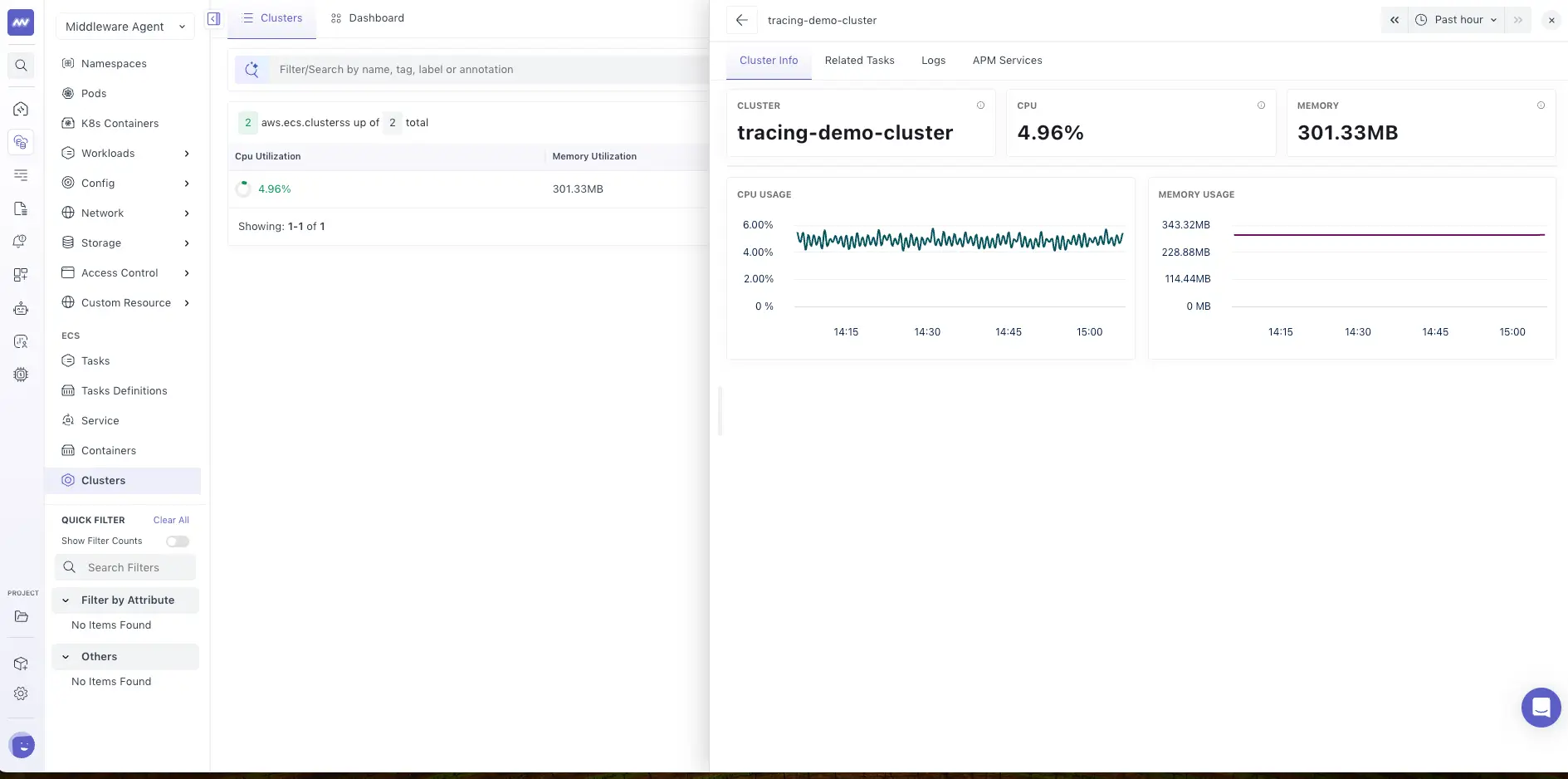
The Clusters page provides a high-level view of your monitored ECS clusters.
Use this view to understand the distribution of workloads and resource usage across your ECS environment.
The cluster list provides an entry point for investigating the tasks and services running within each cluster.
Cluster Details#
Click any cluster to open its details.
Use the Cluster Details view to inspect the selected cluster and explore its associated ECS resources.
For example, when investigating resource utilization across a cluster, you can navigate to the related tasks and services to identify workloads requiring attention.
Investigate ECS Performance Issues#
ECS Explorer lets you move between cluster-level resources, services, tasks, containers, and related telemetry.
Investigate High Task CPU Utilization#
- Go to ECS → Tasks.
- Review the CPU utilization column or task performance dashboard.
- Identify a task with high CPU usage.
- Open Task Details → Task Info to inspect resource metrics.
- Check Containers to identify resource-intensive containers.
- Review Logs for related application errors or events.
- Open APM Services to investigate associated application performance.
Investigate a Service Issue#
- Go to ECS → Services.
- Select the affected service.
- Review its status and CPU or memory utilization.
- Open Related Tasks to inspect tasks managed by the service.
- Identify tasks with unexpected status or high resource usage.
- Review task details, containers, and logs.
- Use Related Resources to inspect the associated task definition or cluster.
Investigate a Task Definition Change#
- Go to ECS → Task Definitions.
- Select the relevant task definition.
- Review its configuration and associated tasks.
- Open the task definition configuration from the relevant task.
- Use Compare Version to review changes between revisions.
- Check the related tasks and logs for issues associated with the configuration.
This helps determine whether changes in a task definition are related to unexpected workload behavior.
Use ECS Explorer to monitor container workloads, inspect resource utilization, review task configurations, and correlate related telemetry when investigating ECS issues.
What did you think of this content?