Heatmap
Middleware RUM Heatmap visualizes user interactions on individual application pages or screens, helping you identify heavily used areas and interaction problems.
Use it to identify where users click and engage most, find areas associated with errors or unresponsive interactions, and investigate the backend activity associated with specific user actions.
Go to: Real User Monitoring → Applications → select an application → Heatmap
View Pages and Screens#
The Heatmap list provides interaction metrics for each page or screen captured by RUM.
For each view, you can monitor:
- View Count: Number of times the page or screen was viewed.
- Action Count: Number of user actions captured on the view.
- Frustration Count: Number of detected frustration interactions.
Use these metrics to identify frequently used pages and views where users are experiencing interaction problems.
Select a page or screen to open its detailed heatmap.
View Heatmap Details#
The detail view provides a visual representation of the selected page or screen with interaction hotspots overlaid on it.
Use the heatmap to understand which areas receive the most user interaction and where users experience problems.
Depending on the selected interaction data, hotspots can help identify areas with:
- Frequent clicks
- Higher user engagement
- Errors
- Unresponsive interactions
- User frustration
The visual overlay adds location context to action counts, showing where interactions occurred on the page.
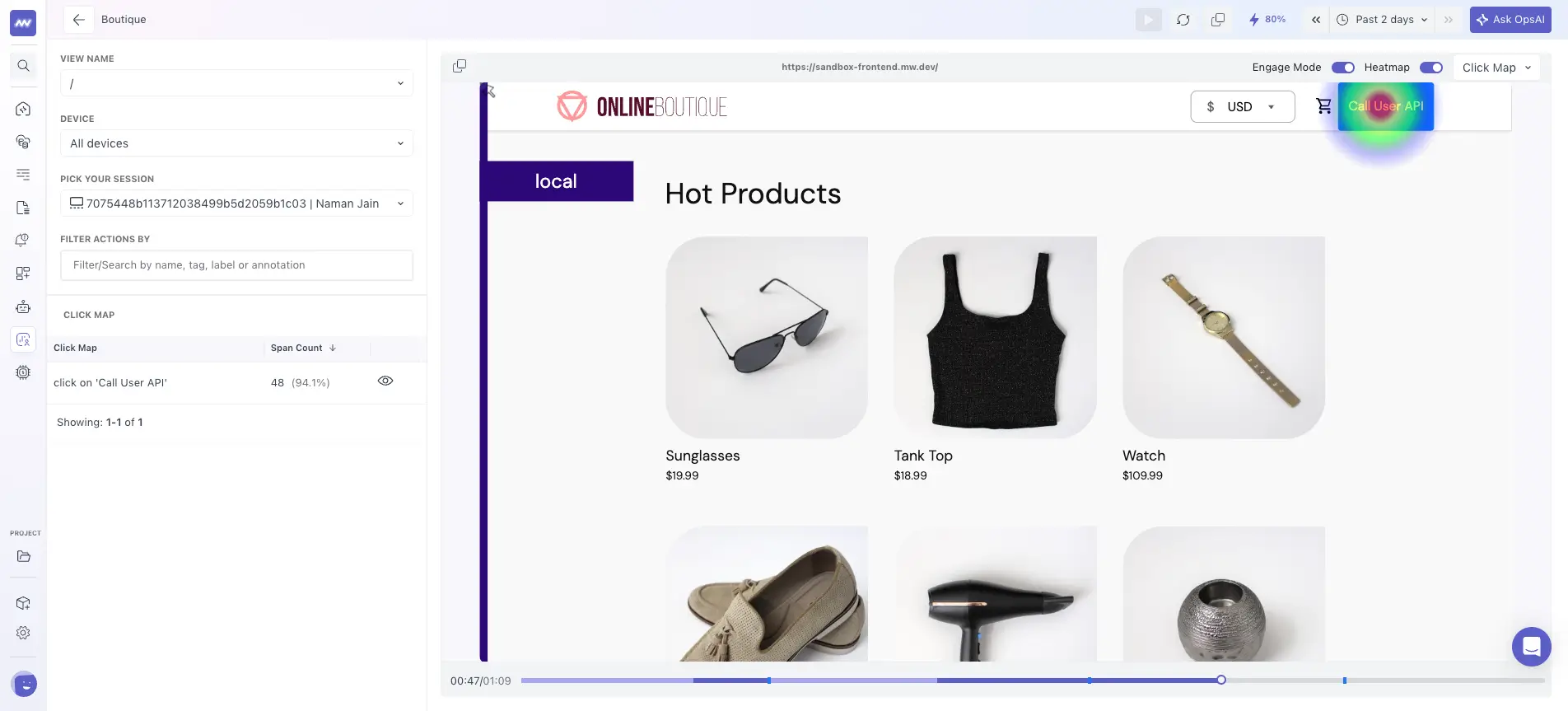
Click Map#
The Click Map lists user click events captured for the selected page or screen.
Use it alongside the visual heatmap to identify which elements users interact with and investigate individual interactions in more detail.
Selecting a click event provides additional context for that interaction and helps connect the hotspot on the page with the underlying user action.
Correlate User Actions with Backend Traces#
When tracing information is available for an interaction, you can correlate the user action with the backend trace associated with it.
This lets you move from: User interaction → RUM event → Backend trace
For example, if a user clicks a button and the application appears unresponsive, select the corresponding click event and inspect its related trace to determine whether the action triggered a slow or failed backend request.
From the trace, you can investigate:
- Services involved in the request.
- Request duration.
- Individual spans and operations.
- Errors in the request path.
Need assistance or want to learn more about Middleware? Get in touch with us via our Contact Us or join our Slack channel.
What did you think of this content?