Process
Overview#
Middleware Process Monitoring shows the processes running on monitored hosts and the process metrics collected by the Infrastructure Agent.
Use it to identify processes with high CPU or memory usage and inspect related log activity. This helps narrow a host-level performance problem to a specific process.
View Processes#
Go to Infrastructure Monitoring → Processes.
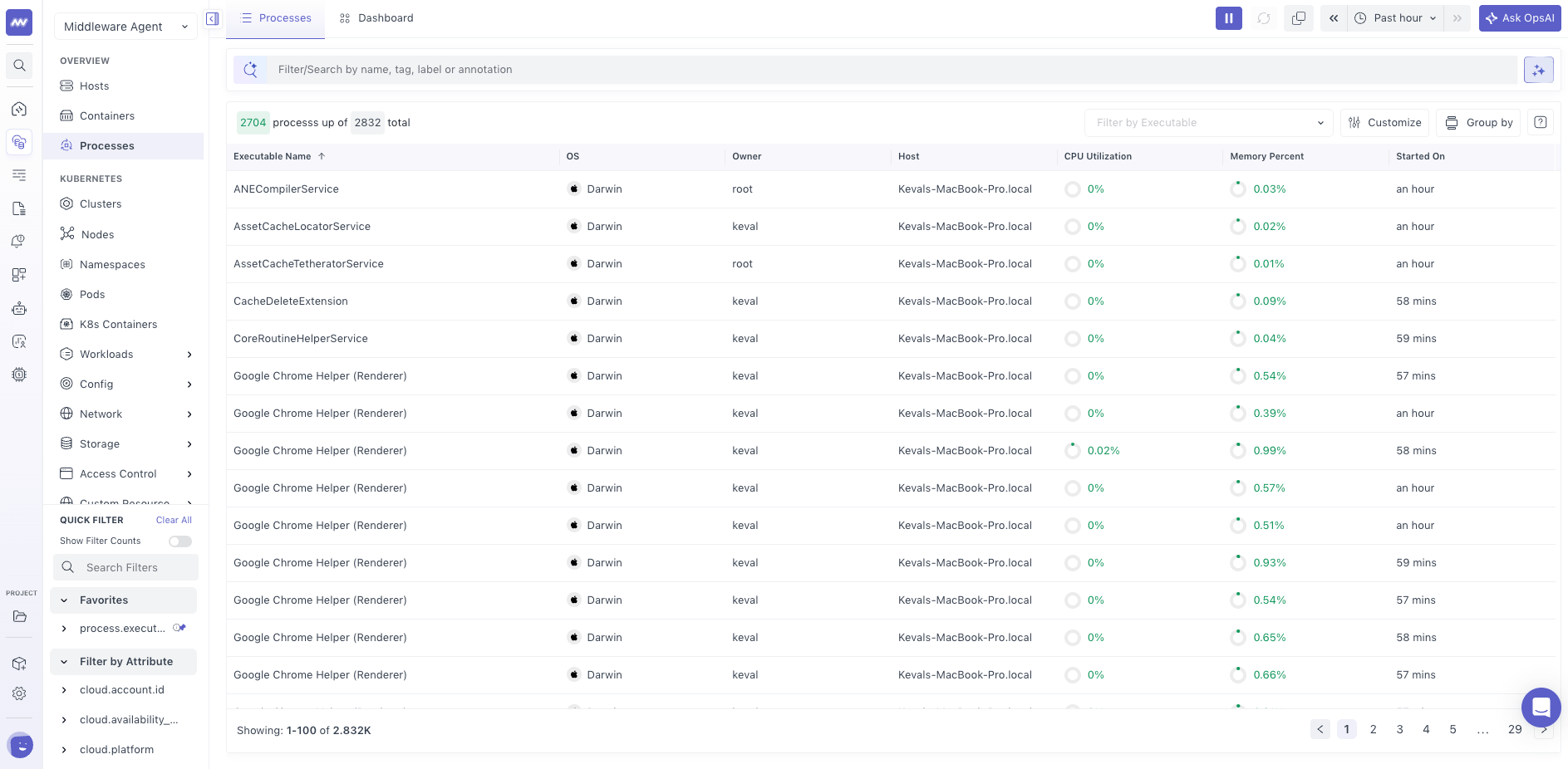
The Processes page displays a list of processes running across your monitored hosts, along with key information:
- Process Name — Name of the running process.
- Host Name — Host on which the process is running.
- CPU Utilization — CPU resources consumed by the process.
- Memory Utilization — Memory resources used by the process.
- Start Time — Time when the process started.
Use this view to identify processes consuming high system resources and understand which host they belong to.
Process Details#
Click any process in the list to open its Process Details panel.
The panel provides detailed information about the selected process across three tabs:
- Process Info
- Metrics
- Logs
Use these tabs to review process properties, analyze resource consumption, and investigate related log activity.
Process Info#
The Process Info tab provides system-level information about the selected process.
Details include:
- Operating System — OS of the host running the process.
- Process ID (PID) — Unique identifier of the process.
- Physical Memory Usage — Physical memory consumed by the process.
- Virtual Memory Usage — Virtual memory used by the process.
- Disk I/O — Disk input/output activity associated with the process.
Use this tab to identify the process and review its system resource information.
Metrics#
The Metrics tab provides performance graphs for the selected process.
Available metrics include:
- CPU Utilization — CPU usage of the process.
- CPU Time — CPU processing time consumed by the process.
- Memory Usage — Memory utilization over time.
- Physical Memory Usage (Bytes) — Physical memory consumed by the process.
Use these graphs to identify CPU spikes, increasing memory consumption, or changes in process performance over time.
Logs#
The Logs tab displays logs associated with the selected process.
Use this tab to investigate application errors or other log events that may be related to process performance.
Click any log entry to open its details and inspect the log message and associated properties.
For example, if a process shows high CPU usage, you can review its logs to check for errors or repeated application events during the same period.
What did you think of this content?