Kubernetes Explorer
Overview#
Middleware Kubernetes Explorer shows the health, performance, and state of your Kubernetes clusters and resources.
Monitor clusters, nodes, namespaces, pods, containers, and workloads from a single place. Use resource metrics, Kubernetes events, logs, and configuration details to identify failed workloads, investigate resource utilization, and troubleshoot Kubernetes issues.
With Kubernetes Monitoring, you can:
- Monitor CPU and memory utilization across clusters, nodes, pods, and containers.
- Track pod status, container restarts, and failed workloads.
- Inspect deployments, ReplicaSets, and other Kubernetes resources.
- View related metrics, events, logs, and YAML configurations.
- Explore resource relationships using the Kubernetes Cluster Map.
- Investigate Kubernetes issues and get suggested fixes using OpsAI.
Set Up Kubernetes Monitoring#
Install the Middleware Infrastructure Agent on your Kubernetes cluster using the Helm chart.
Once the agent is installed and starts collecting telemetry, Kubernetes resources and their metrics become available in Middleware.
To view the collected data, go to: Infrastructure Monitoring → Kubernetes
Enable APM Instrumentation#
You can also enable APM trace collection for applications running inside your Kubernetes cluster.
After installing the Middleware Agent, select the applications you want to instrument to enable automatic trace collection.
This lets you investigate application performance alongside Kubernetes infrastructure data.
For more information, see APM Configuration.
Kubernetes Explorer#
The Kubernetes Explorer provides a central place to view and investigate resources across your monitored clusters.
The left navigation organizes resources into the following categories:
- Clusters
- Nodes
- Namespaces
- Pods
- Containers
- Workloads
- Config
- Network
- Storage
- Access Control
- Custom Resources
Each resource view provides a table containing information such as resource name, status, Kubernetes labels, and relevant performance metrics.
Select a resource to open its details and inspect the available metrics, events, logs, configuration, and related Kubernetes resources.
Search and Filter Kubernetes Resources#
Use the search bar or left-side filter panel to find resources based on their names, attributes, labels, or status.
For example, to investigate pods that are repeatedly crashing:
- Go to Infrastructure Monitoring → Kubernetes → Pods.
- Open the left filter panel.
- Filter pods by the
CrashLoopBackOffstatus. - Select an affected pod to inspect its details, events, logs, and resource usage.
Filters help you narrow down large Kubernetes environments to the resources that need attention.
Clusters#
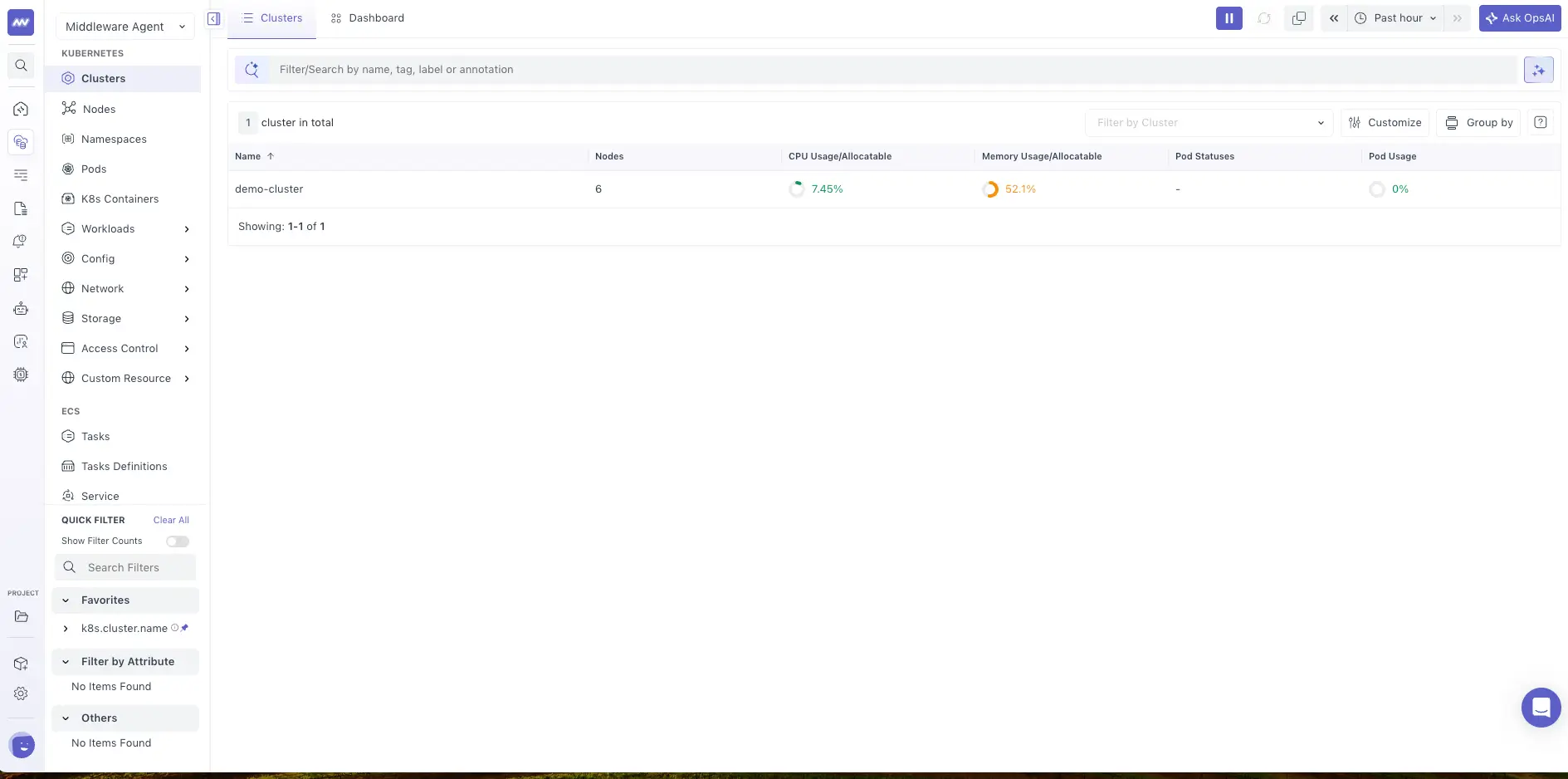
Go to Kubernetes → Clusters.
The Clusters page provides an overview of your monitored Kubernetes clusters.
The cluster list includes information such as:
- Cluster Name — Name of the Kubernetes cluster.
- Nodes — Number of nodes in the cluster.
- CPU Usage / Allocatable — CPU consumption compared with allocatable CPU resources.
- Memory Usage / Allocatable — Memory consumption compared with allocatable memory.
- Pod Status — Status information for pods running in the cluster.
You can add or remove columns from the table to display the information relevant to your monitoring needs.
Cluster Details#
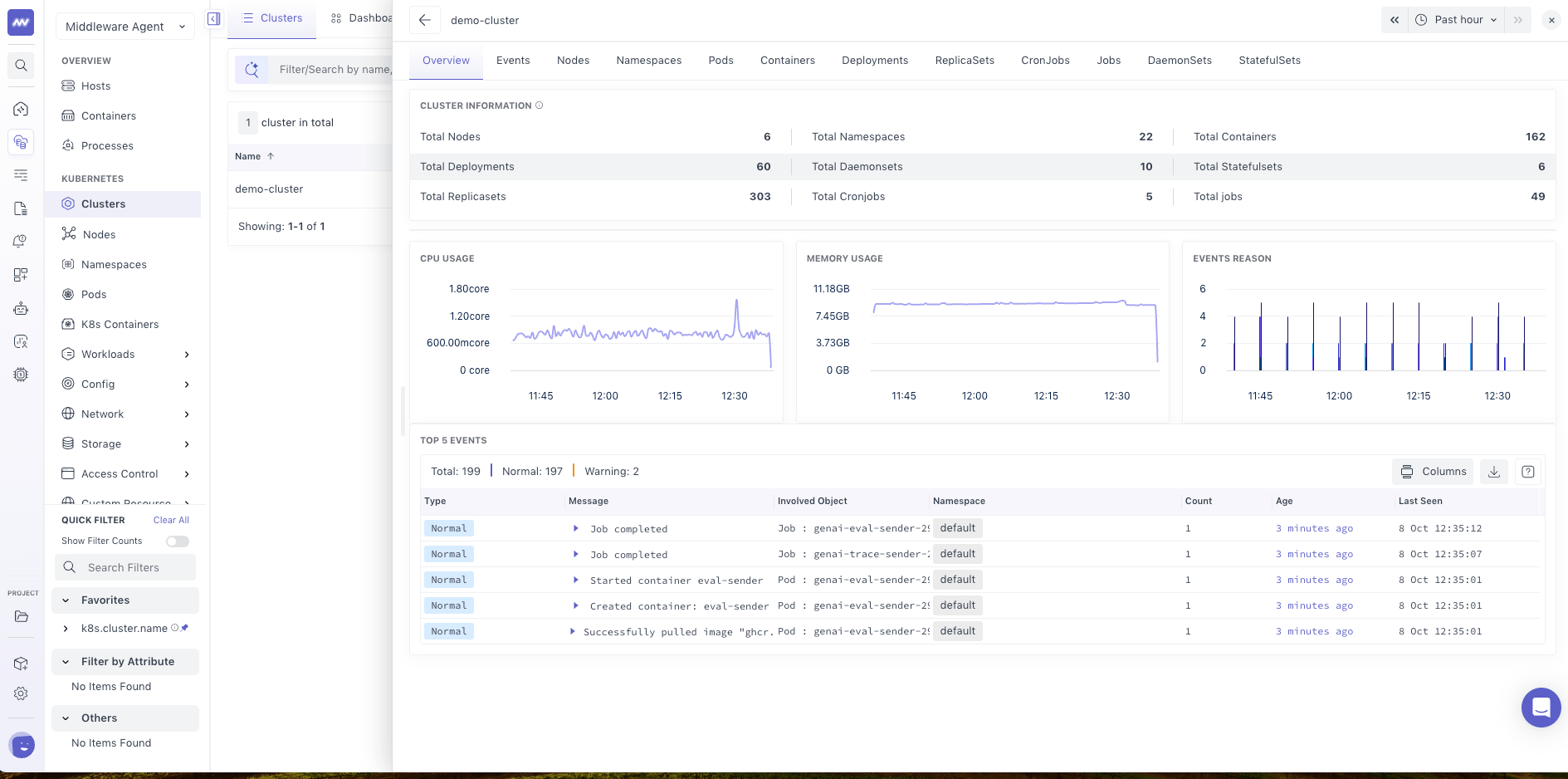
Click any cluster to open its Cluster Details panel.
The panel provides cluster-level information and access to related resources, including:
- Cluster information
- Events
- Nodes
- Namespaces
- Pods
- Other Kubernetes resources
Use Cluster Details to understand the overall state of a cluster and investigate resources associated with it.
For example, if a cluster has failing pods, you can open the cluster and navigate to its related pods to investigate further.
Nodes#
Go to Kubernetes → Nodes.
The Nodes page displays the nodes across your monitored Kubernetes clusters.
The list includes:
- Node Name — Name of the node.
- Age — How long the node has existed.
- Condition — Current node condition.
- CPU Usage / Allocatable — CPU utilization compared with allocatable resources.
- Memory Usage / Allocatable — Memory utilization compared with allocatable resources.
Use this view to identify nodes with high resource utilization or unhealthy conditions.
Node Details#
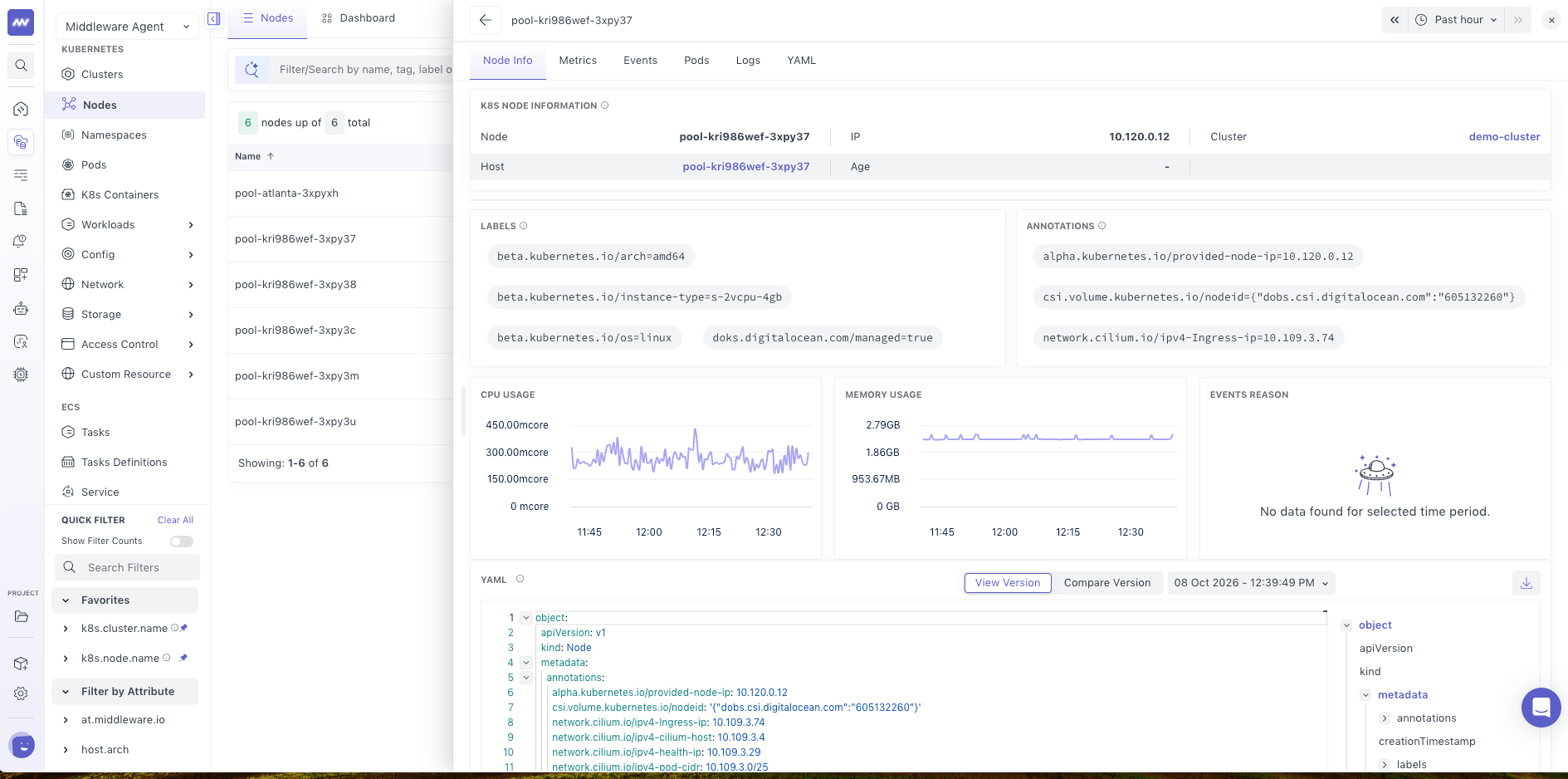
Click any node to open its details.
The Node Details panel provides access to:
- Node Information — Node properties and configuration details.
- Metrics — CPU, memory, and other available node performance metrics.
- Pods — Pods running on the selected node.
- Events — Kubernetes events associated with the node.
- Logs — Logs related to the node.
- YAML — Kubernetes resource configuration in YAML format.
Use these views together to investigate node-level performance issues.
For example, if a node has high memory utilization, inspect its metrics and related pods to identify workloads contributing to resource consumption.
Namespaces#
Go to Kubernetes → Namespaces.
The Namespaces page displays namespaces across your monitored clusters.
The list includes information such as:
- Namespace name
- Phase
- Age
- CPU usage
- Memory usage
Click any namespace to open its details.
Use namespaces to investigate Kubernetes resources within a specific logical grouping instead of reviewing the entire cluster.
Pods#
Go to Kubernetes → Pods.
The Pods page provides visibility into the state and resource utilization of pods across your clusters.
The pod list includes information such as:
- Pod Name — Name of the pod.
- Phase — Current lifecycle phase of the pod.
- CPU Usage — CPU resources consumed by the pod.
- Memory Usage — Memory resources consumed by the pod.
- Containers — Number of containers in the pod.
- Restarts — Number of container restarts.
Use the pod list to identify failed pods, repeated restarts, or pods consuming high resources.
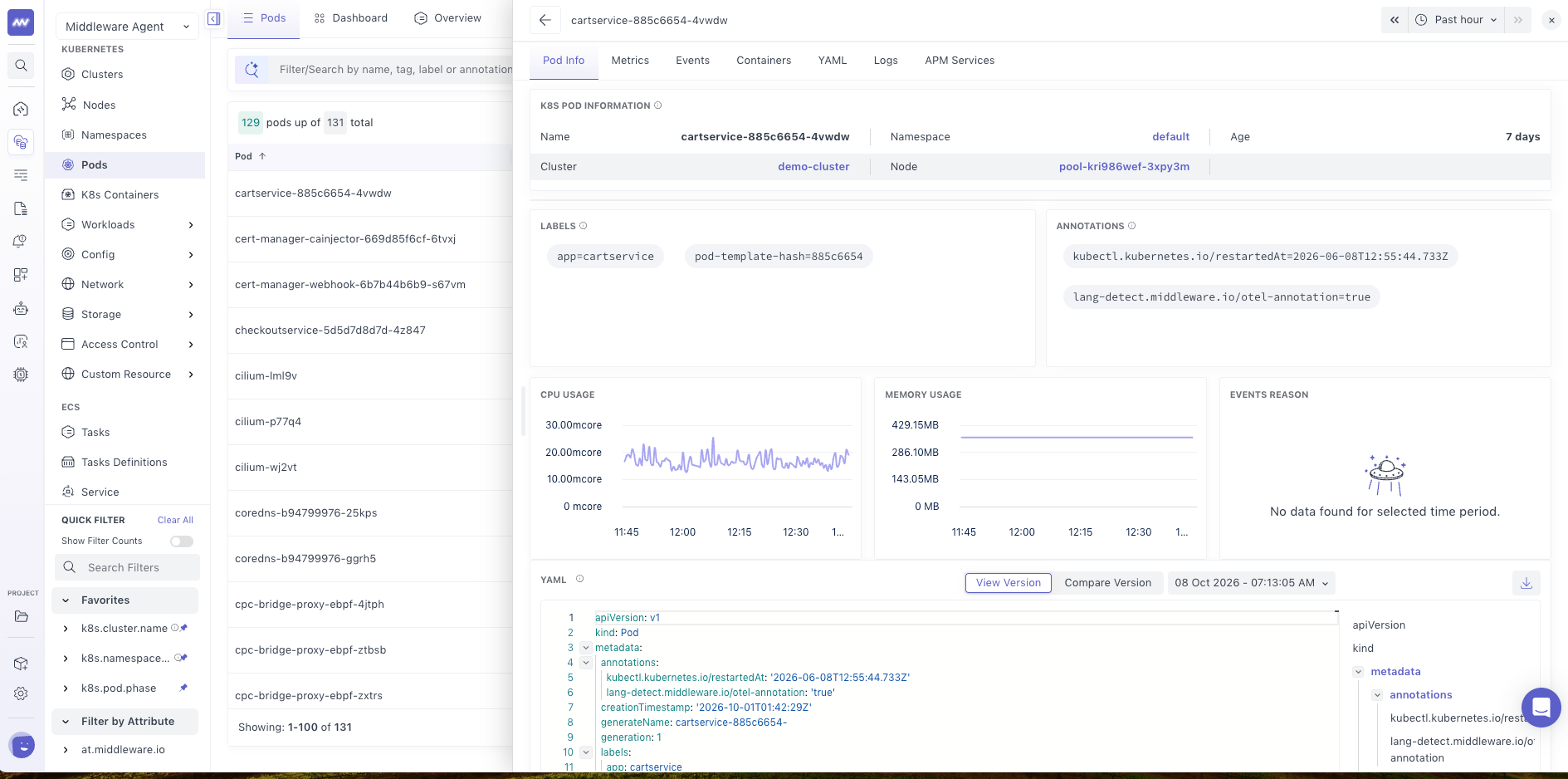
Pod Details#
Click any pod to open its details.
Use the available pod information and related telemetry to investigate its state, resource usage, and associated containers.
For example, if a pod is repeatedly restarting, inspect its status, restart count, resource utilization, and related events or logs to understand the failure.
Pod Cluster Map#
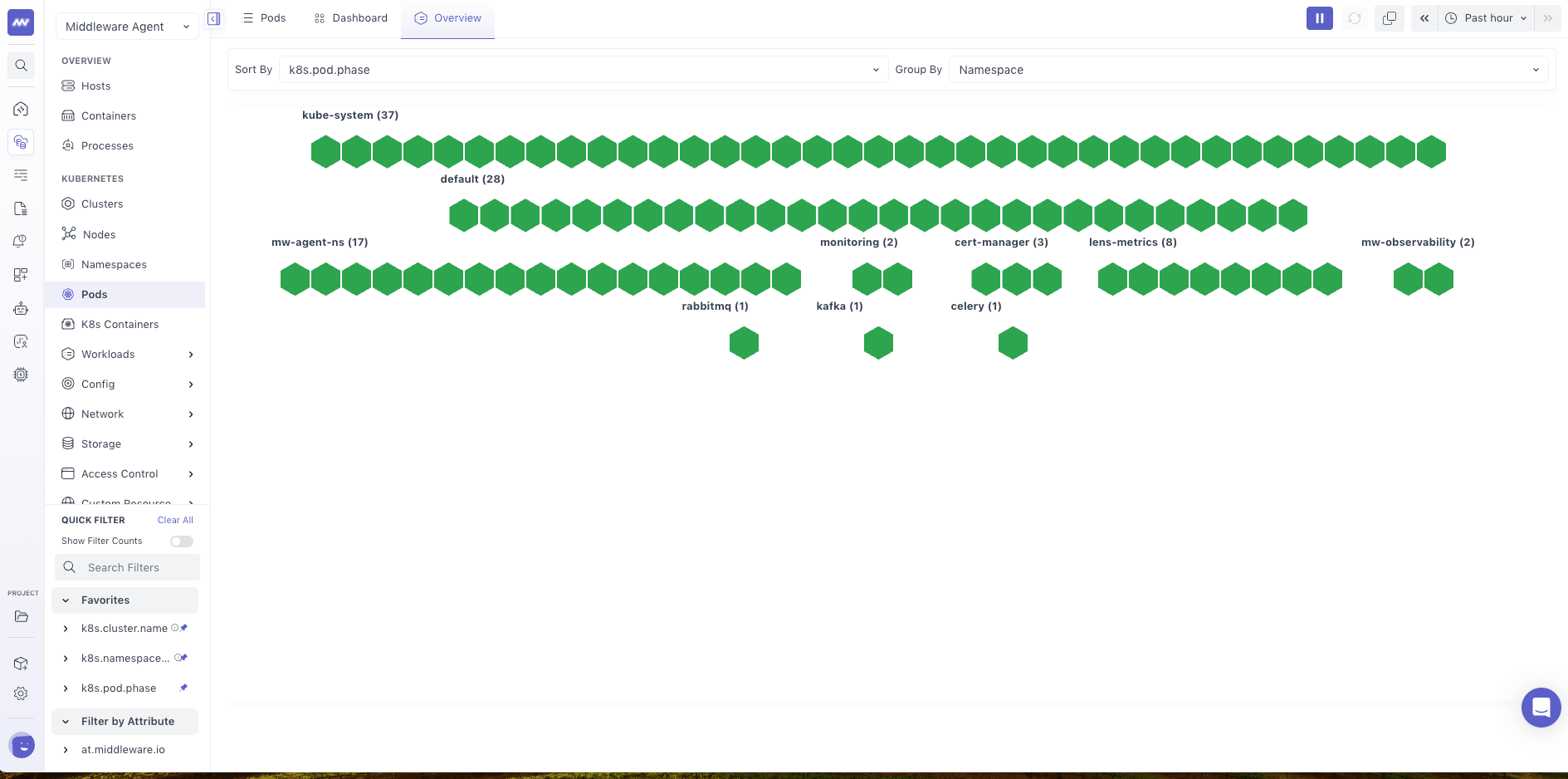
Go to Kubernetes → Pods → Overview to access the Cluster Map.
The Cluster Map provides a visual overview of your pods and their grouping across Kubernetes clusters.
You can:
- View the distribution of pods across your environment.
- Group pods by available resource attributes.
- Filter the map to focus on specific resources.
- Select a group to populate a detailed view of the corresponding resources.
This is useful when investigating large clusters where a table alone may not provide enough context about resource distribution.
For example, you can group or filter pods to identify where failed or unhealthy workloads are concentrated.
Containers#
Go to Kubernetes → Containers.
The Containers page displays containers running across your monitored Kubernetes pods.
The list includes:
- Container Name — Name of the container.
- Pod Name — Pod associated with the container.
- Image Name — Container image being used.
- Image Tag — Version or tag of the container image.
Click any container to open its details.
Container Details#
The Container Details panel provides information about the selected container, including:
- Container information
- Related performance metrics
- Container logs
Use this view to investigate container-level performance issues and review logs associated with a specific container.
For example, when a pod has repeated restarts, inspect its containers to identify related errors or resource utilization issues.
Workloads#
The Workloads section provides visibility into the Kubernetes resources responsible for running and managing application workloads.
Go to Kubernetes → Workloads.
You can explore the following resource types:
| Resource | What You Can Monitor |
|---|---|
| Deployments | Application deployments and their associated workload resources |
| ReplicaSets | ReplicaSets responsible for maintaining the required pod replicas |
| Jobs | Kubernetes jobs that run tasks to completion |
| CronJobs | Scheduled Kubernetes jobs |
| DaemonSets | Workloads that run pods across selected nodes |
| StatefulSets | Stateful workloads and their associated resources |
Select a resource type to view its list, then click an individual resource to inspect its details.
Investigate Deployment Issues#
Use the Deployments view when an application deployment has failed or its pods are not running as expected.
For example:
- Open Kubernetes → Workloads → Deployments.
- Select the affected deployment.
- Review its details and associated resources.
- Identify failed pods within the deployment.
- Inspect the relevant pod information, resource specifications, and available events or logs.
- Determine whether the issue is related to the workload configuration, resources, or container behavior.
Config#
The Config section provides visibility into Kubernetes configuration resources.
Go to Kubernetes → Config.
Available resources include:
| Resource | Description |
|---|---|
| Horizontal Pod Autoscalers | View resources that manage workload scaling based on configured conditions |
| ConfigMaps | View configuration data used by Kubernetes workloads |
Use this section to inspect configuration-related resources when investigating workload behavior.
For example, if a workload is not scaling as expected, review its Horizontal Pod Autoscaler configuration alongside the workload's resource usage.
Network#
The Network section provides visibility into Kubernetes networking resources.
Go to Kubernetes → Network.
Available resources include:
| Resource | Description |
|---|---|
| Services | Kubernetes Services used to expose workloads |
| Ingresses | Ingress resources that define external access to services |
| Network Policies | Policies controlling network traffic between workloads |
Use these resource views when investigating application connectivity or networking configuration issues.
Storage#
The Storage section displays Kubernetes storage resources.
Go to Kubernetes → Storage.
Available resources include:
- Persistent Volume Claims (PVCs) — Storage requests made by workloads.
- Persistent Volumes (PVs) — Storage resources available to workloads.
Use these views to inspect persistent storage resources and investigate storage-related workload issues.
Access Control#
The Access Control section provides visibility into Kubernetes access and permission resources.
Go to Kubernetes → Access Control.
Available resources include:
- Service Accounts
- Cluster Roles
- Roles
- Role Bindings
Use these views to inspect Kubernetes access-control configurations when troubleshooting permission-related issues.
Custom Resources#
Go to Kubernetes → Custom Resources.
This section provides visibility into Kubernetes resources defined through custom resource definitions.
Available views include:
- Resource Definitions — Custom Resource Definitions (CRDs) registered in Kubernetes.
- Resources — Custom resources created from those definitions.
Use this section to inspect Kubernetes resources introduced by operators, controllers, or other custom extensions.
Kubernetes Metrics#
The Middleware Agent collects Kubernetes telemetry to help you monitor resource health and performance.
The available data includes resource-level information such as:
| Resource | Available Monitoring Data |
|---|---|
| Clusters | Node counts, CPU and memory usage/allocatable, pod status |
| Nodes | Conditions, age, CPU and memory usage/allocatable |
| Namespaces | Phase, age, CPU and memory usage |
| Pods | Phase, CPU and memory usage, container count, restarts |
| Containers | Container information, related performance metrics |
| Workloads | Workload resource information and related Kubernetes resources |
For the complete list of metrics collected by the Kubernetes Agent, see the Kubernetes Metrics Collected reference.
Investigate Kubernetes Issues with OpsAI#
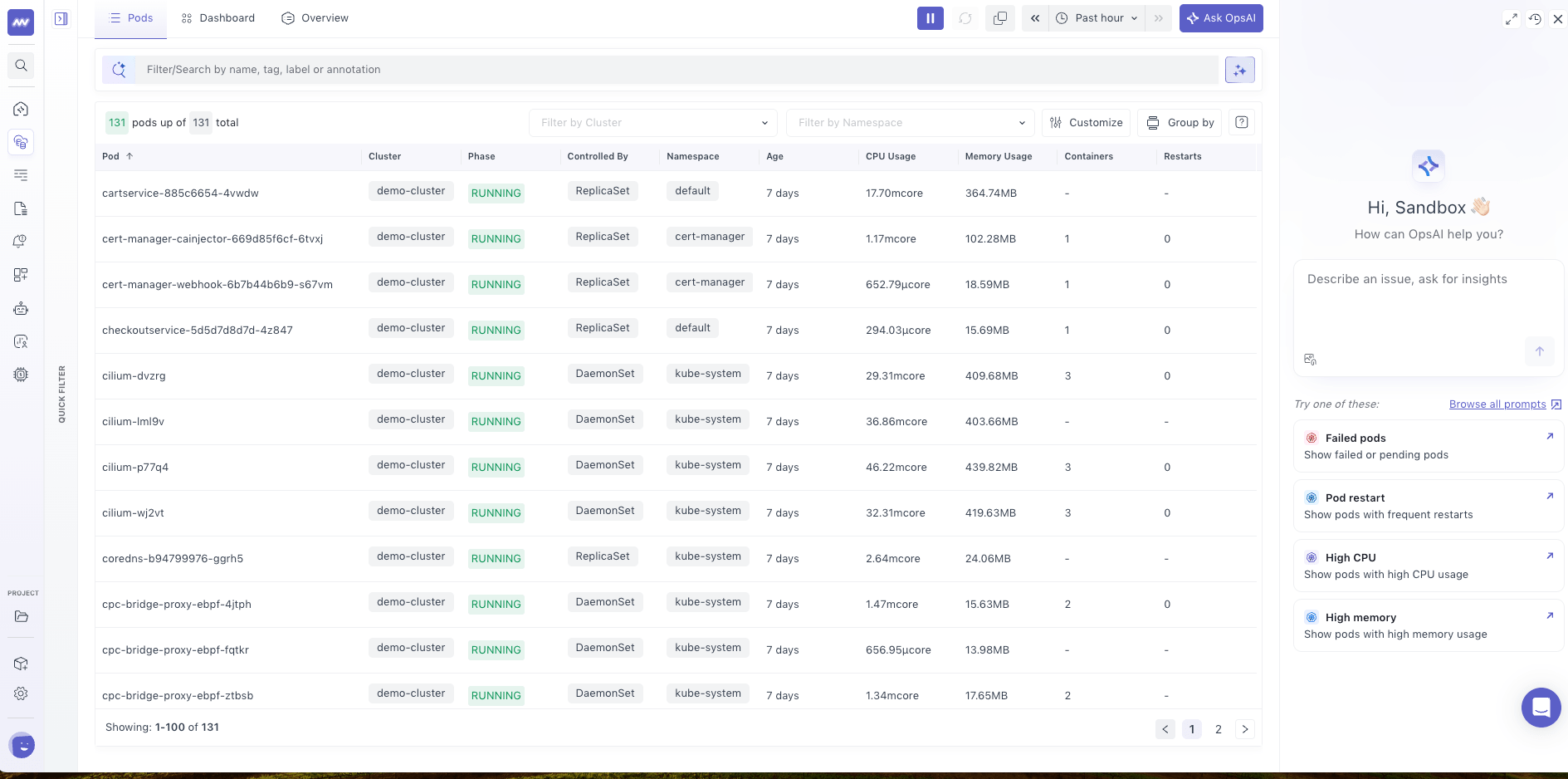
Use Ask OpsAI to investigate Kubernetes issues using the telemetry collected from your environment.
Click Ask OpsAI in the top-right corner of Kubernetes Monitoring.
You can ask questions about your Kubernetes resources, their health, or performance.
For example:
- Which pods are currently in a critical state?
- Which nodes have high memory utilization?
- Why is a pod repeatedly restarting?
- Which Kubernetes resources should I investigate first?
- What could be causing a deployment failure?
OpsAI analyzes the available Kubernetes data, helps identify possible causes, and provides suggested fixes.
Kubernetes Investigation Workflows Examples#
Kubernetes Explorer lets you investigate issues by moving between cluster-level data and individual resources.
Investigate a Failing Pod#
- Go to Kubernetes → Pods.
- Filter the pod list by the relevant failure status, such as
CrashLoopBackOff. - Select the affected pod.
- Review its status, restart count, and resource usage.
- Inspect related container information and available logs or events.
- Use Ask OpsAI to analyze the issue and review suggested fixes.
Investigate High Node Resource Usage#
- Go to Kubernetes → Nodes.
- Identify a node with high CPU or memory utilization.
- Open its details and review the metric graphs.
- Inspect the pods running on that node.
- Identify pods consuming significant resources.
- Review related events and logs to investigate the cause.
Investigate a Deployment Failure#
- Go to Kubernetes → Workloads → Deployments.
- Open the affected deployment.
- Review the associated pods and resource information.
- Identify pods that are failing or restarting.
- Inspect their resource usage, configuration, and available events or logs.
- Use OpsAI to investigate the failure and review possible remediation steps.
Use Kubernetes Monitoring to monitor your cluster resources, inspect their performance and state, and correlate related telemetry when troubleshooting Kubernetes issues.
What did you think of this content?