Service Maps
Middleware APM Services summarizes application performance using collected trace and span data. The Service List compares services, while the Service Map shows their observed dependencies.
Use it to compare service performance, identify services with increased errors or latency, understand dependencies, and drill down from a service to its related traces and logs.
Middleware provides two views:
- Service List: Compare services and their performance metrics in a table.
- Service Map: Visualize dependencies and communication between services.
With Service Map, you can:
- Visualize upstream and downstream service dependencies.
- Identify services with high latency or error rates.
- Inspect performance metrics for an individual service.
- Analyze communication between two connected services.
- Navigate from a service to related traces and logs.
Service list#
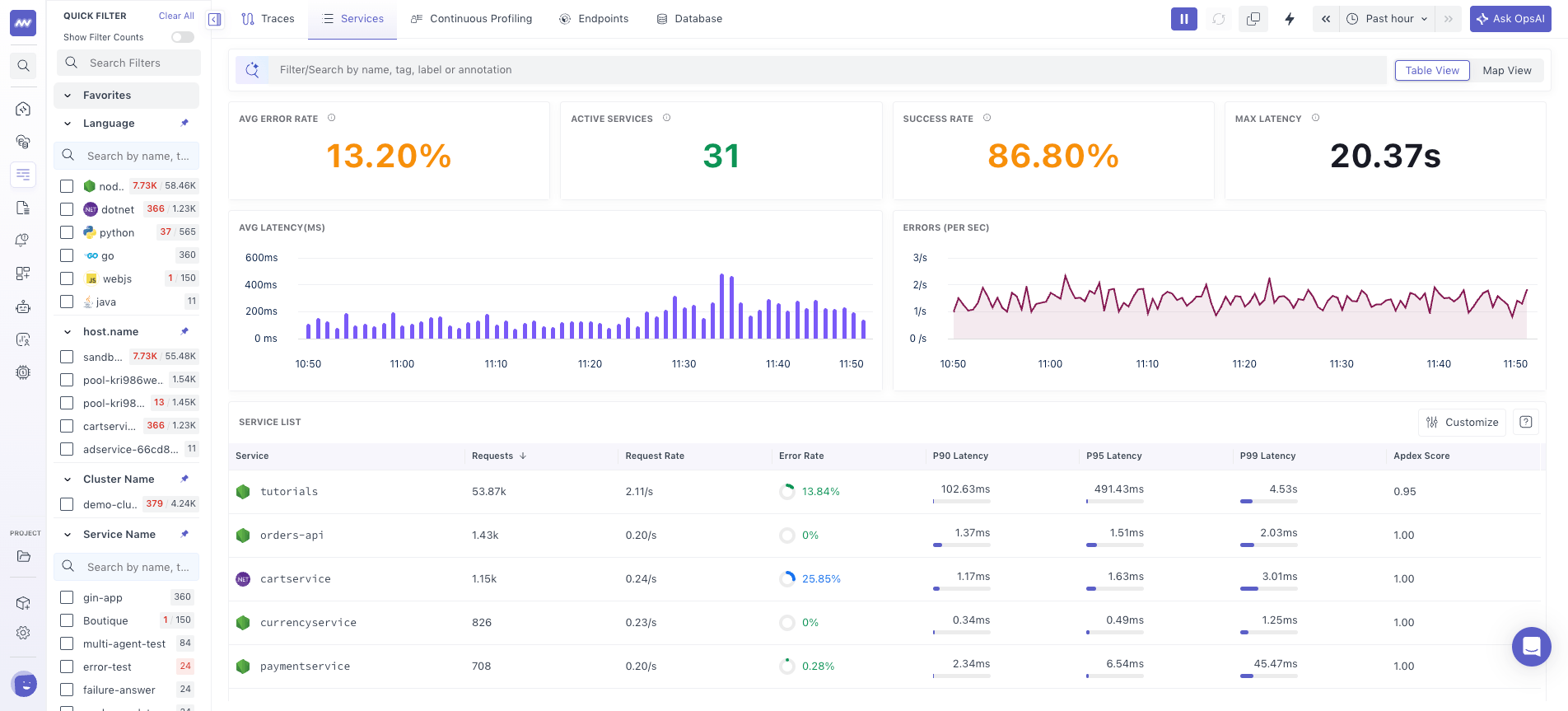
Go to APM → Services to view detected services.
By default, services are displayed in a table with performance metrics such as:
- Request rate
- Error rate
- Latency
The top of the page provides aggregate statistics across your services, including:
- Active services
- Average error rate
- Success rate
- Maximum latency
- Latency over time
- Errors over time
Use the Service List to compare performance across services and identify which service needs further investigation.
Service map#
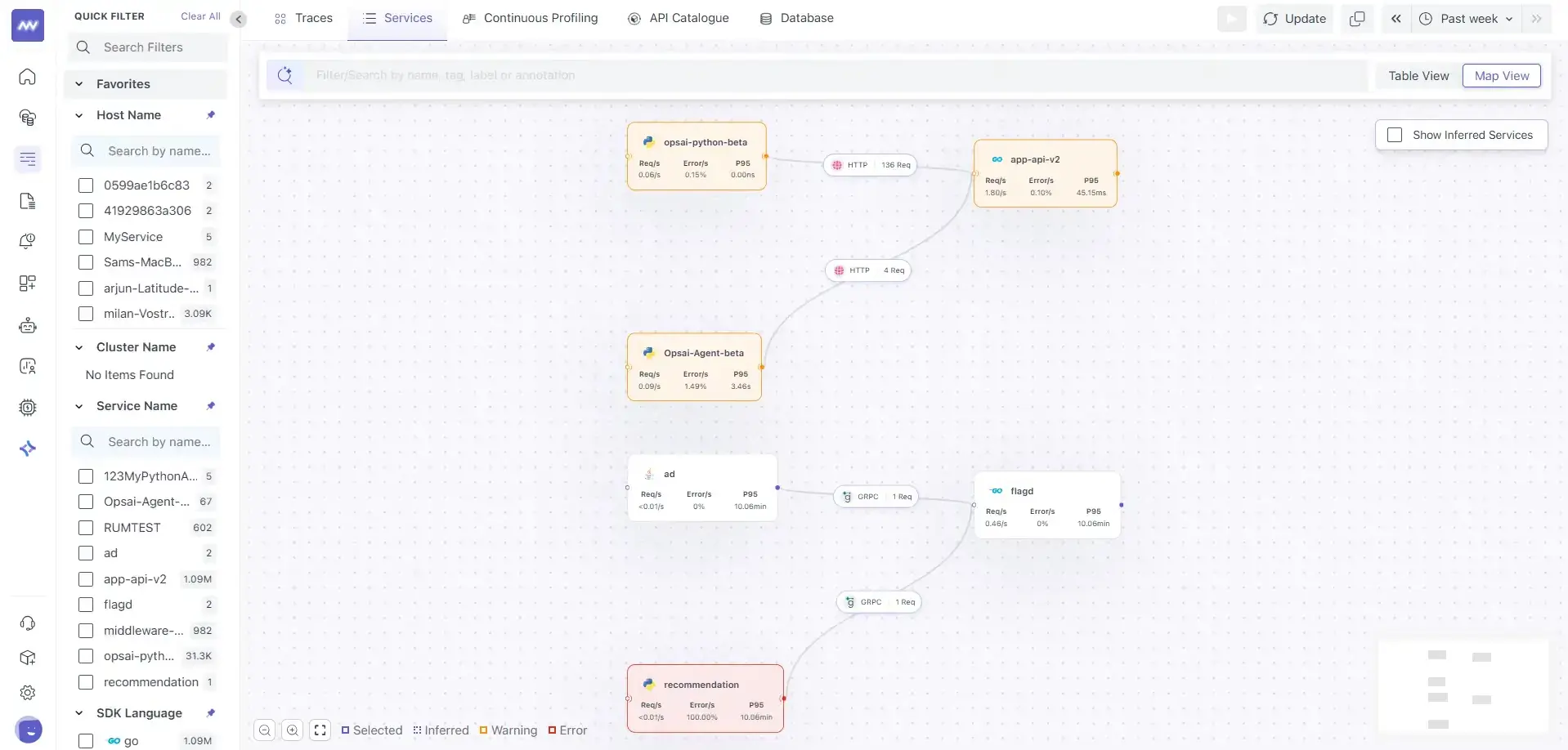
From APM → Services, switch to** Map View** to visualize communication between services.
The map consists of:
- Service Cards: Nodes representing individual services.
- Edges: Connections representing service-to-service communication detected from traces.
Use the map to understand request flow and identify upstream and downstream dependencies between your services.
Service cards#
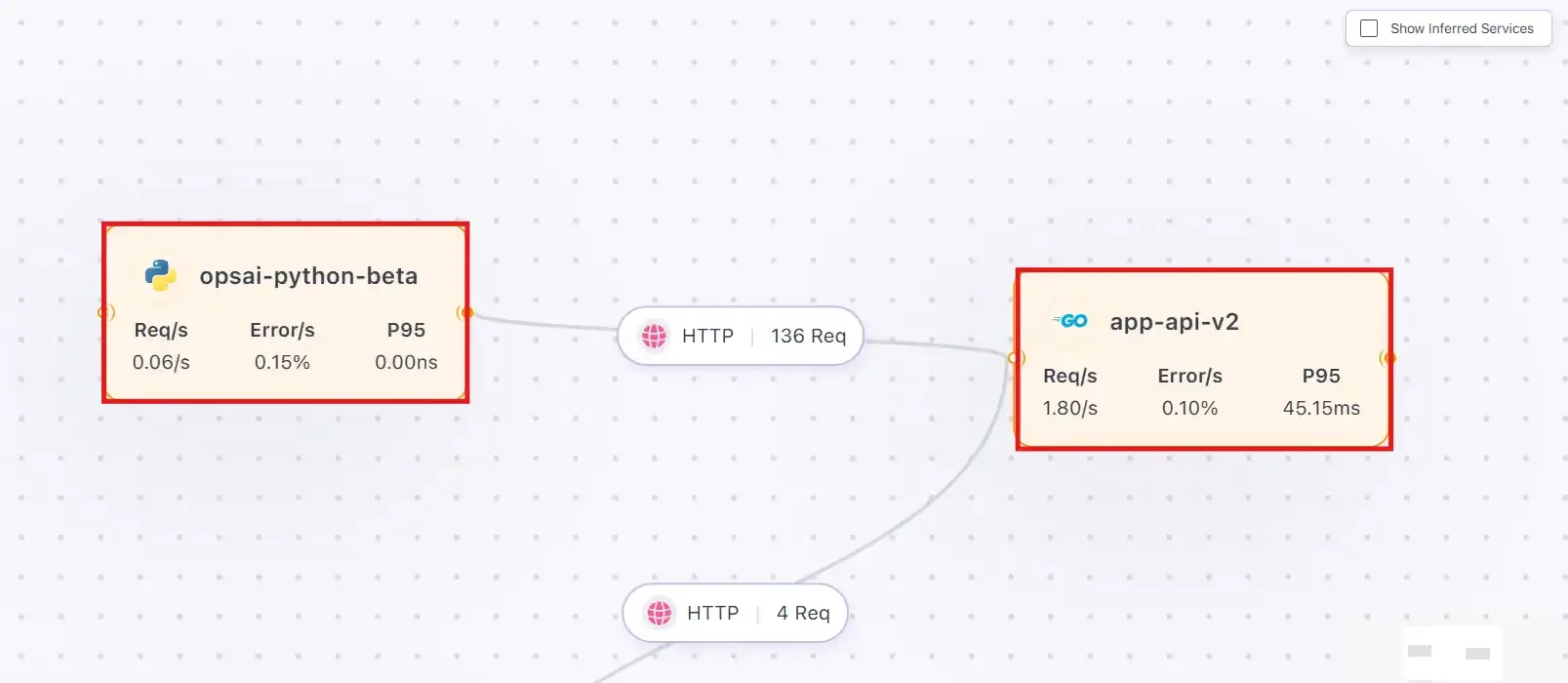
Each Service Card represents a service detected by Middleware.
A card displays:
- Service name
- Request rate (Req/s)
- Error rate
- P95 latency
- Current health state
The health state is visually indicated based on the service error rate:
- 🟡 Warning: Error rate below 5%
- 🔴 Error: Error rate above 5%
The health indicator helps identify services with recorded errors. Latency metrics provide separate context about how quickly those services respond.
Service drill down#
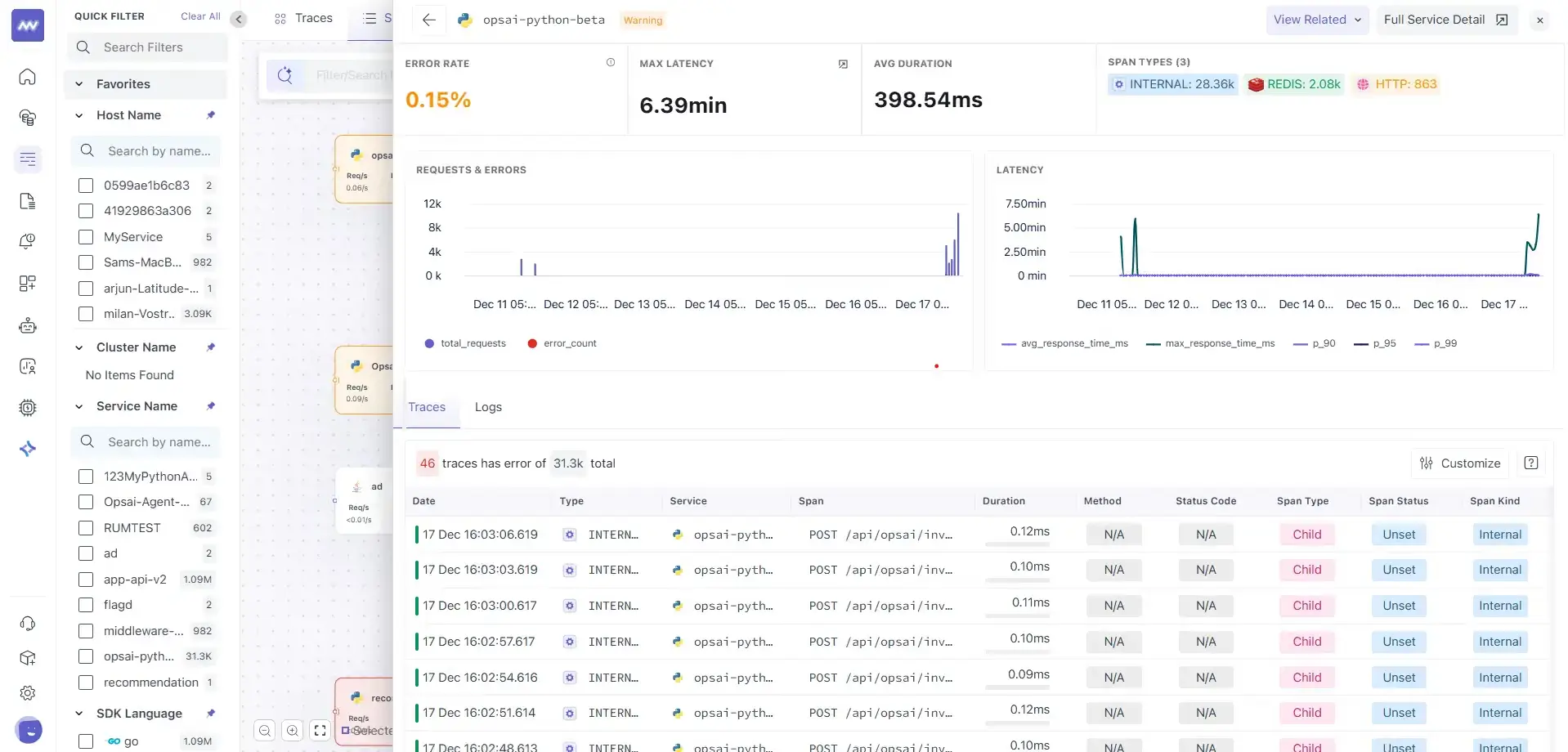
Select a Service Card to open its service-level details. The drill-down includes:
- Error rate
- Maximum latency
- Average duration
- Request and error trends
- P90, P95, and P99 latency
- Span type distribution, such as HTTP, Internal, Redis, and Database
Use these metrics to understand how the service is performing over the selected time range and whether its latency or error behavior has changed.
View related traces and logs#
From the service drill-down, select View Related to access telemetry associated with the service.
You can navigate to:
- Related Traces: Inspect distributed traces involving the service.
- Related Logs: View logs associated with the service.
This lets you move from a service-level performance issue to the underlying trace or log data for further investigation.
Isolated view#
Use Isolated View to focus on a selected service and its direct dependencies.
When enabled, unrelated services and connections are visually dimmed while the selected service and its connected dependencies remain highlighted.
This is useful for large service maps where you want to understand the immediate upstream and downstream dependencies of a service without unrelated connections in the view.

Service edges (service to service communication)#
Edges represent communication between services detected from distributed traces. Each edge shows information about the interaction, including:
- Communication protocol, such as HTTP, gRPC, or Database
- Total request count
Select an edge to inspect the communication between the two connected services.
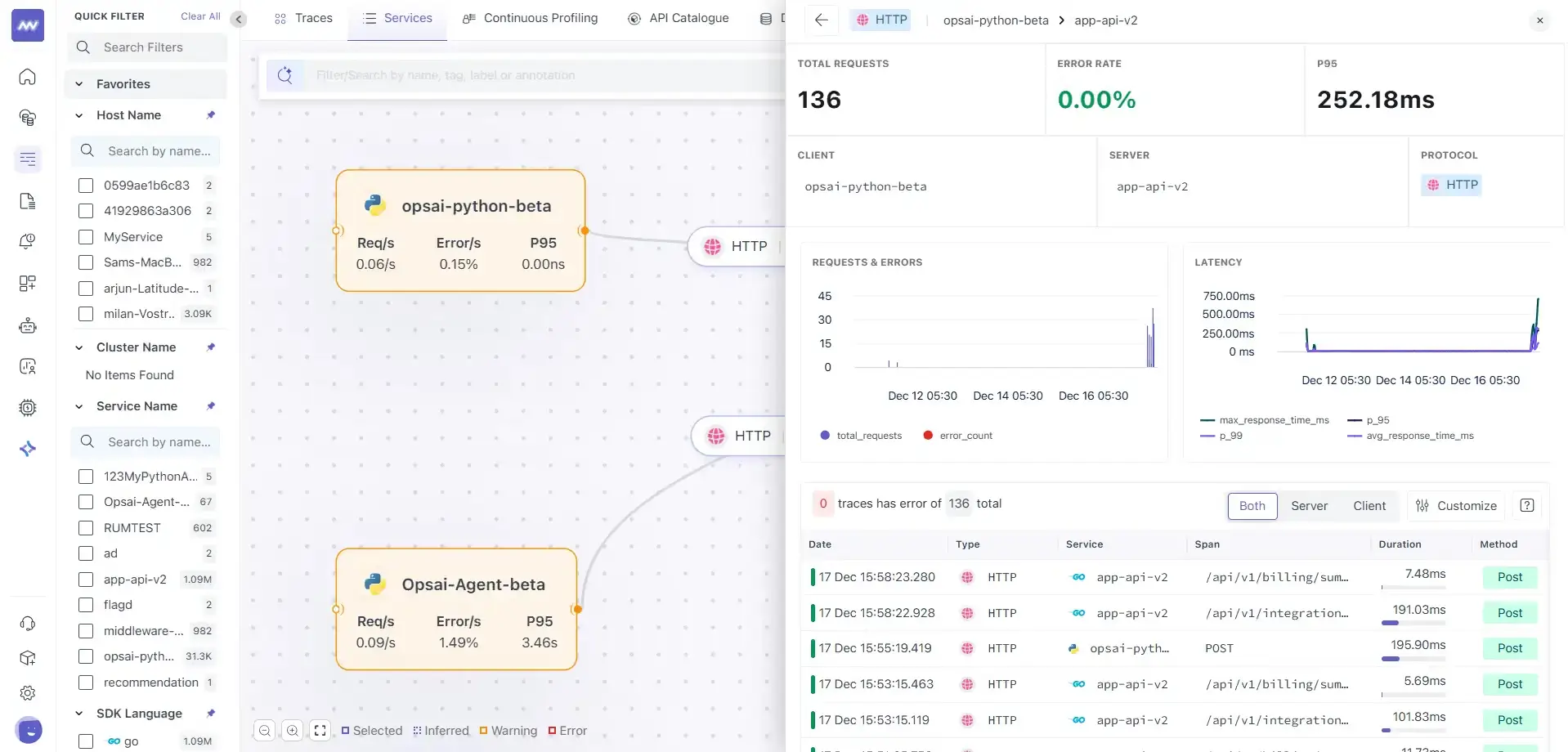
Edge Drill down#
The edge drill-down provides metrics for a specific service-to-service interaction, including:
- Total requests
- Error rate
- P95 latency
- Client service
- Server service
- Protocol
- Request trends
- Latency trends
- Traces associated with the interaction
Use the edge drill-down when the issue appears to be specific to communication between two services rather than the overall performance of either service.
For example, a service may have normal overall latency while calls to one downstream dependency are slow. The edge metrics help isolate that specific interaction.
Inferred services#
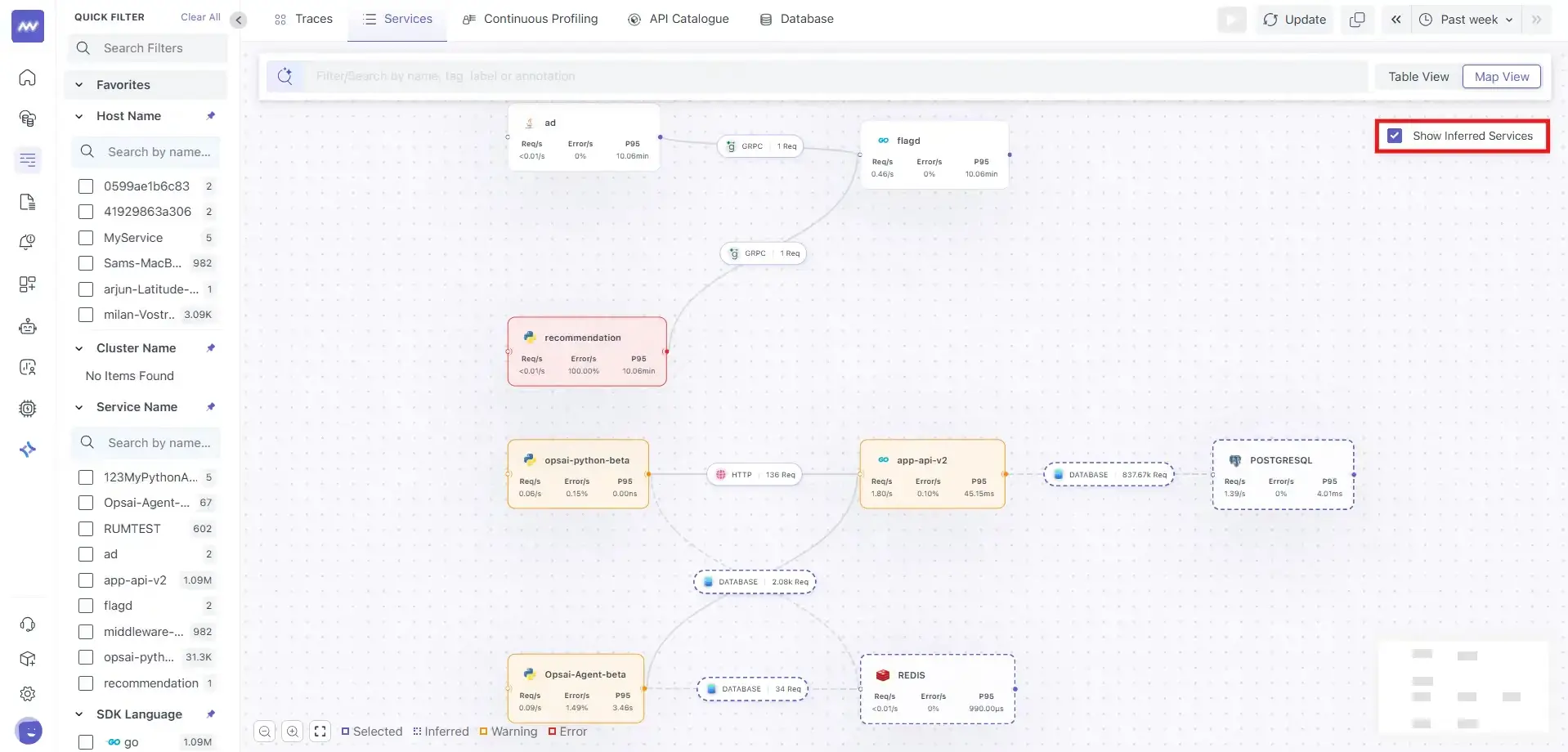
Service Map can also display Inferred Services—dependencies detected from trace data that are not directly instrumented as Middleware services.
Enable Show Inferred Services to include dependencies such as:
- Databases, such as PostgreSQL or Redis
- External APIs
- Third-party dependencies
Inferred services are displayed with dashed borders to distinguish them from instrumented services.
Including inferred services provides a more complete view of the request path, including external dependencies that participate in application transactions.
Need assistance or want to learn more about Middleware? Get in touch with us via our Contact Us or join our Slack channel.
What did you think of this content?