Session Explorer
Middleware RUM Session Explorer helps you find and investigate individual user sessions captured by your application’s RUM SDK.
Session data connects user actions with frontend errors, console output, network requests, and page changes on a shared timeline. Available recordings and related backend traces add context about what the user experienced and how the application responded.
A session investigation has two main views:
- Session Explorer: Search, filter, sort, and compare captured sessions.
- Session Inspector: Replay an individual session and inspect its events, network activity, errors, actions, and related traces.
View Sessions#
Go to: Real User Monitoring → Applications → select an application → Session Explorer
The selected time range applies to the session list, filters, and other data displayed on the page.
Use the search bar and filters to narrow sessions by attributes such as:
- Environment ,application version ,browser and browser version ,operating system ,user, session ID or URL ,country or city ,device , error information.
For example, when investigating an issue after a deployment, filter by environment and application version, then use the error count to identify sessions worth investigating.
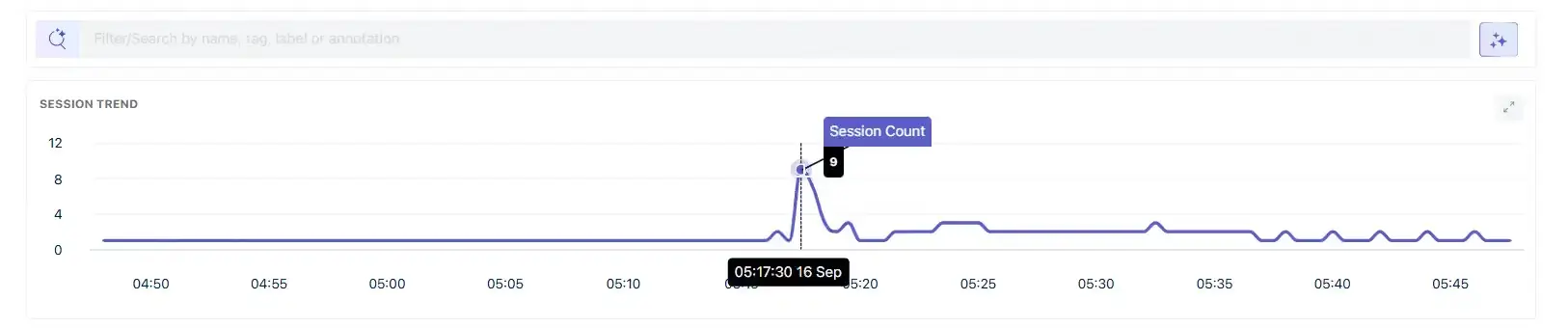
Session Trend#
The Session Trend chart shows the number of sessions over the selected time range.
Use it to identify changes in session volume and correlate traffic patterns with the time an issue occurred.
Session List#
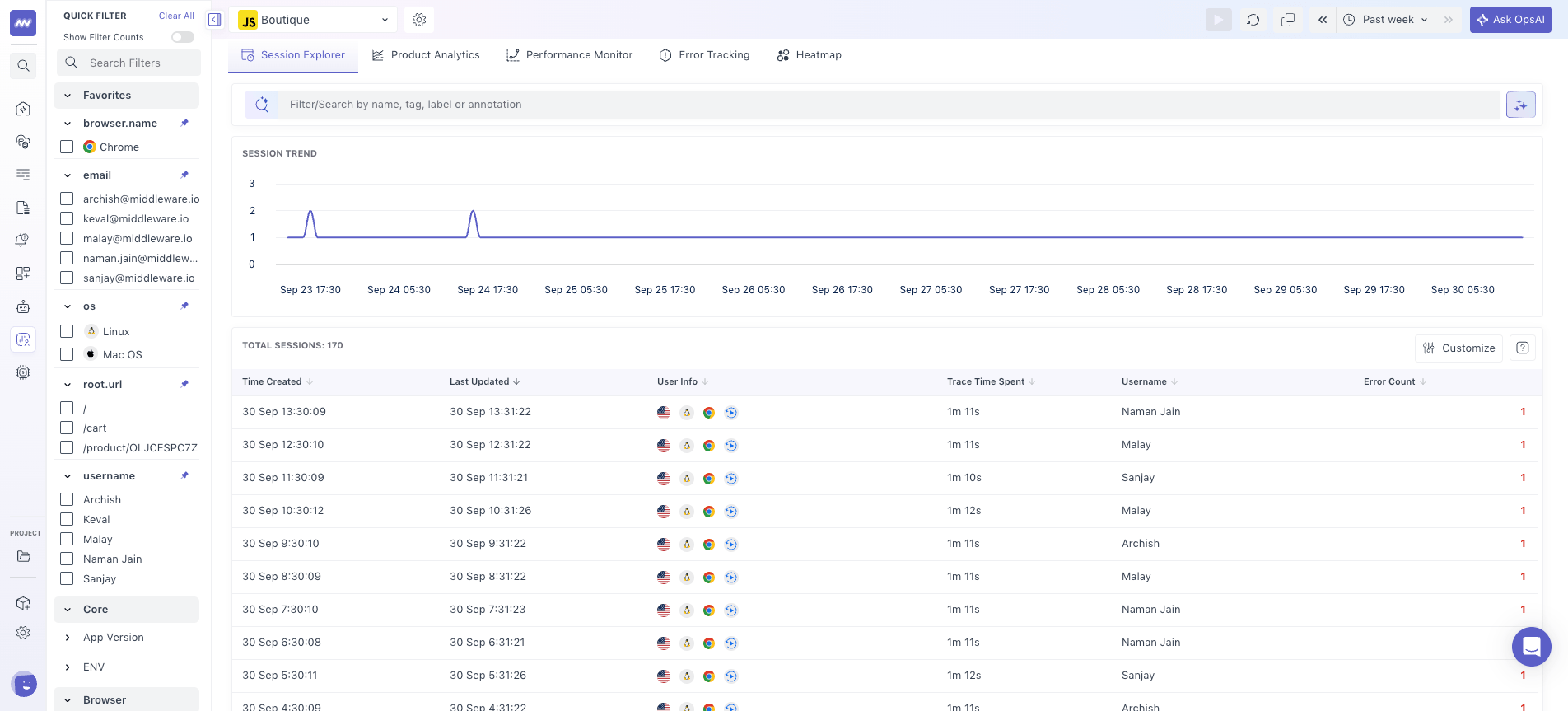
Each row in the Session Explorer represents a user session.
By default, the table provides information such as: Session creation time , Last activity time , User information , Trace time , Username ,Error count.
You can add additional columns, including:
- Action count
- View count
- Frustration count
- Session ID
- Session start time
- Browser
- Operating system
- Country
- Recording availability
Frustration Count includes detected rage clicks and dead clicks. These interactions can indicate a usability or responsiveness problem even when no application error was captured.
Select any session to open it in Session Inspector.
Session Inspector#
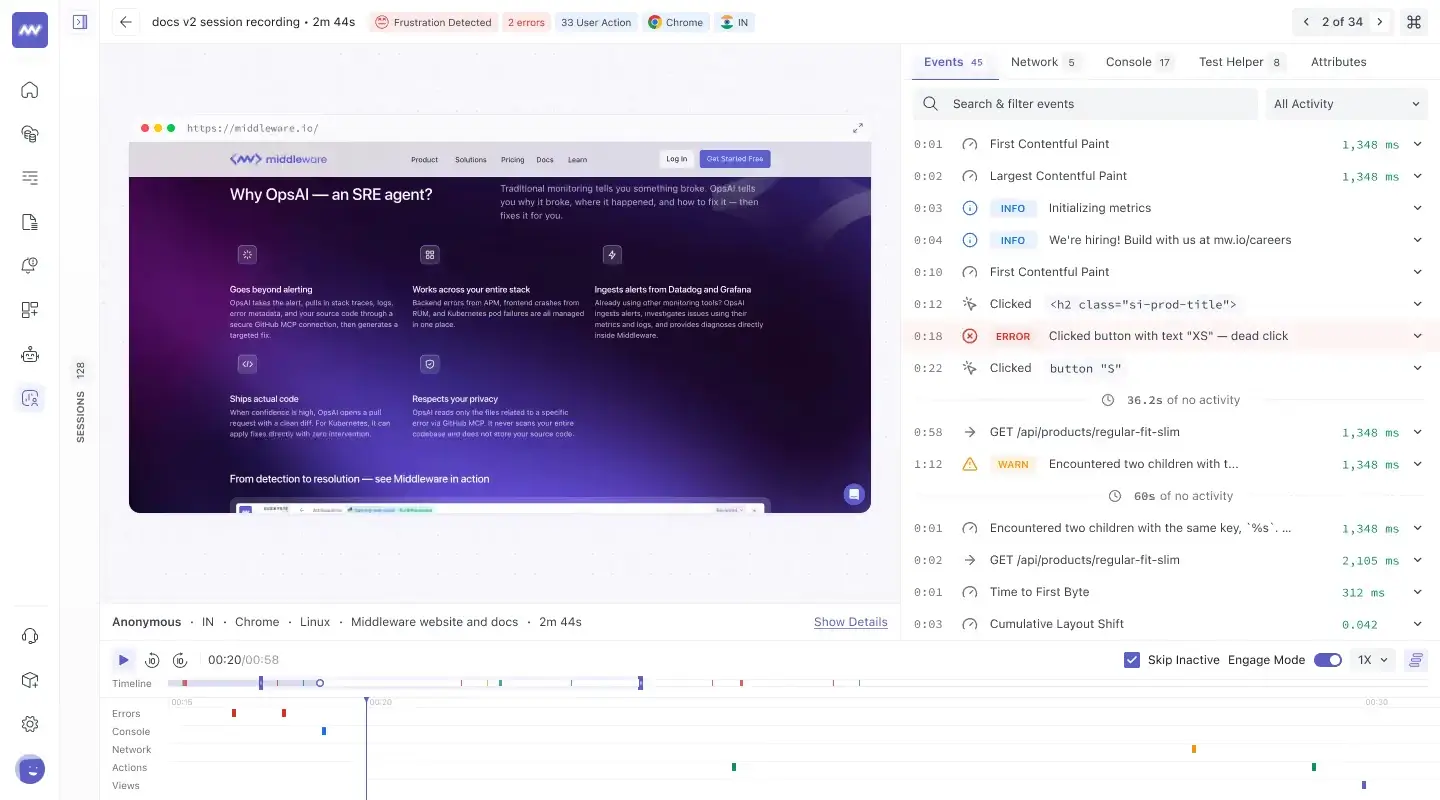
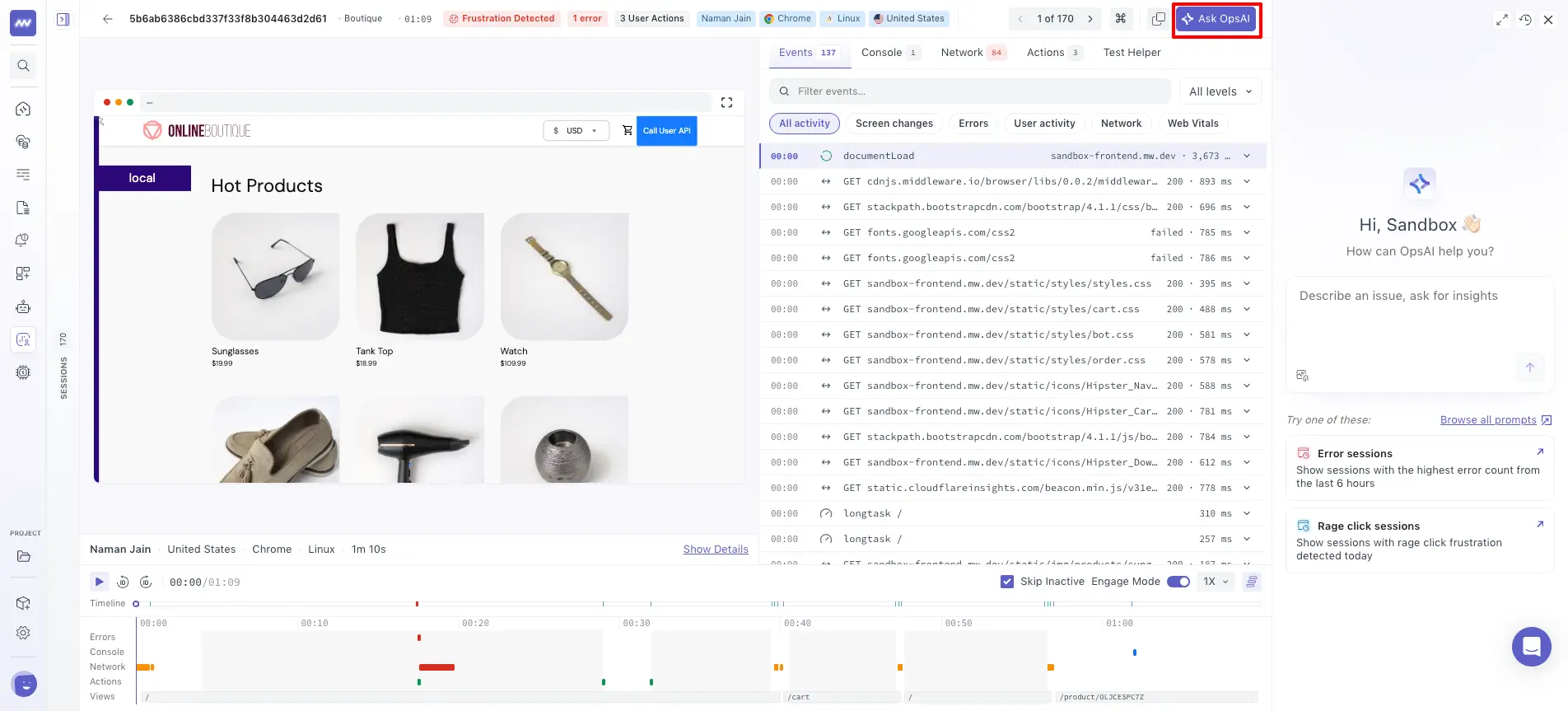
Session Inspector brings together the recording and debugging data available for one user session.
It combines the session replay with events, console output, network requests, user actions, and a shared timeline. All views use the same session clock, allowing you to correlate what the user saw with what happened in the application at that moment.
The Inspector contains three main areas:
- Session Replay: Recording of the user's session.
- Events and debugging data: Events, Console, Network, Actions, and Test Helper.
- Timeline: Errors, console messages, network activity, actions, and views aligned on a common timeline.
Session Replay#
The replay shows the user's recorded interaction with the application.
Use the playback controls to:
- Play or pause the session.
- Move backward or forward.
- Skip periods with no activity.
- Change playback speed.
- Enter fullscreen.
- Navigate to a specific point in the session.
The URL displayed above the replay shows the page the user was viewing at the current playback position.
Use Engage Mode when you need to interact with the replay, such as hovering or scrolling within the recorded page.
Session Timeline#
The timeline aligns session activity across five lanes:
| Lane | Shows |
|---|---|
| Errors | Errors captured during the session |
| Console | Browser console output |
| Network | Network requests and failures |
| Actions | User interactions, including rage and dead clicks |
| Views | Screens or routes visited during the session |
Select a marker to move the replay directly to that moment.
You can also zoom into a specific time range or move across the timeline when investigating a particular part of a long session.
This makes it possible to correlate events—for example, checking whether a failed network request occurred immediately before an error or user frustration event.
Events#
The Events tab provides a chronological view of activity captured during the session.
Events can include:
- Application activity
- Screen or route changes
- Errors
- User activity
- Network activity
- Web Vitals
- Resource activity
Use search or the available event filters to narrow the stream to the activity relevant to your investigation.
Periods with no recorded activity are also shown, making it easier to identify pauses or stalls within the session.
Inspect an Event#
Select an event to move the replay to the corresponding point in time.
Expanding an event provides additional context depending on its type.
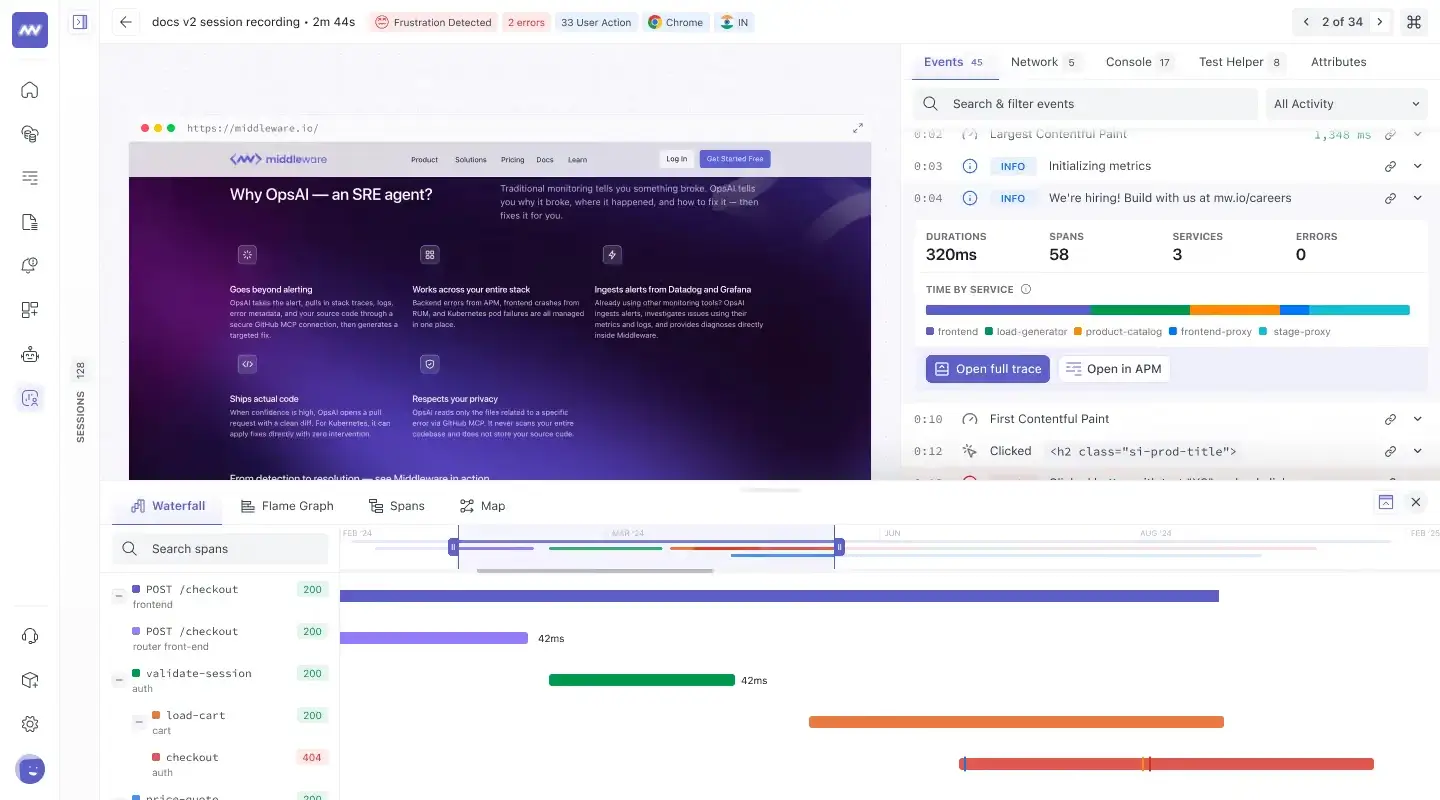
For application events associated with backend tracing, Middleware displays a trace summary including:
- Duration
- Span count
- Service count
- Error count
- Time by service
You can then open the full trace for deeper investigation in APM.
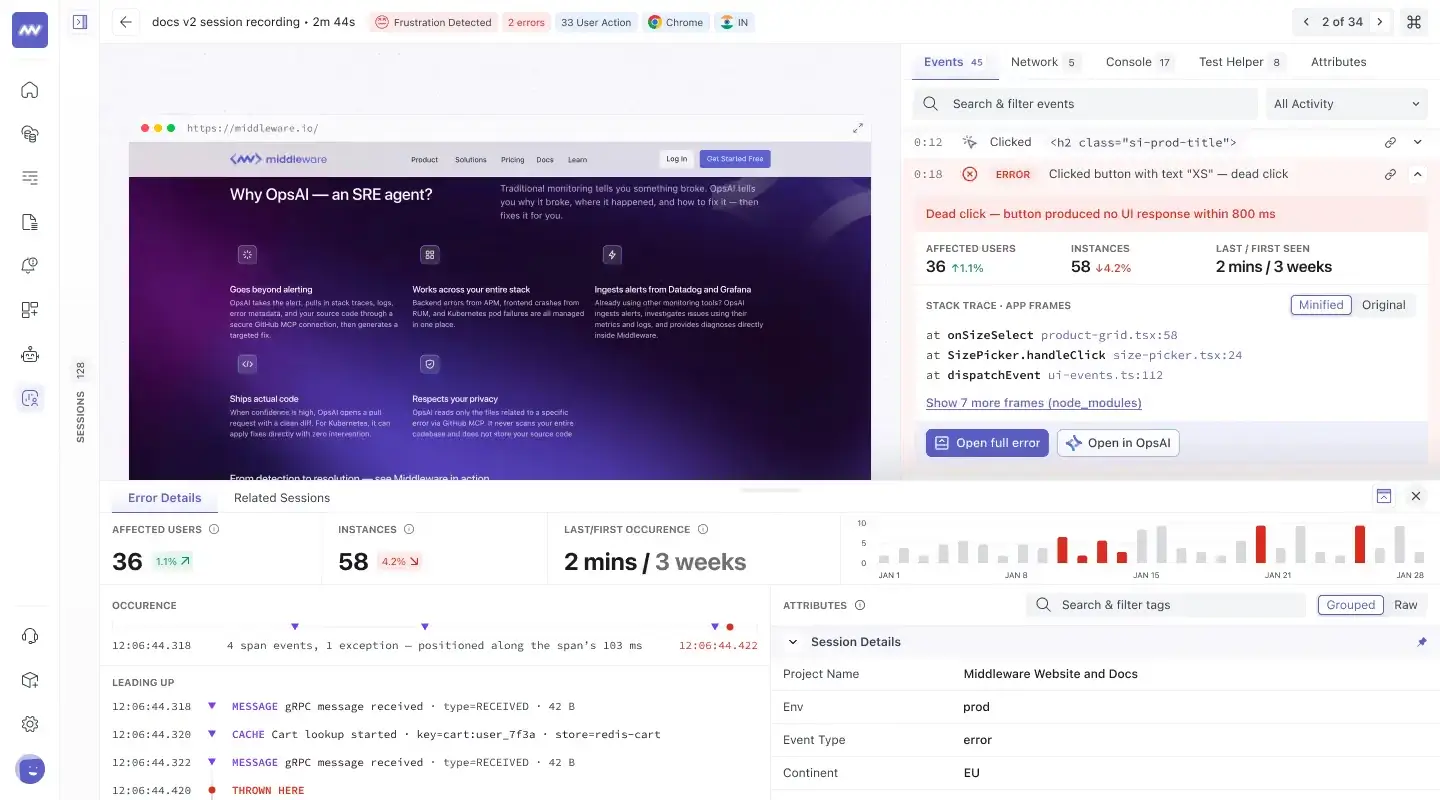
Errors#
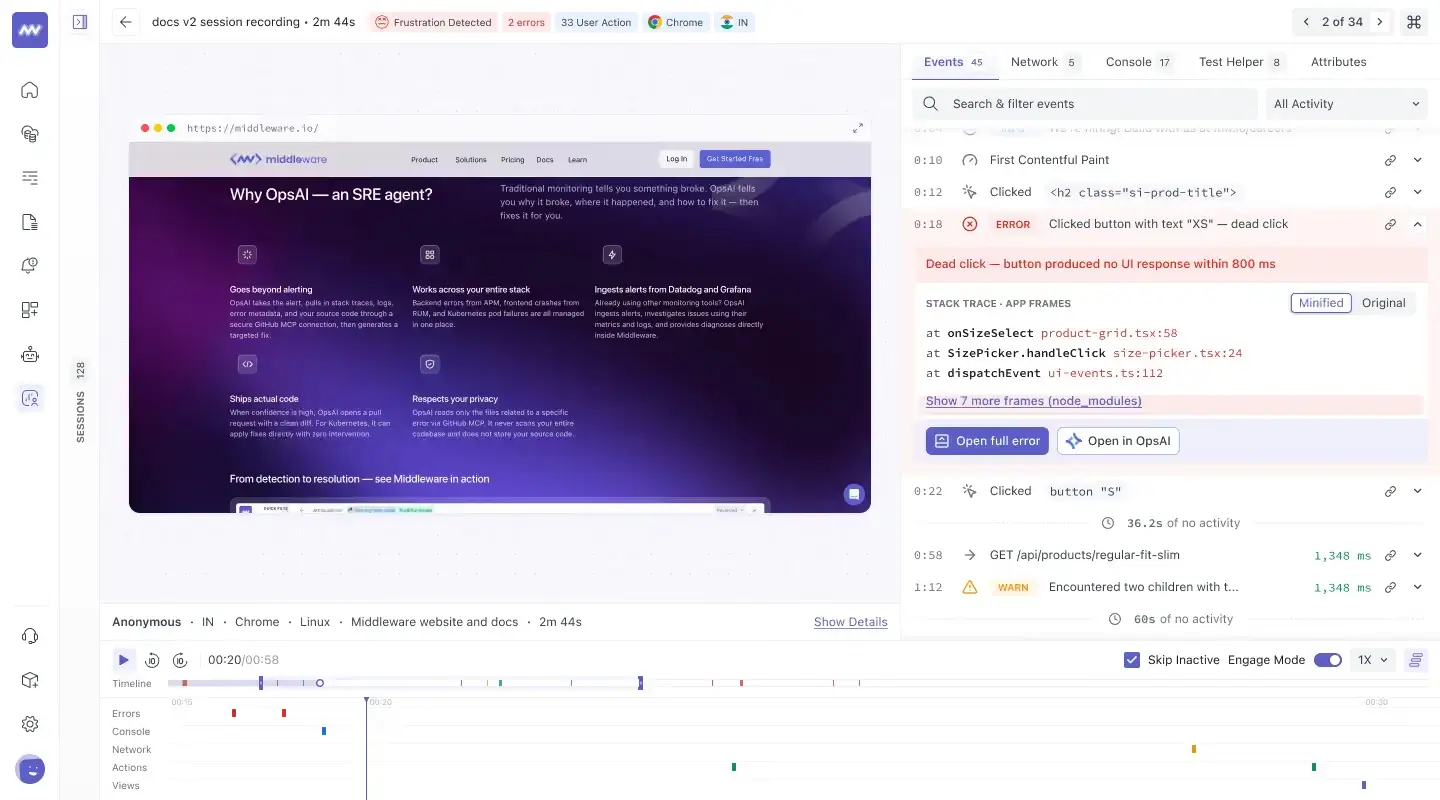
Errors captured during the session appear in the Events stream and Error timeline.
Expand an error to inspect its stack trace.
When source maps are available, you can switch between:
- Minified: Stack frames from the deployed application.
- Original: Source-mapped stack frames from the original application code.
Open the full error to inspect additional context, including:
- Error occurrence
- Affected users and instances
- First and last occurrence
- Spans before and after the exception
- Error attributes
- Impact by application version, device, screen, and country
- Related sessions that encountered the same error
Use Related Sessions to determine whether an error occurred only in the current session or affected other users as well.
Network#
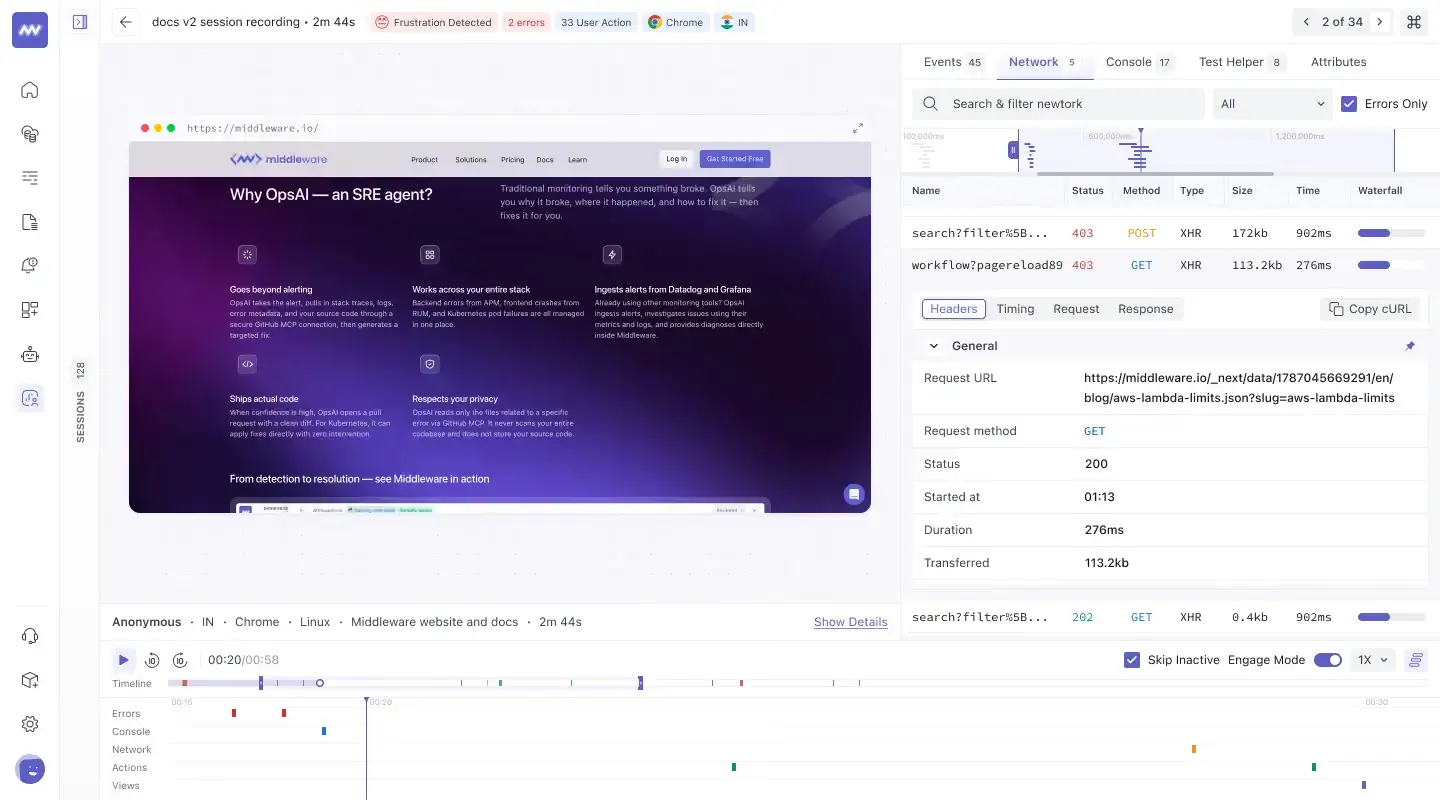
The Network tab displays requests made during the session, including fetch, XHR, resources, and WebSocket requests.
For each request, you can inspect:
- Name
- HTTP status
- Method
- Type
- Size
- Duration
- Request timing
Use search, request type filters, or Errors Only to narrow the list.
Selecting a request moves the replay to the time the request occurred and opens its details.
Network Request Details#
For an individual request, you can inspect:
- Headers: Request and response headers.
- Timing: DNS lookup, initial connection, waiting (TTFB), content download, and total duration.
- Request: Request body.
- Response: Response body.
Use the Timing view to determine which part of the request contributed to its overall duration.
Console#
The Console tab displays browser console output captured during the session.
Console messages can be filtered by level:
- Log
- Info
- Warn
- Debug
- Error
Use console output alongside the replay and timeline to check whether browser-side warnings or errors occurred at the same time as the issue being investigated.
Actions#
The Actions tab shows user interactions captured during the session.
It also identifies frustration signals such as:
- Rage clicks: Repeated clicks within a short period.
- Dead clicks: Clicks that do not result in an expected action.
Search by element or text, or use Flagged only to focus on detected frustration events.
Selecting an action moves the replay to the moment when the interaction occurred.
Trace Details#
Frontend activity can be connected to the backend work triggered by that event.
When trace data is available, expand the event and select Open full trace to inspect the distributed trace.
The trace details provide views such as:
- Waterfall
- Flame Graph
- Spans
- Map
- Trace attributes
- Events
- Logs
For network spans, you can also inspect headers, request data, and response data.
This lets you move from what the user experienced in RUM to the backend services involved in the same request.
Read more on how correlation works.
Test Helper#
Use Test Helper to generate a browser test from interactions captured in the session recording.
Supported test formats include:
- Playwright
- Cypress
- Puppeteer
- Selenium
Select the required framework and use Copy test to copy the generated test.
Test Helper requires a session replay because the test is generated from the interactions recorded during the session.
Session Details#
The session summary provides context about the selected session, including:
Session#
- Session ID
- Start time
- Session length
User#
- User name
- Location
- Environment
Device#
- Browser
- Operating system
- Application
If user identity is not configured through the RUM SDK, the user is displayed as Anonymous.
Navigate Between Sessions#
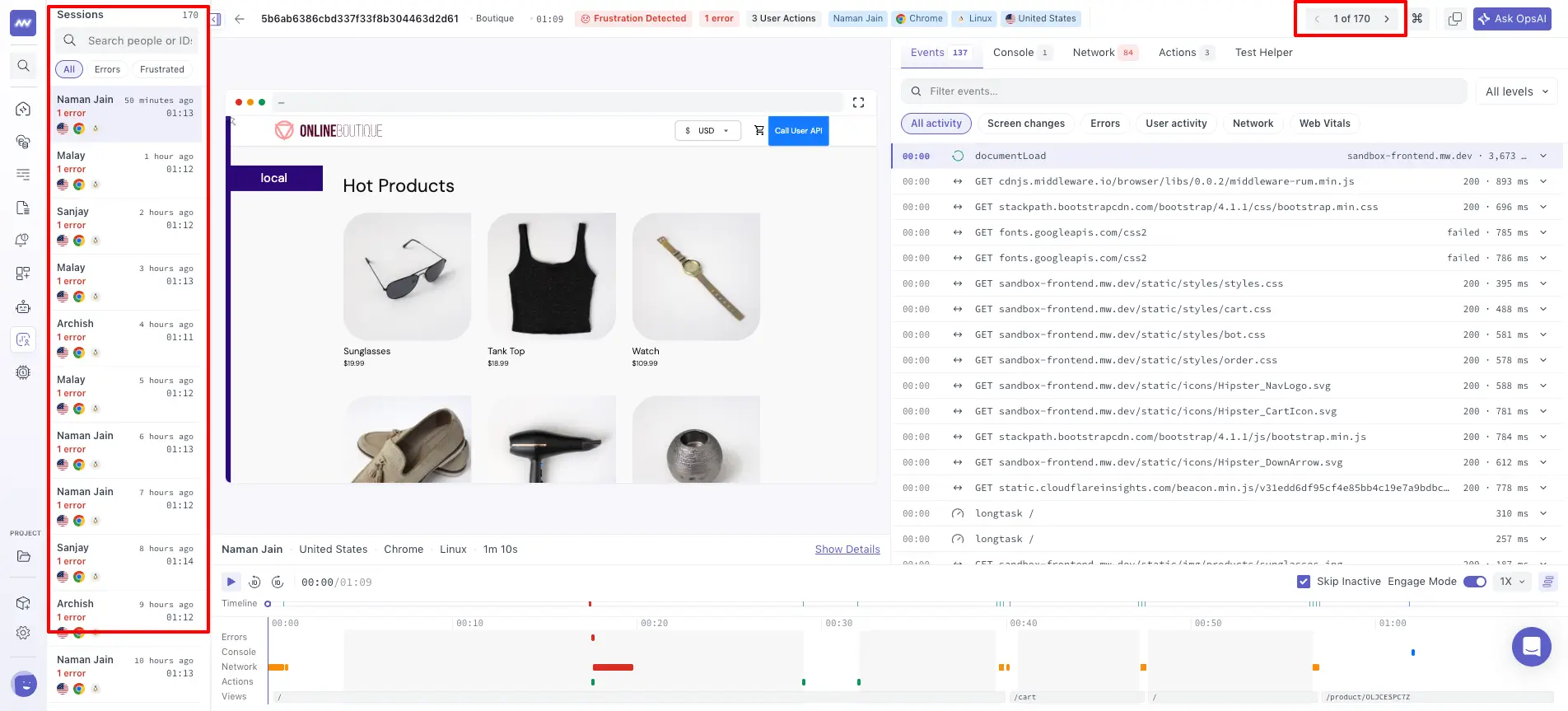
You do not need to return to Session Explorer after inspecting each session.
Use the session switcher to move between sessions from the same filtered population you selected in Session Explorer.
The switcher provides information such as:
- User
- Country
- Browser
- Operating system
- Action count
- Pages viewed
Use Previous Session and Next Session to move through sessions while keeping your investigation context.
Share a Session#
Session Inspector URLs can be shared with other authorized team members.
To link directly to a specific point in the replay, append the time offset in milliseconds using ?t=.
For example:
1/real-user-monitoring/my-app/session/{sessionId}?t=45000This opens the session at approximately 45 seconds into the replay.
Use timestamped links when sharing a specific error, failed request, or user interaction with another developer.
Ask OpsAI#
Ask OpsAI any questions about your sessions or data, and it will provide you with the exact details you need. This helps you quickly identify issues, understand user behavior, and gain actionable insights.
For example, you can ask: “Which page was the user stuck on while completing the payment or adding an item to the cart?”
OpsAI will analyze the session data and provide the exact details, helping you understand what happened and identify potential issues faster.
Troubleshooting#
Session replay is not available#
Verify that session recording is enabled and that Content Security Policy (CSP) or ad-blocking rules are not blocking the recording endpoints.
Also verify that the RUM SDK initializes early enough in the application lifecycle to capture the session.
Test Helper is unavailable#
Test Helper requires session replay data. If the session does not have a recording, a test cannot be generated from its interactions.
Sessions for a new application version are missing#
Verify that app.version is configured correctly and that the new application version has received user traffic.
A network request shows as failed without a status code#
The request may have been blocked or aborted before receiving an HTTP response. Check CORS configuration and browser or ad-blocking behavior.
Stack traces show minified code#
Upload source maps for the corresponding app.version to resolve stack frames back to the original application source.
Session Recording Privacy#
- Mask PII and sensitive inputs so they are never captured — see Session Recording Privacy.
- Consider disabling recording on privileged or admin routes.
- Share session links only with authorized teammates. A replay reproduces the DOM and may reveal user content that was not masked.
- For retention and handling, see Data Security.
Need assistance or want to learn more about Middleware? Contact our support team at [email protected] or join our Slack channel.
What did you think of this content?