Setup - Middleware MCP Server
Connect Middleware MCP Server to your AI assistant or IDE to access observability data directly from your development environment.
Once connected, you can query logs, metrics, traces, application errors, and other Middleware data using natural language. You can also perform supported operations such as creating and managing dashboards.
Middleware provides a hosted MCP Server, so you don't need to install or maintain a separate server.
This guide covers connecting Middleware MCP Server to Claude, Cursor, VS Code, Windsurf, Gemini CLI, Codex, and other MCP-compatible clients.
Prerequisites#
Before connecting, make sure you have:
- Middleware Account — An account with access to the project you want to query.
- MCP-Compatible Client — An AI assistant or IDE that supports remote MCP servers over HTTP with OAuth.
- Web Browser — Required to sign in and authorize the connection.
MCP Server Endpoint#
All supported clients connect to the same Middleware MCP endpoint:
https://mcp.middleware.io/mcp
Use this URL when configuring Middleware as an MCP server.
If your client asks for a transport type, select HTTP, which may also appear as Streamable HTTP or Remote.
How Authentication Works#
Middleware MCP Server uses OAuth authentication, so you don't need to manually generate or paste an access token.
1 Add the endpoint to your client#
Configure https://mcp.middleware.io/mcp as a remote MCP server (see the steps for your client below).
2 Sign in to Middleware#
Your client opens a browser window. Log in to your Middleware account.
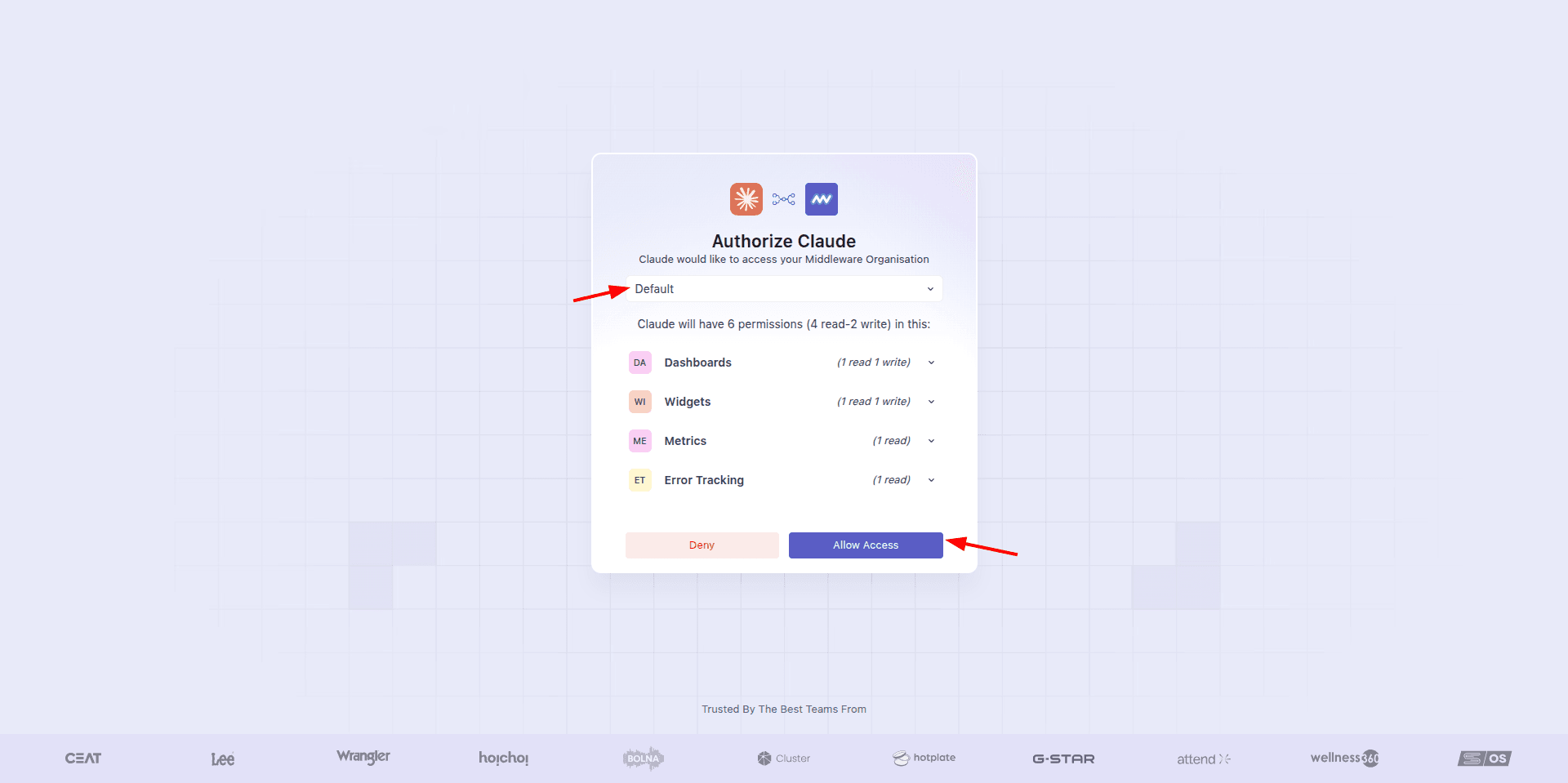
3 Select your project and approve#
On the authorization screen, select the project in your account that you want to connect, then approve the requested access.
4 Start using the tools#
Once you approve, the client connects and the Middleware tools appear in your assistant. Your sign-in is reused on future sessions, so you only do this once.
Once authorized, your AI assistant can access the available Middleware MCP tools.
The authenticated session is reused for future connections, so you generally don't need to sign in again.
Connect Middleware MCP Server#
Select your preferred AI assistant or IDE and follow the corresponding setup instructions.
Register the server with the CLI:
1claude mcp add --transport http middleware https://mcp.middleware.io/mcpThen run /mcp inside Claude Code, select middleware, and choose Authenticate. Your browser opens; sign in, select your project, and approve.
To configure it by hand, add this to ~/.claude.json (or a project .mcp.json):
1{
2  "mcpServers": {
3    "middleware": {
4      "type": "http",
5      "url": "https://mcp.middleware.io/mcp"
6    }
7  }
8}
Add Middleware as a custom connector:
- Go to Settings → Connectors.
- Click Add custom connector.
- Set the name to Middleware and the URL to
https://mcp.middleware.io/mcp, then click Add. - Click Connect, sign in, select your project, and approve.
Open a new chat, click the tools icon, and make sure the Middleware connector is enabled.
Custom connectors are available on Claude paid plans.
Add the server to ~/.cursor/mcp.json (all projects) or .cursor/mcp.json (one project):
1{
2  "mcpServers": {
3    "middleware": {
4      "url": "https://mcp.middleware.io/mcp"
5    }
6  }
7}
Open Cursor Settings → MCP & Integrations, click Needs login next to middleware, then sign in, select your project, and approve.
Add a .vscode/mcp.json file in your workspace, or run MCP: Add Server → HTTP from the Command Palette:
1{
2  "servers": {
3    "middleware": {
4      "type": "http",
5      "url": "https://mcp.middleware.io/mcp"
6    }
7  }
8}
Click Start above the server entry, sign in, select your project, and approve. Then open Copilot Chat in Agent mode and confirm the Middleware tools under the Tools button.
VS Code uses the servers key, not mcpServers.
Edit ~/.codeium/windsurf/mcp_config.json, or use Settings → Cascade → MCP Servers → Add custom server:
1{
2  "mcpServers": {
3    "middleware": {
4      "serverUrl": "https://mcp.middleware.io/mcp"
5    }
6  }
7}
In Settings → Cascade → MCP Servers, click Refresh, then sign in, select your project, and approve.
Open the MCP Store (... menu → Manage MCP Servers → Add custom server), or edit mcp_config.json:
1{
2  "mcpServers": {
3    "middleware": {
4      "serverUrl": "https://mcp.middleware.io/mcp"
5    }
6  }
7}
Refresh the server list, then sign in, select your project, and approve. If authorization fails, run Authentication: Remove Dynamic Authentication Providers and reconnect.
Register the server with the CLI:
1gemini mcp add --transport http middleware https://mcp.middleware.io/mcpOr add it to ~/.gemini/settings.json:
1{
2  "mcpServers": {
3    "middleware": {
4      "httpUrl": "https://mcp.middleware.io/mcp"
5    }
6  }
7}
Start Gemini CLI, run /mcp auth middleware, then sign in, select your project, and approve.
Register the server with the CLI:
1codex mcp add middleware --url https://mcp.middleware.io/mcpOr add it to ~/.codex/config.toml:
1[mcp_servers.middleware]
2url = "https://mcp.middleware.io/mcp"
Run codex mcp login middleware, then sign in, select your project, and approve.
Any client that supports remote MCP servers over HTTP with OAuth can connect. Use this configuration (field names vary by client):
1{
2  "mcpServers": {
3    "middleware": {
4      "type": "http",
5      "url": "https://mcp.middleware.io/mcp"
6    }
7  }
8}
On first connect, the client opens your browser to sign in. Select your project and approve. Common field-name variations: VS Code uses servers; Windsurf and Antigravity use serverUrl; Gemini CLI uses httpUrl.
Verify Your MCP Connection#
Once connected, open your AI assistant and ask a question about your Middleware data.
For example:
List all my dashboards in Middleware.What resource types are available in my Middleware account?Show me the errors from the last hour.
Your assistant will use the available Middleware MCP tools to retrieve the requested information.
If it returns the expected data, your MCP connection is working.
For the complete list of supported operations, see Middleware MCP Tools.
Restrict MCP Tool Access#
Middleware MCP Server allows you to restrict the tools available to a specific connection.
For example, if you want your AI assistant to access observability data without modifying dashboards or widgets, you can exclude write operations.
Add the exclude_tools query parameter to the MCP endpoint:
https://mcp.middleware.io/mcp?exclude_tools=create_dashboard,update_dashboard,delete_dashboard,clone_dashboard,set_dashboard_favorite,create_widget,update_widget,delete_widget,update_widget_layouts
This configuration removes the listed write tools from the MCP connection.
Excluded tools are hidden from the client and cannot be called.
You can customize the comma-separated list to restrict specific operations.
For the available tool names, Middleware MCP Tools.
Troubleshooting#
Browser Authentication Does Not Open#
If your client does not open the sign-in page:
- Verify that your client supports remote MCP servers with OAuth.
- Retry the authentication action.
- If your terminal displays an authentication URL, open it manually in your browser.
Incorrect Project Data#
If your assistant returns data from the wrong project or no data:
- Disconnect or sign out of the Middleware MCP connection.
- Reconnect the server.
- Select the correct Middleware project during authorization.
The MCP Server uses the project selected during authentication.
Middleware Tools Are Not Available#
If you cannot see Middleware tools in your AI assistant:
- Confirm that the MCP server is enabled.
- Verify the endpoint:
https://mcp.middleware.io/mcp - Ensure that your client is running in a mode that supports tools, such as Agent mode in Cursor or VS Code.
- Reconnect if required.
Write Operations Fail#
If your assistant cannot create or update dashboards or widgets:
- Check whether the required tool is excluded using
exclude_tools. - Verify that your Middleware account has permission to modify the selected project.
- Update the configuration and reconnect if needed.
Connection Timeout#
If the MCP connection drops or times out:
- Verify that your network allows outbound HTTPS connections to
mcp.middleware.ioandapp.middleware.io. - Check whether a proxy or network configuration is removing the
Authorizationheader. - Retry the connection.
If the issue continues, contact Middleware Support with your MCP client name, version, and error message.
Need assistance or want to learn more about Middleware? Get in touch with us via our Contact Us or join our Slack channel.
What did you think of this content?