Getting Started with Status Page
Middleware Status Page publishes the health and availability of your services on a public page that customers and stakeholders can check during normal operation or an incident.
The page brings service uptime, incident updates, and subscriber notifications together, giving customers one place to follow the status of your services.
You can connect services to Synthetic Monitoring tests for live uptime data or update their status through incidents.
Go to: Synthetic Monitoring → Status Page
How Status Pages Work#
A status page contains the services you want to expose publicly.
Middleware combines Synthetic Monitoring results and incident updates to determine the current health of those services and the overall status page.
A typical setup looks like:
Synthetic Monitor ↓ Service Status ↓ Status Page ↓ Customers / Subscribers
When an incident occurs, you can publish updates to the same page and notify subscribed users as the incident progresses.
Service Status#
Each service on the status page can have one of the following states:
| Status | Description |
|---|---|
| Operational | The service is healthy. |
| Degraded | The service is available, but its performance is impacted. |
| Downtime | The service is unavailable. |
When a service is connected to a Synthetic monitor, Middleware also uses recent uptime data from the last 10 minutes together with incident updates to determine its status.
Overall Page Status#
The overall status of the page is determined by the services added to it.
| Page Status | Description |
|---|---|
| UP | All services are operational. |
| DOWN | At least one service is degraded or experiencing downtime. |
Visitors see a corresponding status banner on the public page:
- All Systems Operational
- Some Systems Degraded
- Some Systems Experiencing Downtime
This gives visitors an immediate view of whether your services are operating normally.
Create a Status Page#
Go to: Synthetic Monitoring → Status Page → Create
The status page builder is organized into four tabs:
- Settings
- Services
- Subscribers
- Incidents
Start with Settings to configure the page. A live preview shows how the public status page will appear as you make changes.
Configure the Domain#
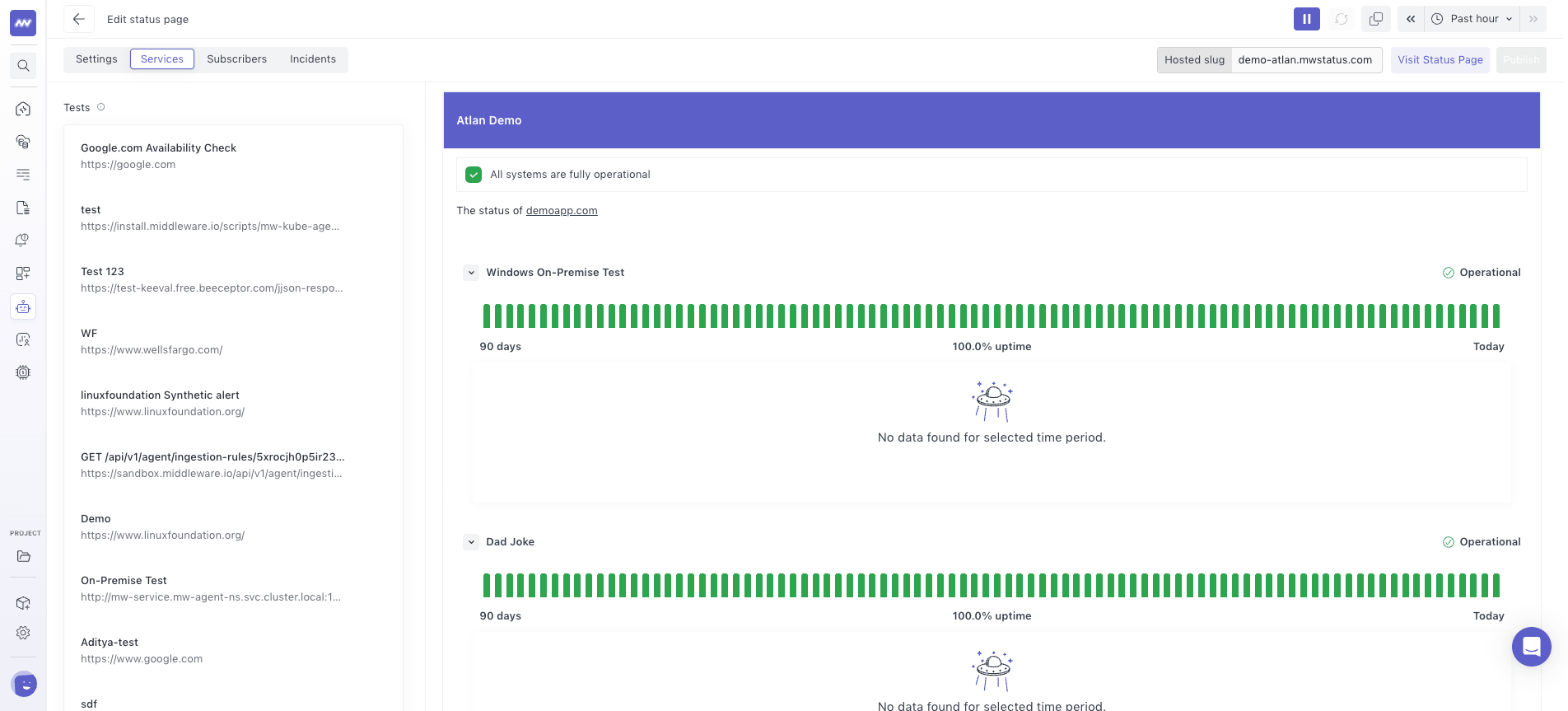
Choose how users will access your status page.
Middleware-Hosted Domain#
Enter a unique slug to publish the page on a Middleware-hosted subdomain.
For example: yourcompany.mwstatus.com
The slug can contain letters, numbers, and hyphens.
Custom Domain#
You can also publish the status page using your own domain, such as: status.yourcompany.com
Enter the custom domain and select Check to validate and register it.
You then need to create a CNAME record pointing to your account's Middleware-hosted domain.
Custom domains require active paid billing.
If both a hosted slug and custom domain are configured, the custom domain takes priority.
Configure Page Details#
Under Settings, provide the basic information displayed on your public status page.
Configure:
- Name: Name displayed in the status page header.
- Website URL: Link to your primary website.
- Description: Optional information about your application, services, or organization.
Use the preview to verify how this information appears before publishing.
Customize the Status Page#
Under Other Settings, customize the appearance and behavior of the public page.
Available settings include:
- Font: Choose from SF Pro Text, Roboto, or Segoe UI.
- Theme Color: Configure the accent color used on the page.
- Favicon: Upload a favicon for the status page.
- Company Logo: Upload your company logo.
- Hide Powered By: Remove Middleware branding from the footer. This requires a paid plan.
- Hide Response Time Chart: Hide Synthetic Monitoring response-time charts from the public page.
Favicon and company logo uploads support files up to 5 MB each.
Configure Status Page Notifications#
Under Notifications, configure how visitors can receive status updates.
Available options include:
- Subscribe to Status Page: Enables the Subscribe option on the public page.
- Email: Allows visitors to subscribe using their email address.
- Auto Refresh: Automatically refreshes status information on the public page.
Enable Auto Refresh when you want visitors to receive updated service and incident status without manually reloading the page.
Add Services#
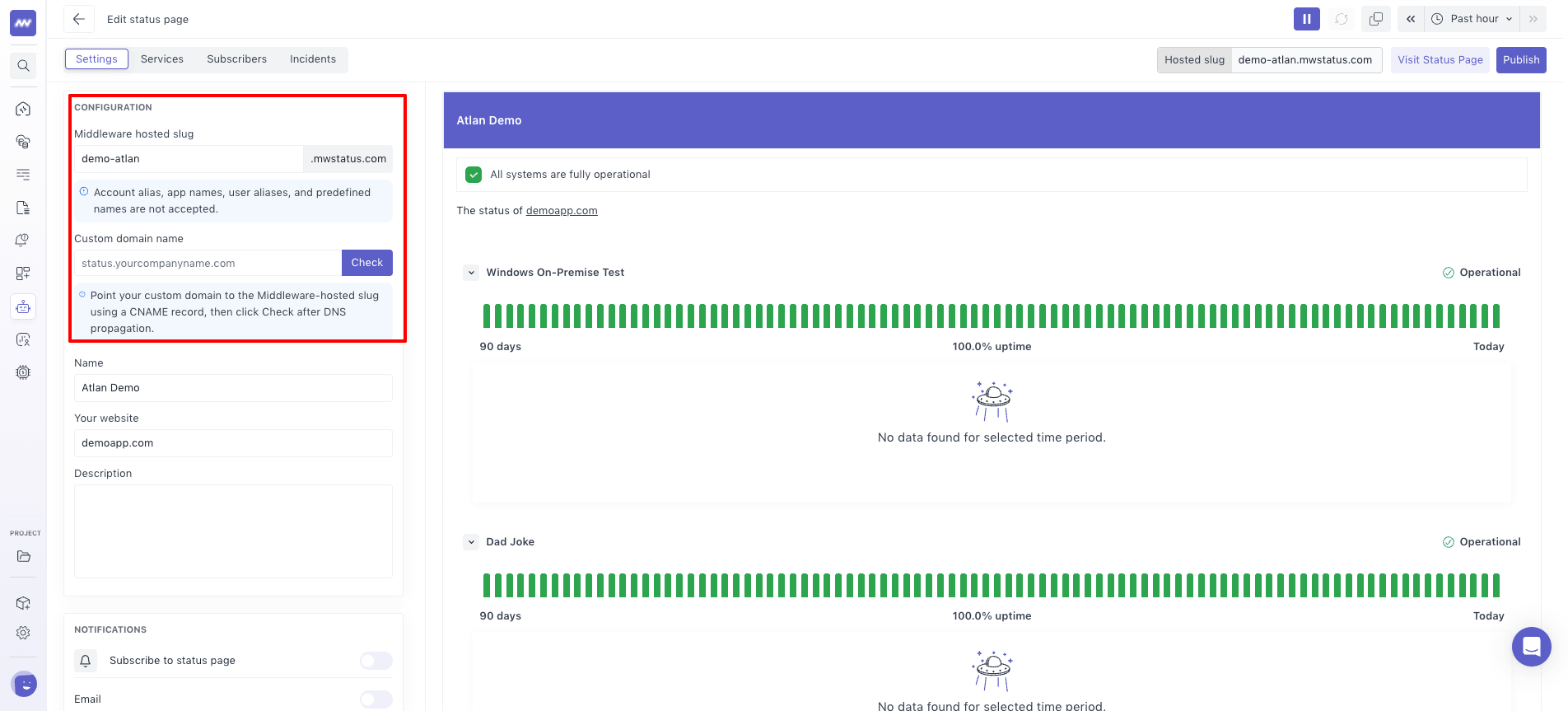
Open the Services tab to configure the components displayed on your public status page.
You can add services:
- Manually.
- From existing Synthetic Monitoring tests.
Connecting a service to a Synthetic monitor allows Middleware to use monitor results for uptime information and service health.
This also lets you display Synthetic Monitoring data on the public status page instead of relying only on manual incident updates.
Add Subscribers#
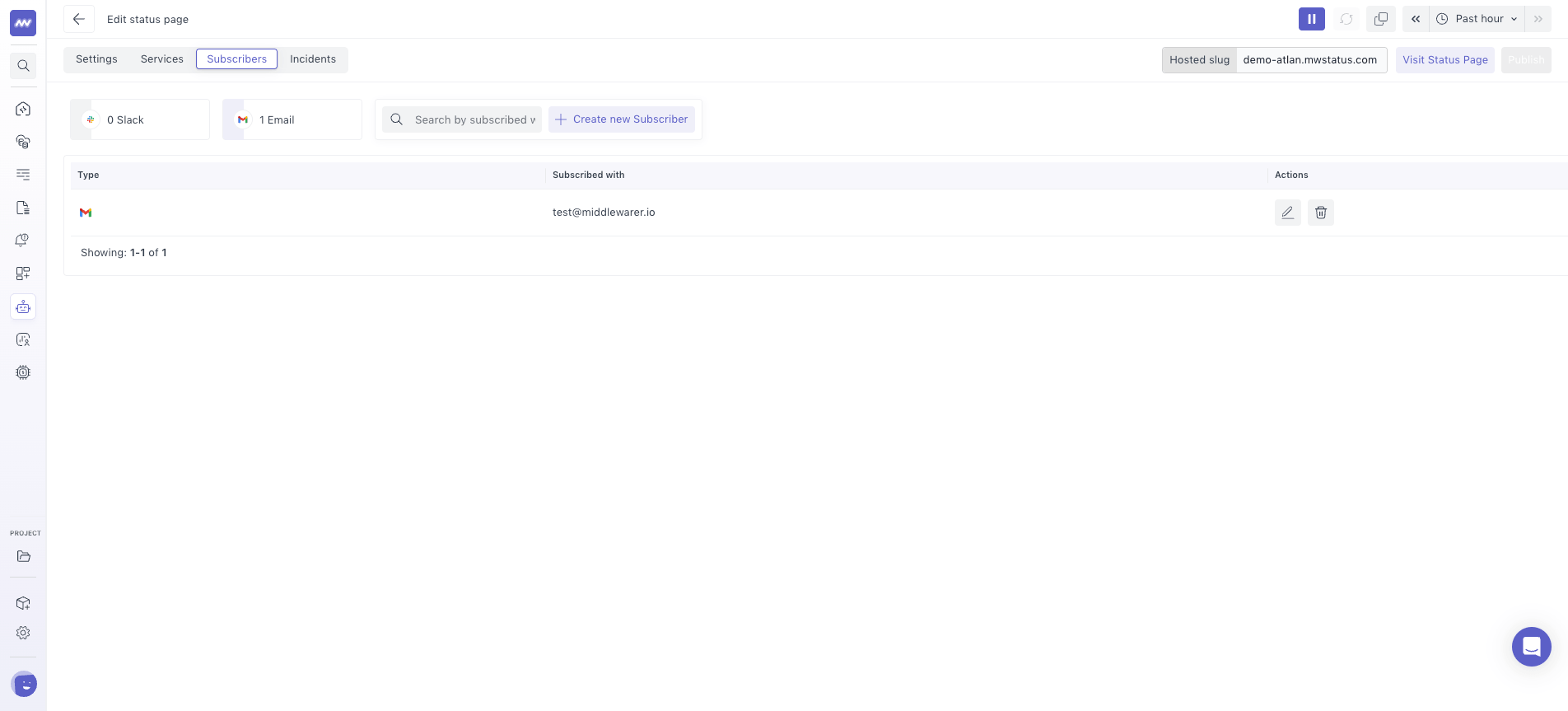
Open the Subscribers tab to manage users who should receive incident notifications.
Add email recipients who need to be notified when incidents are created or updated.
Subscribers can then receive updates as an incident progresses through its lifecycle.
Manage Incidents#
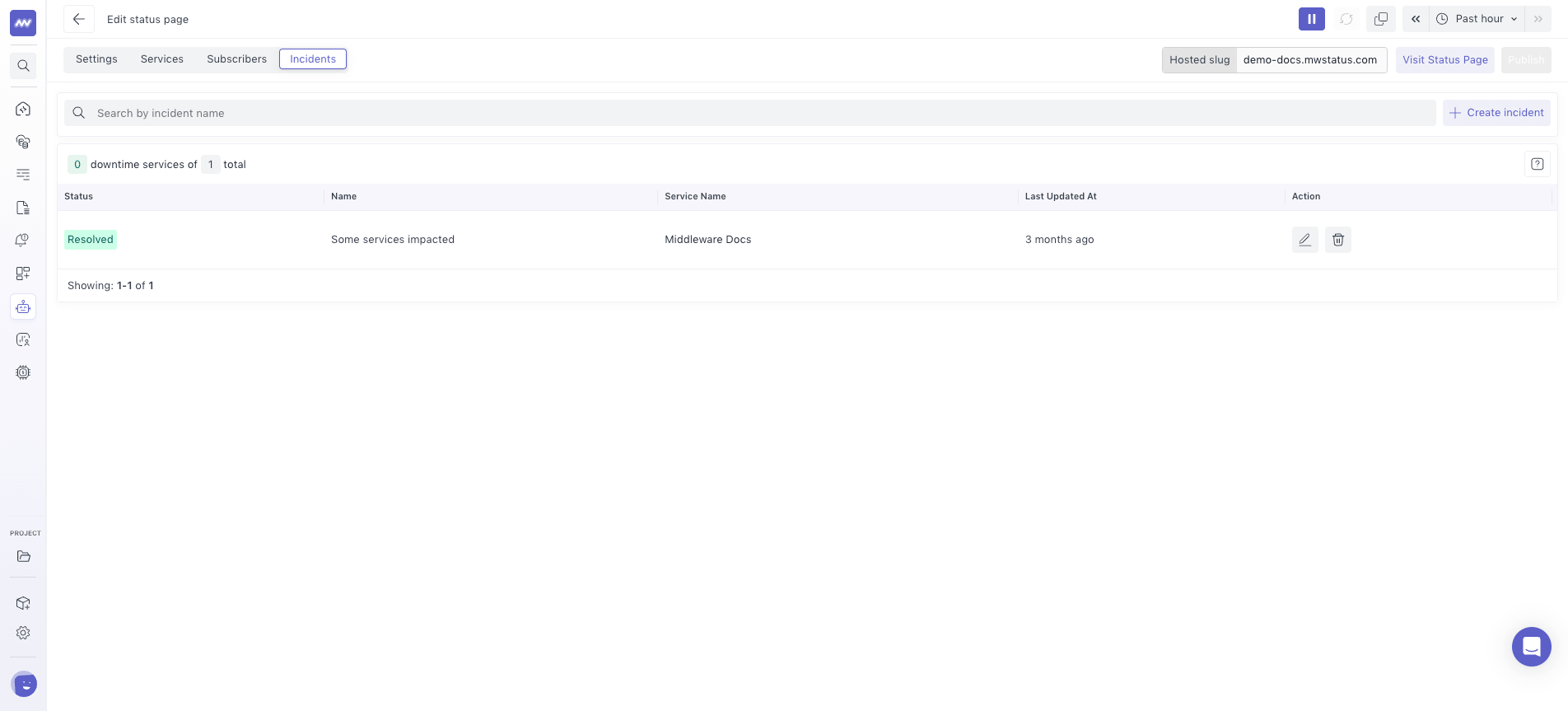
Open the Incidents tab to create and manage incidents associated with the status page.
Incidents let you communicate service disruptions and their progress to users.
When creating or updating an incident, you can provide information about:
- Affected services.
- Incident impact.
- Current incident status.
- Incident updates.
Updates are added to the public incident timeline so visitors can follow the progress of an ongoing issue.
When notifications are enabled, subscribers can also receive incident updates by email.
Read more here about creating and managing incidents.
Publish the Status Page#
After configuring your page, select Publish from the top-right corner.
Middleware validates the configured domain before publishing the page.
After the page is published, the configured domain appears in the status page builder as either:
- Hosted Slug
- Custom Domain
Select Visit Status Page to open the public page in a new tab.
Your users can now view service health, uptime information, and published incidents from the status page.
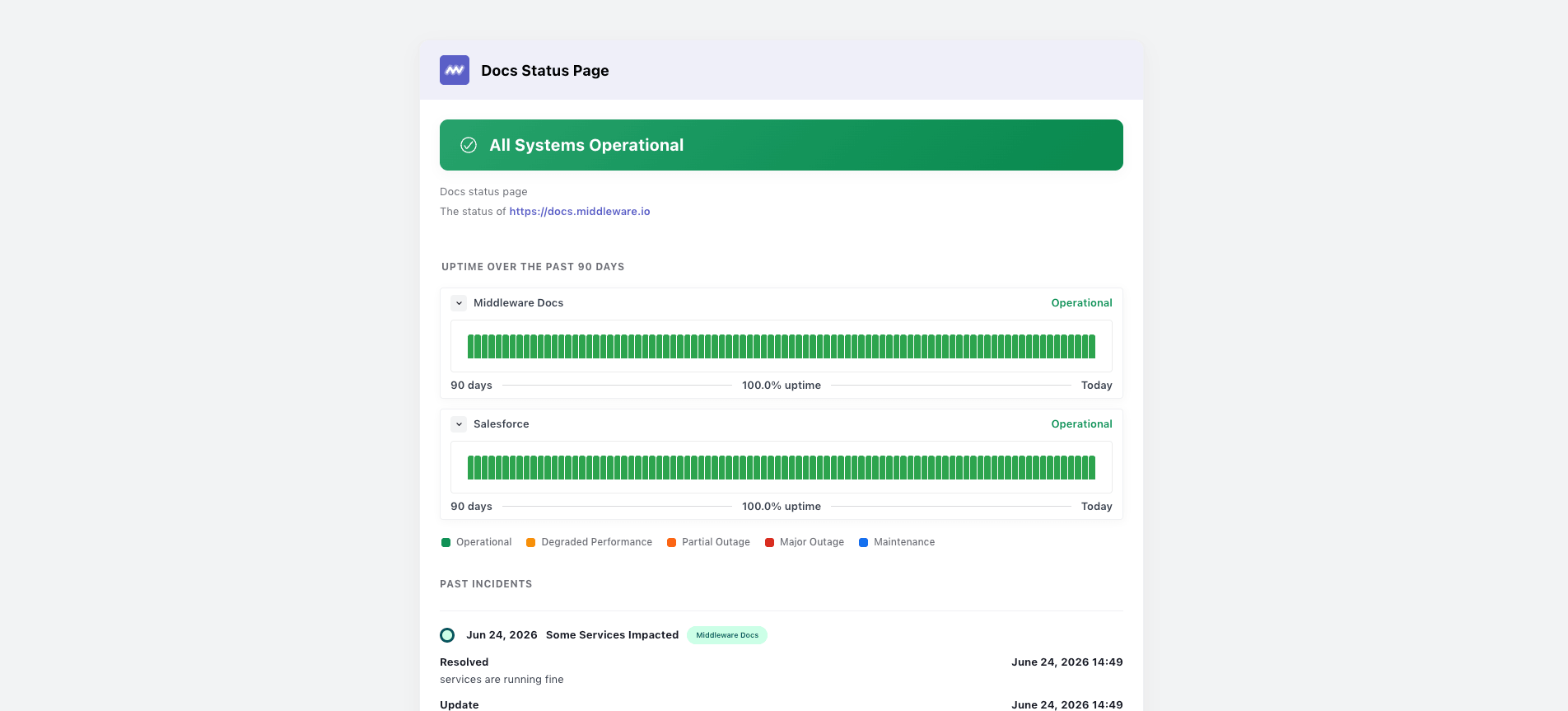
Synthetic monitors provide ongoing uptime data. Incident updates explain the impact of a disruption and the progress toward recovery. Both contribute to a useful public view of service health.
View Status Pages#
Go to: Synthetic Monitoring → Status Page
The list shows the status pages configured in your project.
For each page, you can view information such as:
- Page status
- Domain
- Last modified time
Use search and filters to find pages by status, service, or name.
Select a status page to update its configuration, services, subscribers, or incidents.
Embed a Status Badge#
You can embed the current status of your page into your website, application, or documentation.
Status badges are available in formats such as:
- Image
- iframe
- Markdown
The badge reflects the current state of the status page, giving users a quick way to check service health without opening the full page.
Need assistance or want to learn more about Middleware? Get in touch with us via our Contact Us or join our Slack channel.
What did you think of this content?