Install the Middleware Agent on Kubernetes
The Middleware Kubernetes Agent collects node, container, and cluster telemetry data to help you monitor cluster health and resource usage. The Helm installation also supports optional application auto-instrumentation for distributed tracing.
Use Kubernetes metrics and logs to investigate failed workloads, resource pressure, and changes in cluster health. Enable automatic application instrumentation for distributed tracing and OpsAI for issue investigation.
How it works#
The Middleware Helm chart deploys the following components:
- DaemonSet: Runs the Middleware Agent on each supported node to collect host, container, and kubelet metrics and logs.
- Deployment: Collects cluster-level telemetry and Kubernetes resource information.
- OpenTelemetry endpoints: Exposes OTLP/gRPC on port 9319 and OTLP/HTTP on port 9320 to receive application telemetry.
- RBAC: Provides the permissions required to access Kubernetes resource metadata.
We recommend to enable:
- Auto-instrumentation: Detects application languages and injects OpenTelemetry instrumentation into supported workloads without manual application code changes.
- OpsAI: Deploys the OpsAI component for Kubernetes issue investigation and recommendations.
Prerequisites#
Before installing the Middleware Kubernetes Agent, verify the following requirements:
| Requirement | Minimum version or configuration |
|---|---|
| Kubernetes | v1.21 or later |
| kubectl | v1.17 or later, configured for your target cluster |
| Helm | v3.5 or later |
| Alternative CLI tools | Bash, curl, and wget |
| Middleware | Account with API key and target URL |
Check Kubernetes version#
1kubectl versionCheck kubectl version#
1kubectl version --clientInstallation#
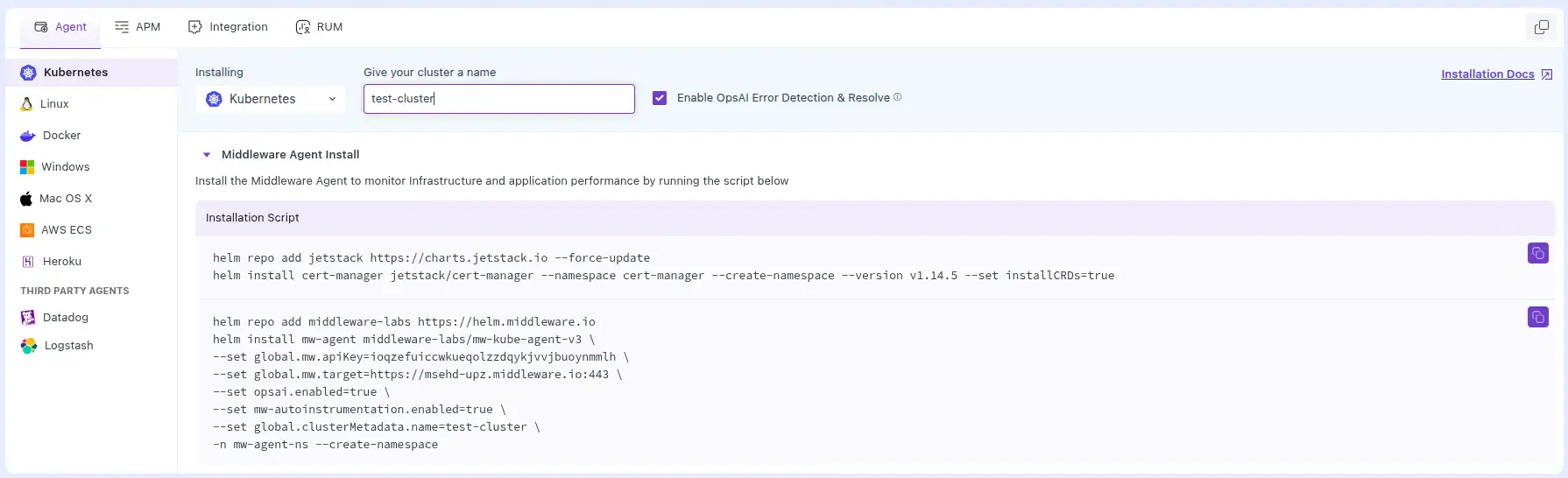
1 Open Kubernetes installation#
- Log in to your Middleware account.
- Go to Installation → Kubernetes.
- Select the Kubernetes distribution you want to monitor.
2 Identify the Kubernetes context#
Verify that your current Kubernetes context points to the cluster where you want to install the Agent.
1kubectl config current-contextIdentify the cluster name to use for global.clusterMetadata.name in the Helm configuration.
3 Install the Middleware Agent using Helm#
Copy the installation command from the Middleware UI. Your Middleware API key and target URL are automatically included.
If enabling auto-instrumentation, install cert-manager first to manage TLS certificates for the admission webhooks.
1helm repo add jetstack https://charts.jetstack.io --force-update
2
3helm install cert-manager jetstack/cert-manager \
4  --namespace cert-manager \
5  --create-namespace \
6  --version v1.14.5 \
7  --set installCRDs=true
Skip cert-manager installation if you are not enabling auto-instrumentation or have configured an alternative certificate management method.
Install the Middleware Kubernetes Agent:
1helm repo add middleware-labs https://helm.middleware.io
2
3helm install mw-agent middleware-labs/mw-kube-agent-v3 \
4  --set global.mw.apiKey=<MW_API_KEY> \
5  --set global.mw.target=https://<MW_UID>.middleware.io:443 \
6  --set opsai.enabled=true \
7  --set mw-autoinstrumentation.enabled=true \
8  --set global.clusterMetadata.name=<your-cluster-name> \
9  -n mw-agent-ns --create-namespace
Replace the placeholders with your Middleware account details and cluster name.
Required configuration#
| Helm value | Description |
|---|---|
global.mw.apiKey | Your Middleware API key |
global.mw.target | Your Middleware target URL |
global.clusterMetadata.name | Unique name used to identify the cluster in Middleware |
Optional configuration#
| Helm value | Default | Description |
|---|---|---|
opsai.enabled | false | Enables OpsAI for Kubernetes issue investigation |
mw-autoinstrumentation.enabled | false | Enables automatic instrumentation of supported applications |
The example installation command explicitly enables both optional features.
4 Verify the Agent installation#
After installation, check the status of the core Middleware Agent components.
1kubectl get daemonset mw-agent  -n mw-agent-ns
2kubectl get deployment mw-cluster-agent -n mw-agent-ns
3kubectl get deployment mw-kube-agent-config-updater -n mw-agent-ns
Verify that the DaemonSet has the expected number of ready pods and that the Deployments report their desired replicas as available.
If auto-instrumentation is enabled, verify the additional components:
1kubectl get deployment mw-agent-opentelemetry-operator -n mw-agent-ns
2kubectl get deployment mw-auto-injector -n mw-agent-ns
3kubectl get deployment mw-lang-aggregator -n mw-agent-ns
4kubectl get daemonset mw-lang-detector -n mw-agent-ns
If OpsAI is enabled, verify its Deployment:
1kubectl get deployment opsai -n mw-agent-ns5 Verify data collection#
After the Agent is running, allow a few minutes for Kubernetes telemetry to appear in Middleware.
Go to Infrastructure Monitoring → Kubernetes and verify that your cluster is reporting data.
You can:
- View cluster, node, namespace, pod, and container metrics.
- Inspect Kubernetes resource status and performance.
- View collected container logs in Log Monitoring.
- Monitor instrumented application services and traces in APM.
- Configure alerts for Kubernetes infrastructure metrics.
View detailed documentation on kubernetes data explorer here.
Advanced configuration#
Use a custom values.yaml file to override the default Helm chart settings.
This allows you to configure resource limits, tolerations, feature flags, and other cluster-specific options.
See the Middleware Helm chart values.yaml for the available configuration options.
Apply a custom values.yaml#
1helm install mw-agent middleware-labs/mw-kube-agent-v3 \
2  -f values.yaml \
3  -n mw-agent-ns --create-namespace
Ensure your custom values include the required Middleware credentials and cluster metadata.
Configure an existing Kubernetes Secret#
Instead of providing the API key directly in the Helm command, you can reference an existing Kubernetes Secret.
Add the following configuration to your values.yaml:
1mw:
2  target: https://<MW_UID>.middleware.io:443
3  apiKeyFromExistingSecret:
4    enabled: true
5    name: name-of-your-secret
6    key: name-of-your-secret-key
7
8clusterMetadata:
9  name: my-cluster
Replace the Secret name and key with the values configured in your cluster.
Upgrade the Agent#
Update the Middleware Helm repository to retrieve the latest chart versions.
1helm repo update middleware-labsUpgrade the existing Agent release while reusing its configuration:
1helm upgrade --reuse-values mw-agent middleware-labs/mw-kube-agent-v3 -n mw-agent-nsIf you manage the configuration through a values.yaml file, run:
1helm upgrade mw-agent middleware-labs/mw-kube-agent-v3 \
2  -f values.yaml \
3 -n mw-agent-nsNote: When upgrading across chart versions, review the latest values.yaml for newly introduced or changed configuration values. The --reuse-values option may not include new defaults.
To restart the configuration updater after changing its configuration:
1kubectl rollout restart deployment mw-kube-agent-config-updater -n mw-agent-nsApplication auto-instrumentation#
Enable Kubernetes auto-instrumentation to collect application traces without manually adding instrumentation code.
Middleware uses the OpenTelemetry Operator, a language detector, and admission webhooks to instrument supported workloads.
Set the following Helm value during installation:
1--set mw-autoinstrumentation.enabled=trueInstrumentation modes#
| Mode | Description |
|---|---|
auto (default) | Detects supported application workloads and allows instrumentation to be enabled through the Middleware UI |
manual | Uses workload annotations to control instrumentation without automatic language detection |
For manual instrumentation, set:
1--set mw-autoinstrumentation.mode=manualManual mode is the usual choice for k8s clusters where there’s no host access and language detection can’t work. It’s also the right call if you don’t want to run detection and can manage the annotations yourself, or if your fleet is so large that the cost of detection outweighs the benefit. And if you manage annotations through GitOps, manual mode is the natural fit, since the annotations live in Git and get applied like any other manifest
Enable instrumentation from the Middleware UI#
When using auto mode:
- Go to Installation → Kubernetes in Middleware.
- Review the detected Deployments, StatefulSets, and DaemonSets.
- Enable instrumentation for the workloads you want to monitor.
- Save the changes.
- Restart the selected workloads to apply instrumentation.
For a Deployment:
1kubectl rollout restart deployment/<deployment-name> -n <namespace>After the application restarts and receives requests, trace data appears under APM.
Additional instrumentation configuration#
For advanced use cases, retain the existing documentation and code examples for:
- Namespace and application detection scoping
- Manual annotation-based instrumentation
- Language-specific injection for Java, Node.js, Python, .NET, Go, Apache HTTPD, and Nginx
- Multi-container and multi-language workloads
- Custom OpenTelemetry resource attributes
- SDK-only injection
- Custom instrumentation images
- Instrumentation feature gates
These settings are useful when applications require explicit instrumentation configuration or cannot use automatic language detection.
Platform-specific configuration#
Some Kubernetes environments require additional configuration because of restrictions on node access, workload scheduling, or admission webhooks.
GKE Autopilot#
GKE Autopilot restricts access to host-level resources.
Use manual annotation-based instrumentation for applications. Automatic language detection and UI-driven instrumentation are not supported.
Configure the following Helm values:
1features:
2 enableHostMonitoring: false1providers:
2 gke:
3 autopilot: trueEKS Fargate#
EKS Fargate does not support DaemonSets or host volume mounts.
For Fargate workloads, Middleware provides alternative collection methods:
- Fluent Bit log routing for container logs
- AWS Distro for OpenTelemetry (ADOT) for container metrics
- Manual annotation-based application instrumentation
Retain the existing Fargate Helm configuration and setup instructions for enabling these components.
TLS certificate management#
When auto-instrumentation is enabled, admission webhooks require TLS certificates.
The recommended method is to use cert-manager.
If you are not using cert-manager, configure self-managed certificates with:
1--set mw-autoinstrumentation.webhook.certManager.enabled=false \
2--set mw-autoinstrumentation.opentelemetry-operator.admissionWebhooks.certManager.enabled=false
Without cert-manager, ensure certificates are regenerated or renewed when required.
Existing OpenTelemetry Operator CRDs#
If OpenTelemetry Operator CRDs already exist in the cluster, Helm installation may fail because of conflicting resource ownership.
Review the existing CRDs before installing the Middleware chart. If you need to retain them, you can disable CRD creation:
1--set mw-autoinstrumentation.opentelemetry-operator.crds.create=falseMake sure the existing CRD versions are compatible with the OpenTelemetry Operator deployed by Middleware.
Using GitOps? See Install Kubernetes Agent using Argo CD.
Uninstall#
Remove the Middleware Agent Helm release:
1helm uninstall mw-agent -n mw-agent-nsDelete the Agent namespace if it is no longer required:
1kubectl delete namespace mw-agent-nsDeleting the namespace also removes any remaining namespaced resources it contains. Review shared resources and separately managed components before removing them.
Troubleshooting#
If Kubernetes metrics or application traces do not appear after installation, check the following.
No Kubernetes data in Middleware#
- Verify that the Middleware Agent pods are running and ready.
- Check outbound connectivity to your Middleware target URL.
- Verify that the API key and cluster name are configured correctly.
- Ensure only one Middleware Agent DaemonSet is deployed for the same cluster.
Agent Deployment crashes or restarts#
If the mw-cluster-agent Deployment is repeatedly restarting or reports OOMKilled, check its CPU and memory limits.
Increase the resource requests or limits in values.yaml if the current allocation is insufficient for the cluster.
Agent pods are not scheduled on nodes#
Check whether node taints prevent the Middleware DaemonSet from being scheduled.
Add the required tolerations to your Helm configuration for the affected node pools.
Applications are not detected#
Check that:
- The application uses a supported runtime.
- The workload and containers are running.
- The namespace is included in application detection.
- The language detector is running.
Inspect the detector logs:
1kubectl logs daemonset/mw-lang-detector -n mw-agent-nsApplication traces are missing#
Verify that instrumentation is enabled for the workload and that the application pods were restarted.
Check the admission webhook logs:
1kubectl logs deploy/mw-auto-injector -n mw-agent-nsCheck the OpenTelemetry Operator logs:
1kubectl logs deploy/mw-agent-opentelemetry-operator -n mw-agent-nsAlso verify that instrumented workloads can reach the Middleware Agent OTLP endpoints on ports 9319 or 9320, according to the configured protocol.
For additional platform-specific troubleshooting, retain the existing guidance for GKE private clusters, admission webhook connectivity, and Kubernetes resource scheduling.
If the issue persists, contact Middleware Support with the Agent logs and relevant Helm configuration.
Detailed Debugging#
For detailed debugging commands, see the [MW K8S Agent Debugging Cheat Sheet]
Need assistance or want to learn more about Middleware? Get in touch with us via our Contact Us or join our Slack channel.
What did you think of this content?